

Ricerca file
L'API Gemini consente la Retrieval-Augmented Generation ("RAG") tramite lo strumento di ricerca file. File Search importa, suddivide e indicizza i tuoi dati per
consentire il recupero rapido di informazioni pertinenti in base a un prompt fornito. Queste
informazioni recuperate vengono quindi utilizzate come contesto per il modello, consentendogli di
fornire risposte più accurate e pertinenti. La ricerca di file è anche in grado di
fornire funzionalità multimodali con incorporamenti di testo supportati da
gemini-embedding-001 e incorporamenti di immagini/multimodali supportati da gemini-embedding-2.
L'archiviazione dei file e la generazione di incorporamenti al momento della query sono senza costi e pagherai solo per la creazione di incorporamenti quando indicizzi per la prima volta i tuoi file e per il normale costo dei token di input / output del modello Gemini. Questo nuovo paradigma di fatturazione rende lo strumento di ricerca dei file più semplice ed economico da creare e scalare. Per i dettagli, consulta la sezione Prezzi.
Caricare direttamente nello store di File Search
Questo esempio mostra come caricare direttamente un file nell'archivio di ricerca dei file:
Python
# This will only work for SDK newer than 2.0.0
from google import genai
from google.genai import types
import time

client = genai.Client()

# File name will be visible in citations
file_search_store = client.file_search_stores.create(
    config={
        'display_name': 'your-fileSearchStore-name',
        'embedding_model': 'models/gemini-embedding-2'
    }
)

operation = client.file_search_stores.upload_to_file_search_store(
  file='sample.txt',
  file_search_store_name=file_search_store.name,
  config={
      'display_name' : 'display-file-name',
  }
)

while not operation.done:
    time.sleep(5)
    operation = client.operations.get(operation)

interaction = client.interactions.create(
    model="gemini-3-flash-preview",
    input="Can you tell me about [insert question]",
    tools=[{
        "type": "file_search",
        "file_search_store_names": [file_search_store.name]
    }]
)

for step in interaction.steps:
    if step.type == "model_output":
        for content_block in step.content:
            if content_block.type == "text":
                print(content_block.text)
                if content_block.annotations:
                    print("\nSources:")
                    for annotation in content_block.annotations:
                        if annotation.type == "file_citation":
                            print(f"  - {annotation.file_name}: {annotation.source}")
JavaScript
// This will only work for SDK newer than 2.0.0
const { GoogleGenAI } = require('@google/genai');

const ai = new GoogleGenAI({});

async function run() {
  // File name will be visible in citations
  const fileSearchStore = await ai.fileSearchStores.create({
    config: {
      displayName: 'your-fileSearchStore-name',
      embeddingModel: 'models/gemini-embedding-2'
    }
  });

  let operation = await ai.fileSearchStores.uploadToFileSearchStore({
    file: 'file.txt',
    fileSearchStoreName: fileSearchStore.name,
    config: {
      displayName: 'file-name',
    }
  });

  while (!operation.done) {
    await new Promise(resolve => setTimeout(resolve, 5000));
    operation = await ai.operations.get({ operation });
  }

  const interaction = await ai.interactions.create({
    model: "gemini-3-flash-preview",
    input: "Can you tell me about [insert question]",
    tools: [{
      type: "file_search",
      file_search_store_names: [fileSearchStore.name]
    }]
  });

  for (const step of interaction.steps) {
    if (step.type === 'model_output') {
      for (const contentBlock of step.content) {
        if (contentBlock.type === 'text') {
          console.log(contentBlock.text);
          if (contentBlock.annotations) {
            console.log("\nSources:");
            for (const annotation of contentBlock.annotations) {
              if (annotation.type === 'file_citation') {
                console.log(`  - ${annotation.file_name}: ${annotation.source}`);
              }
            }
          }
        }
      }
    }
  }
}

run();
Per ulteriori informazioni, consulta il riferimento API per uploadToFileSearchStore.
Importazione di file
In alternativa, puoi caricare un file esistente e importarlo nell'archivio di ricerca dei file:
Python
# This will only work for SDK newer than 2.0.0
from google import genai
from google.genai import types
import time

client = genai.Client()

# File name will be visible in citations
sample_file = client.files.upload(file='sample.txt', config={'display_name': 'display_file_name'})

file_search_store = client.file_search_stores.create(
    config={
        'display_name': 'your-fileSearchStore-name',
        'embedding_model': 'models/gemini-embedding-2'
    }
)

operation = client.file_search_stores.import_file(
    file_search_store_name=file_search_store.name,
    file_name=sample_file.name
)

while not operation.done:
    time.sleep(5)
    operation = client.operations.get(operation)

interaction = client.interactions.create(
    model="gemini-3-flash-preview",
    input="Can you tell me about [insert question]",
    tools=[{
        "type": "file_search",
        "file_search_store_names": [file_search_store.name]
    }]
)

for step in interaction.steps:
    if step.type == "model_output":
        for content_block in step.content:
            if content_block.type == "text":
                print(content_block.text)
JavaScript
// This will only work for SDK newer than 2.0.0
const { GoogleGenAI } = require('@google/genai');

const ai = new GoogleGenAI({});

async function run() {
  // File name will be visible in citations
  const sampleFile = await ai.files.upload({
    file: 'sample.txt',
    config: { displayName: 'file-name' }
  });

  const fileSearchStore = await ai.fileSearchStores.create({
    config: {
      displayName: 'your-fileSearchStore-name',
      embeddingModel: 'models/gemini-embedding-2'
    }
  });

  let operation = await ai.fileSearchStores.importFile({
    fileSearchStoreName: fileSearchStore.name,
    fileName: sampleFile.name
  });

  while (!operation.done) {
    await new Promise(resolve => setTimeout(resolve, 5000));
    operation = await ai.operations.get({ operation: operation });
  }

  const interaction = await ai.interactions.create({
    model: "gemini-3-flash-preview",
    input: "Can you tell me about [insert question]",
    tools: [{
      type: "file_search",
      file_search_store_names: [fileSearchStore.name]
    }]
  });

  for (const step of interaction.steps) {
    if (step.type === 'model_output') {
      for (const contentBlock of step.content) {
        if (contentBlock.type === 'text') {
          console.log(contentBlock.text);
        }
      }
    }
  }
}

run();
Per saperne di più, consulta il riferimento API per importFile.
Configurazione della suddivisione in blocchi
Quando importi un file in un archivio di ricerca file, questo viene suddiviso automaticamente
in blocchi, incorporato, indicizzato e caricato nell'archivio di ricerca file. Se hai bisogno di un maggiore controllo sulla strategia di suddivisione, puoi specificare un'impostazione chunking_config per impostare un numero massimo di token per blocco e un numero massimo di token sovrapposti.
Python
# This will only work for SDK newer than 2.0.0
from google import genai
from google.genai import types
import time

client = genai.Client()

operation = client.file_search_stores.upload_to_file_search_store(
    file_search_store_name=file_search_store.name,
    file='sample.txt',
    config={
        'chunking_config': {
          'white_space_config': {
            'max_tokens_per_chunk': 200,
            'max_overlap_tokens': 20
          }
        }
    }
)

while not operation.done:
    time.sleep(5)
    operation = client.operations.get(operation)

print("Custom chunking complete.")
JavaScript
// This will only work for SDK newer than 2.0.0
const { GoogleGenAI } = require('@google/genai');

const ai = new GoogleGenAI({});

let operation = await ai.fileSearchStores.uploadToFileSearchStore({
  file: 'file.txt',
  fileSearchStoreName: fileSearchStore.name,
  config: {
    displayName: 'file-name',
    chunkingConfig: {
      whiteSpaceConfig: {
        maxTokensPerChunk: 200,
        maxOverlapTokens: 20
      }
    }
  }
});

while (!operation.done) {
  await new Promise(resolve => setTimeout(resolve, 5000));
  operation = await ai.operations.get({ operation });
}
console.log("Custom chunking complete.");
Per utilizzare il tuo datastore di ricerca file, passalo come strumento al metodo interactions.create, come mostrato negli esempi di caricamento e importazione.
Come funziona
La ricerca di file utilizza una tecnica chiamata ricerca semantica per trovare informazioni pertinenti al prompt dell'utente. A differenza della ricerca standard basata su parole chiave, la ricerca semantica comprende il significato e il contesto della query.
Quando importi un file, questo viene convertito in rappresentazioni numeriche chiamate embedding, che acquisiscono il significato semantico dei contenuti caricati. Questi embedding vengono archiviati in un database di ricerca di file specializzato. Quando esegui una query, viene convertita anche in un embedding. Il sistema esegue quindi una ricerca di file per trovare i blocchi di documenti più simili e pertinenti nell'archivio della ricerca di file.
Non esiste un Time To Live (TTL) per gli incorporamenti; rimangono visibili finché non vengono eliminati manualmente o quando il modello viene ritirato. I file, tuttavia, vengono eliminati dopo 48 ore.
Di seguito è riportata una suddivisione della procedura per l'utilizzo dell'API File Search
uploadToFileSearchStore:
Crea un datastore di ricerca file: un datastore di ricerca file contiene i dati elaborati dai tuoi file. È il contenitore persistente per gli embedding su cui opererà la ricerca semantica.
Caricare un file e importarlo in un archivio di ricerca file: carica contemporaneamente un file e importa i risultati nell'archivio di ricerca file. Viene creato un oggetto
Filetemporaneo, che è un riferimento al documento non elaborato. Questi dati vengono poi suddivisi in blocchi, convertiti in embedding di File Search e indicizzati. L'oggettoFileviene eliminato dopo 48 ore, mentre i dati importati nell'archivio di Ricerca file verranno archiviati a tempo indeterminato finché non decidi di eliminarli.Query con la ricerca di file: infine, utilizzi lo strumento
FileSearchin una chiamatagenerateContent. Nella configurazione dello strumento, specifichi unFileSearchRetrievalResource, che punta alFileSearchStoreche vuoi cercare. In questo modo, il modello esegue una ricerca semantica in quell'archivio specifico di ricerca di file per trovare informazioni pertinenti su cui basare la risposta.
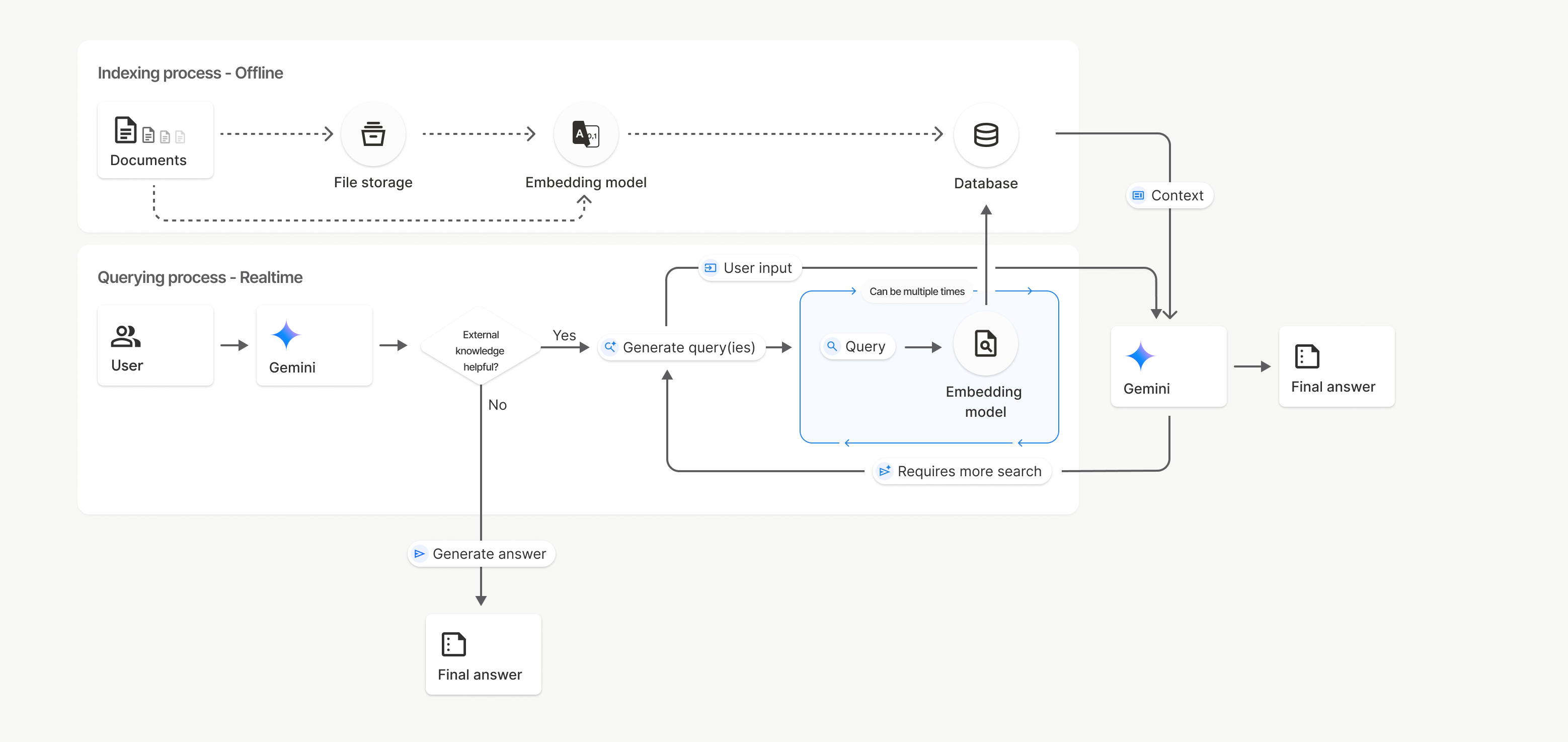
In questo diagramma, la linea tratteggiata da Documenti a Modello di incorporamento
(utilizzando gemini-embedding-001)
rappresenta l'API uploadToFileSearchStore (ignorando Archiviazione file).
In caso contrario, l'utilizzo dell'API Files per creare
e poi importare separatamente i file sposta il processo di indicizzazione da Documenti a
Spazio di archiviazione file e poi a Modello di incorporamento.
Negozi di ricerca file
Un archivio di ricerca file è un contenitore per gli incorporamenti dei documenti. Mentre i file non elaborati
caricati tramite l'API File vengono eliminati dopo 48 ore, i dati importati in
un archivio di ricerca file vengono archiviati a tempo indeterminato finché non li elimini manualmente. Puoi
creare più archivi di ricerca file per organizzare i tuoi documenti. L'API
FileSearchStore ti consente di creare, elencare, ottenere ed eliminare per gestire i tuoi archivi di ricerca
di file. I nomi degli store di Ricerca file hanno ambito globale.
Ecco alcuni esempi di come gestire i negozi di Ricerca file:
Python
# This will only work for SDK newer than 2.0.0
file_search_store = client.file_search_stores.create(
    config={
        'display_name': 'my-file_search-store-123',
        'embedding_model': 'models/gemini-embedding-2'
    }
)

for file_search_store in client.file_search_stores.list():
    print(file_search_store)

my_file_search_store = client.file_search_stores.get(name='fileSearchStores/my-file_search-store-123')

client.file_search_stores.delete(name='fileSearchStores/my-file_search-store-123', config={'force': True})
JavaScript
// This will only work for SDK newer than 2.0.0
const fileSearchStore = await ai.fileSearchStores.create({
  config: {
    displayName: 'my-file_search-store-123',
    embeddingModel: 'models/gemini-embedding-2'
  }
});

const fileSearchStores = await ai.fileSearchStores.list();
for await (const store of fileSearchStores) {
  console.log(store);
}

const myFileSearchStore = await ai.fileSearchStores.get({
  name: 'fileSearchStores/my-file_search-store-123'
});

await ai.fileSearchStores.delete({
  name: 'fileSearchStores/my-file_search-store-123',
  config: { force: true }
});
REST
curl -X POST "https://generativelanguage.googleapis.com/v1beta/fileSearchStores?key=${GEMINI_API_KEY}" \
    -H "Content-Type: application/json" \
    -d '{ "displayName": "My Store", "embedding_model": "models/gemini-embedding-2" }'

curl "https://generativelanguage.googleapis.com/v1beta/fileSearchStores?key=${GEMINI_API_KEY}" \

curl "https://generativelanguage.googleapis.com/v1beta/fileSearchStores/my-file_search-store-123?key=${GEMINI_API_KEY}"

curl -X DELETE "https://generativelanguage.googleapis.com/v1beta/fileSearchStores/my-file_search-store-123?key=${GEMINI_API_KEY}"
Documenti di ricerca file
Puoi gestire i singoli documenti nei tuoi archivi di file con l'API
File Search Documents per list ogni documento
in un archivio di ricerca di file, get informazioni su un documento e delete un
documento per nome.
Python
# This will only work for SDK newer than 2.0.0
for document_in_store in client.file_search_stores.documents.list(parent='fileSearchStores/my-file_search-store-123'):
  print(document_in_store)

file_search_document = client.file_search_stores.documents.get(name='fileSearchStores/my-file_search-store-123/documents/my_doc')
print(file_search_document)

client.file_search_stores.documents.delete(name='fileSearchStores/my-file_search-store-123/documents/my_doc', config={'force': True})
JavaScript
// This will only work for SDK newer than 2.0.0
const documents = await ai.fileSearchStores.documents.list({
  parent: 'fileSearchStores/my-file_search-store-123'
});
for await (const doc of documents) {
  console.log(doc);
}

const fileSearchDocument = await ai.fileSearchStores.documents.get({
  name: 'fileSearchStores/my-file_search-store-123/documents/my_doc'
});

await ai.fileSearchStores.documents.delete({
  name: 'fileSearchStores/my-file_search-store-123/documents/my_doc'
});
REST
curl "https://generativelanguage.googleapis.com/v1beta/fileSearchStores/my-file_search-store-123/documents?key=${GEMINI_API_KEY}"

curl "https://generativelanguage.googleapis.com/v1beta/fileSearchStores/my-file_search-store-123/documents/my_doc?key=${GEMINI_API_KEY}"

curl -X DELETE "https://generativelanguage.googleapis.com/v1beta/fileSearchStores/my-file_search-store-123/documents/my_doc?key=${GEMINI_API_KEY}&force=true"
File di metadati
Puoi aggiungere metadati personalizzati ai tuoi file per filtrarli o fornire un contesto aggiuntivo. I metadati sono un insieme di coppie chiave-valore.
Python
# This will only work for SDK newer than 2.0.0
op = client.file_search_stores.import_file(
    file_search_store_name=file_search_store.name,
    file_name=sample_file.name,
    config={
        'custom_metadata': [
            {"key": "author", "string_value": "Robert Graves"},
            {"key": "year", "numeric_value": 1934}
        ]
    }
)
JavaScript
// This will only work for SDK newer than 2.0.0
let operation = await ai.fileSearchStores.importFile({
  fileSearchStoreName: fileSearchStore.name,
  fileName: sampleFile.name,
  config: {
    customMetadata: [
      { key: "author", stringValue: "Robert Graves" },
      { key: "year", numericValue: 1934 }
    ]
  }
});
È utile quando hai più documenti in un archivio di ricerca file e vuoi cercare solo un sottoinsieme.
Python
# This will only work for SDK newer than 2.0.0
interaction = client.interactions.create(
    model="gemini-3-flash-preview",
    input="Tell me about the book 'I, Claudius'",
    tools=[{
        "type": "file_search",
        "file_search_store_names": [file_search_store.name],
        "metadata_filter": 'author="Robert Graves"',
    }]
)

for step in interaction.steps:
    if step.type == "model_output":
        for content_block in step.content:
            if content_block.type == "text":
                print(content_block.text)
JavaScript
// This will only work for SDK newer than 2.0.0
const interaction = await ai.interactions.create({
  model: "gemini-3-flash-preview",
  input: "Tell me about the book 'I, Claudius'",
  tools: [{
    type: "file_search",
    file_search_store_names: [fileSearchStore.name],
    metadata_filter: 'author="Robert Graves"',
  }]
});

for (const step of interaction.steps) {
  if (step.type === 'model_output') {
    for (const contentBlock of step.content) {
      if (contentBlock.type === 'text') {
        console.log(contentBlock.text);
      }
    }
  }
}
REST
# Specifies the API revision to avoid breaking changes when they become default
curl "https://generativelanguage.googleapis.com/v1beta/interactions" \
    -H "x-goog-api-key: $GEMINI_API_KEY" \
    -H 'Content-Type: application/json' \
    -H "Api-Revision: 2026-05-20" \
    -X POST \
    -d '{
            "model": "gemini-3-flash-preview",
            "input": [{"type": "text", "text": "Tell me about the book I, Claudius"}],
            "tools": [{
                "type": "file_search",
                "file_search_store_names": ["'$STORE_NAME'"],
                "metadata_filter": "author = \"Robert Graves\""
            }]
        }' 2> /dev/null > response.json

cat response.json
Le indicazioni per l'implementazione della sintassi del filtro elenco per metadata_filter sono disponibili
all'indirizzo google.aip.dev/160
Ricerca multimodale di file
La ricerca file multimodale consente di incorporare e cercare in modo nativo le immagini, consentendo applicazioni RAG multimodali avanzate.
Configura il modello di embedding
Quando crei un FileSearchStore, devi sostituire il modello di incorporamento
solo testuale predefinito per utilizzare un modello multimodale. Utilizza models/gemini-embedding-2 per
elaborare sia testo che immagini.
Python
store = client.file_search_stores.create(
    config={
        "display_name": "Multimodal Catalog",
        "embedding_model": "models/gemini-embedding-2",
    }
)
JavaScript
const fileSearchStore = await ai.fileSearchStores.create({
  config: {
    displayName: "Multimodal Catalog",
    embeddingModel: "models/gemini-embedding-2",
  },
});
REST
curl -X POST "https://generativelanguage.googleapis.com/v1beta/fileSearchStores?key=$GEMINI_API_KEY" \
    -H "Content-Type: application/json" \
    -d '{
      "display_name": "Multimodal Catalog",
      "embedding_model": "models/gemini-embedding-2"
    }'
Carica immagini
Dopo aver creato l'archivio con un modello di incorporamento multimodale, puoi caricare i file immagine direttamente utilizzando le stesse API di caricamento descritte in Caricamento diretto nell'archivio di ricerca file o Importazione di file.
Requisiti dei file immagine:
- I file immagine devono avere una risoluzione massima di 4000 x 4000 pixel.
- I formati supportati sono PNG e JPEG.
Citazioni
Quando utilizzi la ricerca di file, la risposta del modello potrebbe includere citazioni che specificano quali parti dei documenti caricati sono state utilizzate per generare la risposta. Ciò favorisce la verifica dei fatti.
Puoi accedere alle informazioni sulle citazioni tramite l'attributo annotations all'interno dei blocchi content della risposta del passaggio model_output.
Python
# This will only work for SDK newer than 2.0.0
for step in interaction.steps:
    if step.type == 'model_output':
        for content in step.content:
            if content.type == 'text' and content.annotations:
                print(content.annotations)
JavaScript
// This will only work for SDK newer than 2.0.0
for (const step of interaction.steps) {
  if (step.type === 'model_output') {
    for (const contentBlock of step.content) {
      if (contentBlock.type === 'text' && contentBlock.annotations) {
        console.log(JSON.stringify(contentBlock.annotations, null, 2));
      }
    }
  }
}
Per informazioni dettagliate sulla struttura delle citazioni, consulta il Riferimento API per le interazioni.
Numeri di pagina
Quando utilizzi la ricerca file con documenti che hanno pagine (come i PDF), la
risposta del modello potrebbe includere il numero di pagina in cui sono state trovate le informazioni.
Puoi accedere a queste informazioni tramite l'attributo page_number di un'annotazione file_citation.
Python
# Iterate through citations and check for page numbers
for step in interaction.steps:
    if step.type == "model_output":
        for content in step.content:
            if content.type == "text" and content.annotations:
                for annotation in content.annotations:
                    if annotation.type == "file_citation" and annotation.page_number:
                        print(f"Cited Page: {annotation.page_number}")
JavaScript
for (const step of interaction.steps) {
  if (step.type === 'model_output') {
    for (const block of step.content) {
      if (block.type === 'text' && block.annotations) {
        for (const annotation of block.annotations) {
          if (annotation.type === 'file_citation' && annotation.pageNumber) {
            console.log(`Cited Page: ${annotation.pageNumber}`);
          }
        }
      }
    }
  }
}
Citazioni di contenuti multimediali
Quando il modello fa riferimento a un blocco di immagini durante la generazione, l'API restituisce un'annotazione di tipo file_citation nelle annotazioni che include un media_id. Puoi utilizzare questo ID per scaricare il blocco di immagini esatto a cui fa riferimento il modello. Questo media_id è
persistente in più chiamate di ricerca, il che ti consente di recuperare in modo affidabile
la stessa immagine o memorizzarla nella cache utilizzando l'ID.
Il seguente snippet è un esempio di passaggio di risposta REST:
{
  "type": "model_output",
  "content": [
    {
      "type": "text",
      "text": "...",
      "annotations": [
        {
          "type": "file_citation",
          "file_name": "product_image",
          "media_id": "fileSearchStores/my-store-123/media/BlobId-456"
        }
      ]
    }
  ]
}
I seguenti snippet di codice mostrano come recuperare media_id e
scaricare i contenuti multimediali:
Python
# Iterate through citations and download media if present
for step in interaction.steps:
    if step.type == "model_output":
        for content in step.content:
            if content.type == "text" and content.annotations:
                for annotation in content.annotations:
                    if annotation.type == "file_citation" and annotation.media_id:
                        print(f"Cited Media ID: {annotation.media_id}")
                        # Download the blob using the SDK
                        blob_content = client.file_search_stores.download_media(
                            media_id=annotation.media_id
                        )
                        # Save blob_content to file...
JavaScript
for (const step of interaction.steps) {
  if (step.type === 'model_output') {
    for (const block of step.content) {
      if (block.type === 'text' && block.annotations) {
        for (const annotation of block.annotations) {
          if (annotation.type === 'file_citation' && annotation.mediaId) {
            console.log(`Cited Media ID: ${annotation.mediaId}`);
            const blobContent = await ai.fileSearchStores.downloadMedia(annotation.mediaId);
            // Save blobContent to file...
          }
        }
      }
    }
  }
}
REST
curl -X GET "https://generativelanguage.googleapis.com/v1/fileSearchStores/my-store-123/media/BlobId-456" \
  -H "x-goog-api-key: $GEMINI_API_KEY"
Metadati personalizzati
Se hai aggiunto metadati personalizzati ai tuoi file, puoi accedervi nelle annotazioni della risposta del modello. Questo è utile per passare
ulteriore contesto (come URL, numeri di pagina o autori) dai documenti di origine
alla logica dell'applicazione. Ogni annotazione di citazione di tipo file_citation
contiene questi metadati personalizzati.
Python
# This will only work for SDK newer than 2.0.0
interaction = client.interactions.create(
    model="gemini-3-flash-preview",
    input="Tell me about [insert question]",
    tools=[{
        "type": "file_search",
        "file_search_store_names": [file_search_store.name]
    }]
)

for step in interaction.steps:
    if step.type == "model_output":
        for content_block in step.content:
            if content_block.annotations:
                for annotation in content_block.annotations:
                    print(annotation)
JavaScript
  // This will only work for SDK newer than 2.0.0
  const interaction = await ai.interactions.create({
    model: "gemini-3-flash-preview",
    input: "Tell me about [insert question]",
    tools: [{
      type: "file_search",
      file_search_store_names: [fileSearchStore.name]
    }]
  });

  for (const step of interaction.steps) {
    if (step.type === 'model_output') {
      for (const contentBlock of step.content) {
        if (contentBlock.annotations) {
          contentBlock.annotations.forEach((annotation) => {
            console.log(annotation);
          });
        }
      }
    }
  }
REST
{
  "steps": [
    {
      "type": "model_output",
      "content": [
        {
          "type": "text",
          "text": "...",
          "annotations": [
            {
              "file_name": "...",
              "source": "...",
              "custom_metadata": [
                {
                  "key": "author",
                  "string_value": "Robert Graves"
                },
                {
                  "key": "year",
                  "numeric_value": 1934
                }
              ]
            }
          ]
        }
      ]
    }
  ]
}
Output strutturato
A partire dai modelli Gemini 3, puoi combinare lo strumento di ricerca dei file con output strutturati.
Python
# This will only work for SDK newer than 2.0.0
from pydantic import BaseModel, Field

class Money(BaseModel):
    amount: str = Field(description="The numerical part of the amount.")
    currency: str = Field(description="The currency of amount.")

interaction = client.interactions.create(
    model="gemini-3-flash-preview",
    input="What is the minimum hourly wage in Tokyo right now?",
    tools=[{
        "type": "file_search",
        "file_search_store_names": [file_search_store.name]
    }],
    response_format={
        "type": "text",
        "mime_type": "application/json",
        "schema": Money.model_json_schema()
    },
)
result = Money.model_validate_json(interaction.steps[-1].content[0].text)
print(result)
JavaScript
// This will only work for SDK newer than 2.0.0
import { z } from "zod";

const moneyJsonSchema = {
  type: "object",
  properties: {
    amount: { type: "string", description: "The numerical part of the amount." },
    currency: { type: "string", description: "The currency of amount." }
  },
  required: ["amount", "currency"]
};

const moneySchema = z.fromJSONSchema(moneyJsonSchema);

async function run() {
  const interaction = await ai.interactions.create({
    model: "gemini-3-flash-preview",
    input: "What is the minimum hourly wage in Tokyo right now?",
    tools: [{
      type: "file_search",
      file_search_store_names: [fileSearchStore.name],
    }],
    response_format: {
      type: 'text',
      mime_type: 'application/json',
      schema: moneyJsonSchema
    },
  });

  const result = moneySchema.parse(JSON.parse(interaction.steps.at(-1).content[0].text));
  console.log(result);
}

run();
REST
# Specifies the API revision to avoid breaking changes when they become default
curl "https://generativelanguage.googleapis.com/v1beta/interactions" \
  -H "x-goog-api-key: $GEMINI_API_KEY" \
  -H 'Content-Type: application/json' \
  -H "Api-Revision: 2026-05-20" \
  -X POST \
  -d '{
    "model": "gemini-3-flash-preview",
    "input": "What is the minimum hourly wage in Tokyo right now?",
    "tools": [{
      "type": "file_search",
      "file_search_store_names": ["$FILE_SEARCH_STORE_NAME"]
    }],
    "response_format": {
      "type": "text",
      "mime_type": "application/json",
      "schema": {
        "type": "object",
        "properties": {
          "amount": {"type": "string", "description": "The numerical part of the amount."},
          "currency": {"type": "string", "description": "The currency of amount."}
        },
        "required": ["amount", "currency"]
      }
    }
  }'
Modelli supportati
I seguenti modelli supportano la ricerca di file:
| Modello | Ricerca file |
|---|---|
| Anteprima di Gemini 3.1 Pro | ✔️ |
| Gemini 3.1 Flash-Lite | ✔️ |
| Gemini 3.1 Flash-Lite (anteprima) | ✔️ |
| Gemini 3 Flash (anteprima) | ✔️ |
| Gemini 2.5 Pro | ✔️ |
| Gemini 2.5 Flash-Lite | ✔️ |
Combinazioni di strumenti supportate
I modelli Gemini 3 supportano la combinazione di strumenti integrati (come la ricerca di file) con strumenti personalizzati (chiamata di funzione). Scopri di più nella pagina Combinazioni di strumenti.
Tipi di file supportati
La ricerca di file supporta un'ampia gamma di formati di file, elencati nelle sezioni seguenti.
Tipi di file dell'applicazione
application/dartapplication/ecmascriptapplication/jsonapplication/ms-javaapplication/mswordapplication/pdfapplication/sqlapplication/typescriptapplication/vnd.curlapplication/vnd.dartapplication/vnd.ibm.secure-containerapplication/vnd.jupyterapplication/vnd.ms-excelapplication/vnd.oasis.opendocument.textapplication/vnd.openxmlformats-officedocument.presentationml.presentationapplication/vnd.openxmlformats-officedocument.spreadsheetml.sheetapplication/vnd.openxmlformats-officedocument.wordprocessingml.documentapplication/vnd.openxmlformats-officedocument.wordprocessingml.templateapplication/x-cshapplication/x-hwpapplication/x-hwp-v5application/x-latexapplication/x-phpapplication/x-powershellapplication/x-shapplication/x-shellscriptapplication/x-texapplication/x-zshapplication/xmlapplication/zip
Tipi di file di testo
text/1d-interleaved-parityfectext/REDtext/SGMLtext/cache-manifesttext/calendartext/cqltext/cql-extensiontext/cql-identifiertext/csstext/csvtext/csv-schematext/dnstext/encaprtptext/enrichedtext/exampletext/fhirpathtext/flexfectext/fwdredtext/gff3text/grammar-ref-listtext/hl7v2text/htmltext/javascripttext/jcr-cndtext/jsxtext/markdowntext/mizartext/n3text/parameterstext/parityfectext/phptext/plaintext/provenance-notationtext/prs.fallenstein.rsttext/prs.lines.tagtext/prs.prop.logictext/raptorfectext/rfc822-headerstext/rtftext/rtp-enc-aescm128text/rtploopbacktext/rtxtext/sgmltext/shaclctext/shextext/spdxtext/stringstext/t140text/tab-separated-valuestext/texmacstext/trofftext/tsvtext/tsxtext/turtletext/ulpfectext/uri-listtext/vcardtext/vnd.DMClientScripttext/vnd.IPTC.NITFtext/vnd.IPTC.NewsMLtext/vnd.atext/vnd.abctext/vnd.ascii-arttext/vnd.curltext/vnd.debian.copyrighttext/vnd.dvb.subtitletext/vnd.esmertec.theme-descriptortext/vnd.exchangeabletext/vnd.familysearch.gedcomtext/vnd.ficlab.flttext/vnd.flytext/vnd.fmi.flexstortext/vnd.gmltext/vnd.graphviztext/vnd.hanstext/vnd.hgltext/vnd.in3d.3dmltext/vnd.in3d.spottext/vnd.latex-ztext/vnd.motorola.reflextext/vnd.ms-mediapackagetext/vnd.net2phone.commcenter.commandtext/vnd.radisys.msml-basic-layouttext/vnd.senx.warpscripttext/vnd.sositext/vnd.sun.j2me.app-descriptortext/vnd.trolltech.linguisttext/vnd.wap.sitext/vnd.wap.sltext/vnd.wap.wmltext/vnd.wap.wmlscripttext/vtttext/wgsltext/x-asmtext/x-bibtextext/x-bootext/x-ctext/x-c++hdrtext/x-c++srctext/x-cassandratext/x-chdrtext/x-coffeescripttext/x-componenttext/x-cshtext/x-csharptext/x-csrctext/x-cudatext/x-dtext/x-difftext/x-dsrctext/x-emacs-lisptext/x-erlangtext/x-gff3text/x-gotext/x-haskelltext/x-javatext/x-java-propertiestext/x-java-sourcetext/x-kotlintext/x-lilypondtext/x-lisptext/x-literate-haskelltext/x-luatext/x-moctext/x-objcsrctext/x-pascaltext/x-pcs-gcdtext/x-perltext/x-perl-scripttext/x-pythontext/x-python-scripttext/x-r-markdowntext/x-rsrctext/x-rsttext/x-ruby-scripttext/x-rusttext/x-sasstext/x-scalatext/x-schemetext/x-script.pythontext/x-scsstext/x-setexttext/x-sfvtext/x-shtext/x-siestatext/x-sostext/x-sqltext/x-swifttext/x-tcltext/x-textext/x-vbasictext/x-vcalendartext/xmltext/xml-dtdtext/xml-external-parsed-entitytext/yaml
Limitazioni
- API Live:la ricerca di file non è supportata nell'API Live.
- Incompatibilità degli strumenti:al momento, la ricerca di file non può essere combinata con altri strumenti come Grounding con la Ricerca Google, Contesto URL e così via.
Limiti di frequenza
L'API File Search presenta i seguenti limiti per garantire la stabilità del servizio:
- Dimensioni massime del file / limite per documento: 100 MB
- Dimensioni totali degli archivi di ricerca dei file di progetto (in base al livello utente):
- Senza costi: 1 GB
- Livello 1: 10 GB
- Livello 2: 100 GB
- Livello 3: 1 TB
- Suggerimento: limita le dimensioni di ogni datastore di ricerca file a meno di 20 GB per garantire latenze di recupero ottimali.
Prezzi
- L'addebito per gli incorporamenti avviene al momento dell'indicizzazione in base ai prezzi degli incorporamenti esistenti.
- Il deposito è senza costi.
- Gli embedding al momento della query non prevedono costi.
- I token del documento recuperati vengono addebitati come token di contesto normali.
Passaggi successivi
- Visita il riferimento API per File Search Stores e File Search Documents.