

Gemini मॉडल को मल्टीमॉडल के तौर पर डिज़ाइन किया गया है. इससे इमेज प्रोसेसिंग और कंप्यूटर विज़न से जुड़े कई काम किए जा सकते हैं. जैसे, इमेज के लिए कैप्शन जनरेट करना, इमेज को अलग-अलग कैटगरी में बांटना, और इमेज से जुड़े सवालों के जवाब देना. इसके लिए, आपको एमएल मॉडल को ट्रेनिंग देने की ज़रूरत नहीं होती.
Gemini मॉडल, मल्टीमॉडल की सामान्य सुविधाओं के साथ-साथ, कुछ खास इस्तेमाल के उदाहरणों के लिए ज़्यादा सटीक नतीजे देते हैं. जैसे, ऑब्जेक्ट का पता लगाने की सुविधा और सेगमेंटेशन. इसके लिए, उन्हें अतिरिक्त ट्रेनिंग दी जाती है.
Gemini को इमेज पास करना
Gemini को इनपुट के तौर पर इमेज देने के लिए, कई तरीकों का इस्तेमाल किया जा सकता है:
- यूआरएल का इस्तेमाल करके इमेज पास करना: यह उन इमेज के लिए सबसे सही तरीका है जिन्हें सार्वजनिक तौर पर ऐक्सेस किया जा सकता है.
- इनलाइन इमेज डेटा पास करना: Base64 कोड में बदले गए इमेज डेटा के लिए.
- File API का इस्तेमाल करके इमेज अपलोड करना: इसका सुझाव बड़ी फ़ाइलों के लिए दिया जाता है. इसके अलावा, इसका इस्तेमाल कई अनुरोधों में इमेज का दोबारा इस्तेमाल करने के लिए भी किया जा सकता है.
यूआरएल का इस्तेमाल करके इमेज पास करना
Files API का इस्तेमाल करके, इमेज अपलोड की जा सकती है. इसके बाद, इसे अनुरोध में पास किया जा सकता है:
Python
from google import genai

client = genai.Client()

uploaded_file = client.files.upload(file="path/to/organ.jpg")

interaction = client.interactions.create(
    model="gemini-3.6-flash",
    input=[
        {"type": "text", "text": "Caption this image."},
        {
            "type": "image",
            "uri": uploaded_file.uri,
            "mime_type": uploaded_file.mime_type
        }
    ]
)
print(interaction.output_text)
JavaScript
import { GoogleGenAI } from "@google/genai";

const client = new GoogleGenAI({});

const uploadedFile = await client.files.upload({
    file: "path/to/organ.jpg",
    config: { mimeType: "image/jpeg" }
});

const interaction = await client.interactions.create({
    model: "gemini-3.6-flash",
    input: [
        {type: "text", text: "Caption this image."},
        {
            type: "image",
            uri: uploadedFile.uri,
            mime_type: uploadedFile.mimeType
        }
    ]
});
console.log(interaction.output_text);
REST
# First upload the file using the Files API, then use the URI:
curl -X POST "https://generativelanguage.googleapis.com/v1beta/interactions" \
  -H "x-goog-api-key: $GEMINI_API_KEY" \
  -H 'Content-Type: application/json' \
  -d '{
    "model": "gemini-3.6-flash",
    "input": [
      {"type": "text", "text": "Caption this image."},
      {
        "type": "image",
        "uri": "YOUR_FILE_URI",
        "mime_type": "image/jpeg"
      }
    ]
  }'
इनलाइन इमेज का डेटा पास करना
इमेज का डेटा, base64-encoded स्ट्रिंग के तौर पर दिया जा सकता है:
Python
import base64
from google import genai

with open('path/to/small-sample.jpg', 'rb') as f:
    image_bytes = f.read()

client = genai.Client()

interaction = client.interactions.create(
    model="gemini-3.6-flash",
    input=[
        {"type": "text", "text": "Caption this image."},
        {
            "type": "image",
            "data": base64.b64encode(image_bytes).decode('utf-8'),
            "mime_type": "image/jpeg"
        }
    ]
)
print(interaction.output_text)
JavaScript
import { GoogleGenAI } from "@google/genai";
import * as fs from "node:fs";

const client = new GoogleGenAI({});
const base64ImageFile = fs.readFileSync("path/to/small-sample.jpg", {
  encoding: "base64",
});

const interaction = await client.interactions.create({
    model: "gemini-3.6-flash",
    input: [
        {type: "text", text: "Caption this image."},
        {
            type: "image",
            data: base64ImageFile,
            mime_type: "image/jpeg"
        }
    ]
});
console.log(interaction.output_text);
REST
IMG_PATH="/path/to/your/image1.jpg"

if [[ "$(base64 --version 2>&1)" = *"FreeBSD"* ]]; then
  B64FLAGS="--input"
else
  B64FLAGS="-w0"
fi

curl -X POST "https://generativelanguage.googleapis.com/v1beta/interactions" \
  -H "x-goog-api-key: $GEMINI_API_KEY" \
  -H 'Content-Type: application/json' \
  -d '{
    "model": "gemini-3.6-flash",
    "input": [
      {"type": "text", "text": "Caption this image."},
      {
        "type": "image",
        "data": "'"$(base64 $B64FLAGS $IMG_PATH)"'",
        "mime_type": "image/jpeg"
      }
    ]
  }'
File API का इस्तेमाल करके इमेज अपलोड करना
बड़ी फ़ाइलों के लिए या एक ही इमेज फ़ाइल का बार-बार इस्तेमाल करने के लिए, फ़ाइल एपीआई का इस्तेमाल करें. Files API की गाइड देखें.
Python
from google import genai

client = genai.Client()

my_file = client.files.upload(file="path/to/sample.jpg")

interaction = client.interactions.create(
    model="gemini-3.6-flash",
    input=[
        {"type": "text", "text": "Caption this image."},
        {
            "type": "image",
            "uri": my_file.uri,
            "mime_type": my_file.mime_type
        }
    ]
)
print(interaction.output_text)
JavaScript
import { GoogleGenAI } from "@google/genai";

const client = new GoogleGenAI({});

const myfile = await client.files.upload({
    file: "path/to/sample.jpg",
    config: { mimeType: "image/jpeg" },
});

const interaction = await client.interactions.create({
    model: "gemini-3.6-flash",
    input: [
        {type: "text", text: "Caption this image."},
        {
            type: "image",
            uri: myfile.uri,
            mime_type: myfile.mimeType
        }
    ]
});
console.log(interaction.output_text);
REST
# First upload the file (see Files API guide for details)
# Then use the file URI in the request:

curl -X POST "https://generativelanguage.googleapis.com/v1beta/interactions" \
  -H "x-goog-api-key: $GEMINI_API_KEY" \
  -H 'Content-Type: application/json' \
  -d '{
    "model": "gemini-3.6-flash",
    "input": [
      {"type": "text", "text": "Caption this image."},
      {
        "type": "image",
        "uri": "YOUR_FILE_URI",
        "mime_type": "image/jpeg"
      }
    ]
  }'
एक से ज़्यादा इमेज का इस्तेमाल करके प्रॉम्प्ट देना
input ऐरे में कई इमेज ऑब्जेक्ट शामिल करके, एक ही प्रॉम्प्ट में कई इमेज दी जा सकती हैं:
Python
from google import genai

client = genai.Client()

interaction = client.interactions.create(
    model="gemini-3.6-flash",
    input=[
        {"type": "text", "text": "What is different between these two images?"},
        {
            "type": "image",
            "uri": "https://example.com/image1.jpg",
            "mime_type": "image/jpeg"
        },
        {
            "type": "image",
            "uri": "https://example.com/image2.jpg",
            "mime_type": "image/jpeg"
        }
    ]
)
print(interaction.output_text)
JavaScript
import { GoogleGenAI } from "@google/genai";

const client = new GoogleGenAI({});

const interaction = await client.interactions.create({
    model: "gemini-3.6-flash",
    input: [
        {type: "text", text: "What is different between these two images?"},
        {
            type: "image",
            uri: "https://example.com/image1.jpg",
            mime_type: "image/jpeg"
        },
        {
            type: "image",
            uri: "https://example.com/image2.jpg",
            mime_type: "image/jpeg"
        }
    ]
});
console.log(interaction.output_text);
REST
curl -X POST "https://generativelanguage.googleapis.com/v1beta/interactions" \
  -H "x-goog-api-key: $GEMINI_API_KEY" \
  -H 'Content-Type: application/json' \
  -d '{
    "model": "gemini-3.6-flash",
    "input": [
      {"type": "text", "text": "What is different between these two images?"},
      {
        "type": "image",
        "uri": "https://example.com/image1.jpg",
        "mime_type": "image/jpeg"
      },
      {
        "type": "image",
        "uri": "https://example.com/image2.jpg",
        "mime_type": "image/jpeg"
      }
    ]
  }'
ऑब्जेक्ट का पता लगाने की सुविधा
मॉडल को इस तरह से ट्रेन किया जाता है कि वे किसी इमेज में मौजूद ऑब्जेक्ट का पता लगा सकें और उनके बाउंडिंग बॉक्स के निर्देशांक पा सकें. इमेज के डाइमेंशन के हिसाब से, निर्देशांकों को [0, 1000] पर स्केल किया जाता है. आपको अपनी मूल इमेज के साइज़ के आधार पर, इन कोऑर्डिनेट को कम करना होगा.
Python
from google import genai
from pydantic import BaseModel, Field
from typing import List
import json

client = genai.Client()
prompt = "Detect the all of the prominent items in the image. The box_2d should be [ymin, xmin, ymax, xmax] normalized to 0-1000."

class BoundingBox(BaseModel):
    box_2d: List[int] = Field(description="The 2D bounding box of the item as [ymin, xmin, ymax, xmax] normalized to 0-1000.")
    mask: List[List[int]] = Field(description="The segmentation mask of the item as a polygon of [x,y] coordinates, normalized to 0-1000.")
    label: str = Field(description="A descriptive label for the item.")

class BoundingBoxes(BaseModel):
    boxes: List[BoundingBox]

interaction = client.interactions.create(
    model="gemini-3.6-flash",
    input=[
        {"type": "text", "text": prompt},
        {
            "type": "image",
            "uri": "https://example.com/image.png",
            "mime_type": "image/png"
        }
    ],
    response_format={
        "type": "text",
        "mime_type": "application/json",
        "schema": BoundingBoxes.model_json_schema()
    }
)

bounding_boxes = BoundingBoxes.model_validate_json(interaction.output_text)
print(bounding_boxes)
JavaScript
import { GoogleGenAI } from "@google/genai";
import * as z from "zod";

const client = new GoogleGenAI({});
const prompt = "Detect the all of the prominent items in the image. The box_2d should be [ymin, xmin, ymax, xmax] normalized to 0-1000.";

const boundingBoxesSchema = z.object({
  boxes: z.array(z.object({
    box_2d: z.array(z.number()),
    mask: z.array(z.array(z.number())),
    label: z.string()
  }))
});

const interaction = await client.interactions.create({
  model: "gemini-3.6-flash",
  input: [
    { type: "text", text: prompt },
    {
      type: "image",
      uri: "https://example.com/image.png",
      mime_type: "image/png"
    }
  ],
  response_format: {
    type: 'text',
    mime_type: 'application/json',
    schema: z.toJSONSchema(boundingBoxesSchema)
  },
});

const result = boundingBoxesSchema.parse(JSON.parse(interaction.output_text));
console.log(result);
REST
curl -X POST "https://generativelanguage.googleapis.com/v1beta/interactions" \
  -H "x-goog-api-key: $GEMINI_API_KEY" \
  -H 'Content-Type: application/json' \
  -d '{
    "model": "gemini-3.6-flash",
    "input": [
      {"type": "text", "text": "Detect the all of the prominent items in the image. The box_2d should be [ymin, xmin, ymax, xmax] normalized to 0-1000."},
      {
        "type": "image",
        "uri": "https://example.com/image.png",
        "mime_type": "image/png"
      }
    ],
    "response_format": {
      "type": "text",
      "mime_type": "application/json",
      "schema": {
        "type": "object",
        "properties": {
          "boxes": {
            "type": "array",
            "items": {
              "type": "object",
              "properties": {
                "box_2d": { "type": "array", "items": { "type": "integer" } },
                "mask": { "type": "array", "items": { "type": "array", "items": { "type": "integer" } } },
                "label": { "type": "string" }
              },
              "required": ["box_2d", "mask", "label"]
            }
          }
        },
        "required": ["boxes"]
      }
    }
  }'
ज़्यादा उदाहरणों के लिए, Gemini की कुकबुक पर जाएं.
सेगमेंटेशन
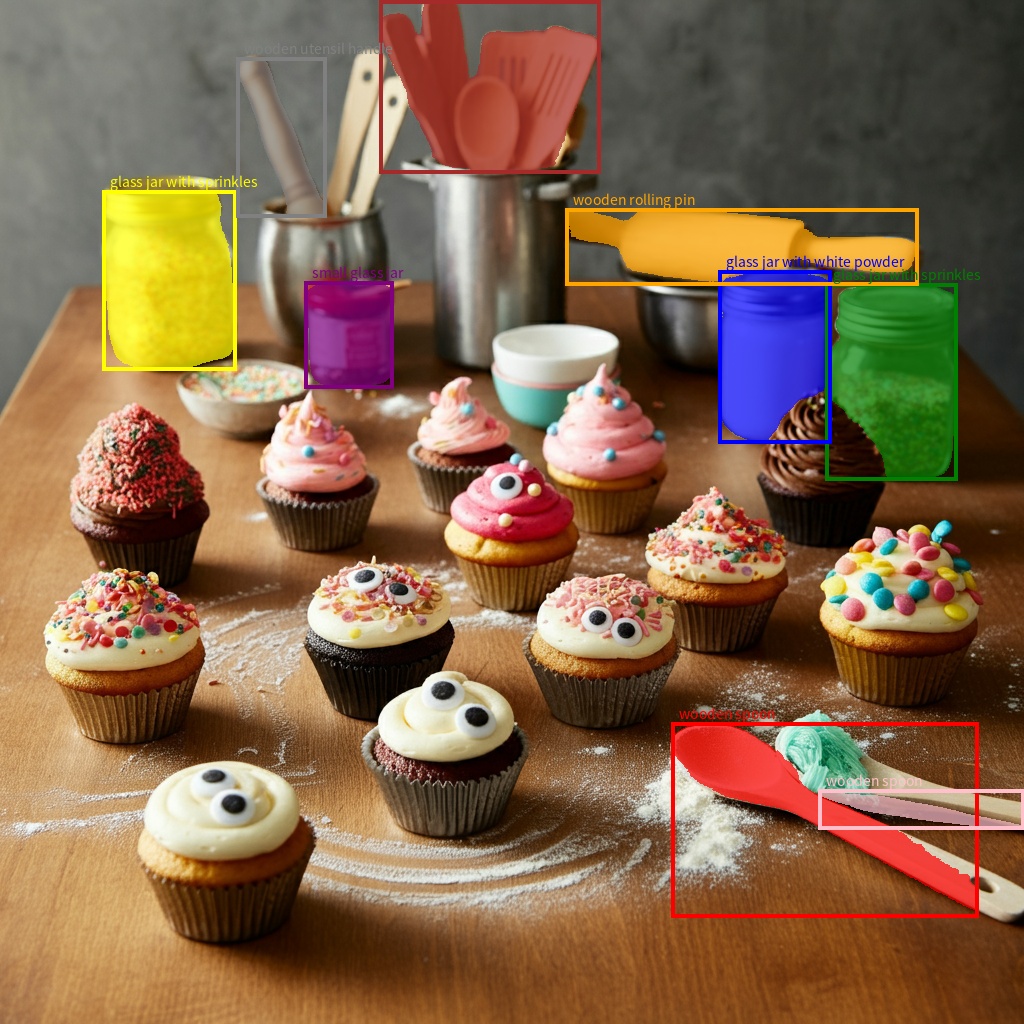
Gemini मॉडल, न सिर्फ़ आइटम का पता लगाते हैं, बल्कि उन्हें सेगमेंट भी करते हैं और उनके कॉन्टूर मास्क भी उपलब्ध कराते हैं.
मॉडल, JSON फ़ॉर्मैट में एक सूची का अनुमान लगाता है. इसमें हर आइटम, सेगमेंटेशन मास्क के बारे में बताता है. हर आइटम में एक बाउंडिंग बॉक्स ("box_2d") होता है. यह [ymin, xmin, ymax, xmax] फ़ॉर्मैट में होता है. इसमें 0 से 1000 के बीच सामान्य किए गए कोऑर्डिनेट होते हैं. साथ ही, इसमें एक लेबल ("label") होता है, जो ऑब्जेक्ट की पहचान करता है. आखिर में, बाउंडिंग बॉक्स के अंदर सेगमेंटेशन मास्क होता है. यह [x, y] कोऑर्डिनेट के पॉलीगॉन के तौर पर होता है. इसे 0 से 1000 के बीच सामान्य किया जाता है.
Python
from google import genai
from pydantic import BaseModel, Field
from typing import List
import json

client = genai.Client()

prompt = """
Give the segmentation masks for the wooden and glass items.
Output a JSON list of segmentation masks where each entry contains the 2D
bounding box in the key "box_2d", the segmentation mask in key "mask", and
the text label in the key "label". Use descriptive labels.
"""

class BoundingBox(BaseModel):
    box_2d: List[int] = Field(description="The 2D bounding box of the item as [ymin, xmin, ymax, xmax] normalized to 0-1000.")
    mask: List[List[int]] = Field(description="The segmentation mask of the item as a polygon of [x,y] coordinates, normalized to 0-1000.")
    label: str = Field(description="A descriptive label for the item.")

class BoundingBoxes(BaseModel):
    boxes: List[BoundingBox]

interaction = client.interactions.create(
    model="gemini-3.6-flash",
    input=[
        {"type": "text", "text": prompt},
        {
            "type": "image",
            "uri": "https://example.com/image.png",
            "mime_type": "image/png"
        }
    ],
    response_format={
        "type": "text",
        "mime_type": "application/json",
        "schema": BoundingBoxes.model_json_schema()
    },
    generation_config={
        "thinking_level": "minimal"
    }
)

items = BoundingBoxes.model_validate_json(interaction.output_text)
print("Segmentation results:", items)
JavaScript
import { GoogleGenAI } from "@google/genai";
import * as z from "zod";

const client = new GoogleGenAI({});
const prompt = `
Give the segmentation masks for the wooden and glass items.
Output a JSON list of segmentation masks where each entry contains the 2D
bounding box in the key "box_2d", the segmentation mask in key "mask", and
the text label in the key "label". Use descriptive labels.
`;

const boundingBoxesSchema = z.object({
  boxes: z.array(z.object({
    box_2d: z.array(z.number()),
    mask: z.array(z.array(z.number())),
    label: z.string()
  }))
});

const interaction = await client.interactions.create({
  model: "gemini-3.6-flash",
  input: [
    { type: "text", text: prompt },
    {
      type: "image",
      uri: "https://example.com/image.png",
      mime_type: "image/png"
    }
  ],
  response_format: {
    type: 'text',
    mime_type: 'application/json',
    schema: z.toJSONSchema(boundingBoxesSchema)
  },
  generation_config: {
    thinking_level: "minimal"
  }
});

const result = boundingBoxesSchema.parse(JSON.parse(interaction.output_text));
console.log(result);
REST
curl -X POST "https://generativelanguage.googleapis.com/v1beta/interactions" \
  -H "x-goog-api-key: $GEMINI_API_KEY" \
  -H 'Content-Type: application/json' \
  -d '{
    "model": "gemini-3.6-flash",
    "input": [
      {"type": "text", "text": "Give the segmentation masks for the wooden and glass items.\nOutput a JSON list of segmentation masks where each entry contains the 2D\nbounding box in the key \"box_2d\", the segmentation mask in key \"mask\", and\nthe text label in the key \"label\". Use descriptive labels."},
      {
        "type": "image",
        "uri": "https://example.com/image.png",
        "mime_type": "image/png"
      }
    ],
    "response_format": {
      "type": "text",
      "mime_type": "application/json",
      "schema": {
        "type": "object",
        "properties": {
          "boxes": {
            "type": "array",
            "items": {
              "type": "object",
              "properties": {
                "box_2d": { "type": "array", "items": { "type": "integer" } },
                "mask": { "type": "array", "items": { "type": "array", "items": { "type": "integer" } } },
                "label": { "type": "string" }
              },
              "required": ["box_2d", "mask", "label"]
            }
          }
        },
        "required": ["boxes"]
      }
    },
    "generation_config": {
      "thinking_level": "minimal"
    }
  }'
Google Images पर काम करने वाले फ़ॉर्मैट
Gemini में, इस तरह के इमेज फ़ॉर्मैट वाले एमआईएमई टाइप इस्तेमाल किए जा सकते हैं:
- PNG -
image/png - JPEG -
image/jpeg - WEBP -
image/webp - HEIC -
image/heic - HEIF -
image/heif
फ़ाइल इनपुट करने के अन्य तरीकों के बारे में जानने के लिए, फ़ाइल इनपुट करने के तरीके गाइड देखें.
क्षमताएं
Gemini मॉडल के सभी वर्शन मल्टीमॉडल हैं. इनका इस्तेमाल इमेज प्रोसेसिंग और कंप्यूटर विज़न से जुड़े कई कामों के लिए किया जा सकता है. जैसे, इमेज के लिए कैप्शन, विज़ुअल से जुड़े सवालों के जवाब देना, इमेज क्लासिफ़िकेशन, ऑब्जेक्ट का पता लगाने की सुविधा, और सेगमेंटेशन. हालांकि, इनके अलावा और भी काम किए जा सकते हैं.
Gemini, आपकी क्वालिटी और परफ़ॉर्मेंस से जुड़ी ज़रूरतों के हिसाब से, खास एमएल मॉडल का इस्तेमाल करने की ज़रूरत को कम कर सकता है.
मॉडल के नए वर्शन को खास तौर पर, सामान्य क्षमताओं के साथ-साथ खास कामों को ज़्यादा सटीक तरीके से करने के लिए ट्रेन किया गया है. जैसे, बेहतर ऑब्जेक्ट का पता लगाने की सुविधा और सेगमेंटेशन.
सीमाएं और मुख्य तकनीकी जानकारी
फ़ाइल की सीमा
Gemini मॉडल, हर अनुरोध के लिए ज़्यादा से ज़्यादा 3,600 इमेज फ़ाइलें इस्तेमाल कर सकते हैं.
टोकन की गिनती
- अगर दोनों डाइमेंशन 384 पिक्सल से कम या इसके बराबर हैं, तो 258 टोकन. बड़ी इमेज को 768x768 पिक्सल वाली टाइल में बांटा जाता है. हर टाइल की कीमत 258 टोकन होती है.
टाइल की संख्या कैलकुलेट करने का सामान्य फ़ॉर्मूला यहां दिया गया है:
- क्रॉप यूनिट के साइज़ का हिसाब लगाएं. यह करीब-करीब
floor(min(width, height)/ 1.5) होता है. - टाइल की संख्या पाने के लिए, हर डाइमेंशन को क्रॉप यूनिट के साइज़ से भाग दें और फिर उन्हें आपस में गुणा करें.
उदाहरण के लिए, 960x540 डाइमेंशन वाली इमेज के लिए, क्रॉप यूनिट का साइज़ 360 होगा. हर डाइमेंशन को 360 से भाग दें. टाइल की संख्या 3 * 2 = 6 है.
मीडिया रिज़ॉल्यूशन
Gemini 3 में, मल्टीमॉडल विज़न प्रोसेसिंग को ज़्यादा बारीकी से कंट्रोल करने की सुविधा मिलती है. इसके लिए, media_resolution पैरामीटर का इस्तेमाल किया जाता है. media_resolution पैरामीटर से यह तय होता है कि हर इनपुट इमेज या वीडियो फ़्रेम के लिए ज़्यादा से ज़्यादा कितने टोकन असाइन किए जा सकते हैं.
ज़्यादा रिज़ॉल्यूशन से, मॉडल को छोटे टेक्स्ट को पढ़ने या छोटी-छोटी बारीकियों को पहचानने में मदद मिलती है. हालांकि, इससे टोकन का इस्तेमाल और लेटेन्सी बढ़ जाती है.
सलाह और सबसे सही तरीके
- पुष्टि करें कि इमेज सही तरीके से घुमाई गई हों.
- साफ़ और बिना धुंधली इमेज का इस्तेमाल करें.
- टेक्स्ट वाली किसी इमेज का इस्तेमाल करते समय,
inputऐरे में इमेज से पहले टेक्स्ट प्रॉम्प्ट डालें.
आगे क्या करना है
इस गाइड में, इमेज फ़ाइलें अपलोड करने और इमेज इनपुट से टेक्स्ट आउटपुट जनरेट करने का तरीका बताया गया है. ज़्यादा जानने के लिए, यहां दिए गए संसाधन देखें:
- Files API: Gemini के साथ इस्तेमाल करने के लिए, फ़ाइलें अपलोड करने और उन्हें मैनेज करने के बारे में ज़्यादा जानें.
- सिस्टम के लिए निर्देश: सिस्टम के लिए निर्देश देने की सुविधा की मदद से, अपनी खास ज़रूरतों और इस्तेमाल के उदाहरणों के आधार पर, मॉडल के व्यवहार को कंट्रोल किया जा सकता है.
- फ़ाइल प्रॉम्प्ट करने की रणनीतियां: Gemini API, टेक्स्ट, इमेज, ऑडियो, और वीडियो डेटा के साथ प्रॉम्प्ट करने की सुविधा देता है. इसे मल्टीमॉडल प्रॉम्प्टिंग भी कहा जाता है.
- सुरक्षा से जुड़ी गाइडलाइन: कभी-कभी जनरेटिव एआई मॉडल से ऐसे आउटपुट मिलते हैं जिनकी उम्मीद नहीं होती. जैसे, गलत, पक्षपात करने वाले या आपत्तिजनक आउटपुट. इस तरह के जवाबों से होने वाले नुकसान के जोखिम को कम करने के लिए, पोस्ट-प्रोसेसिंग और मैन्युअल तरीके से आकलन करना ज़रूरी है.