

Model Gemini dibangun dari awal agar bersifat multimodal, sehingga memungkinkan berbagai tugas pemrosesan gambar dan computer vision, termasuk tetapi tidak terbatas pada pemberian teks gambar, klasifikasi, dan Question Answering Visual (VQA) tanpa harus melatih model ML khusus.
Selain kemampuan multimodal umumnya, model Gemini menawarkan akurasi yang ditingkatkan untuk kasus penggunaan tertentu seperti deteksi objek dan segmentasi, melalui pelatihan tambahan.
Meneruskan gambar ke Gemini
Anda dapat memberikan gambar sebagai input ke Gemini menggunakan beberapa metode:
- Meneruskan gambar menggunakan URL: Ideal untuk gambar yang dapat diakses secara publik.
- Meneruskan data gambar inline: Untuk data gambar berenkode base64.
- Mengupload gambar menggunakan File API: Direkomendasikan untuk file yang lebih besar atau untuk menggunakan kembali gambar di beberapa permintaan.
Meneruskan gambar menggunakan URL
Anda dapat mengupload gambar menggunakan Files API dan meneruskannya dalam permintaan:
Python
from google import genai

client = genai.Client()

uploaded_file = client.files.upload(file="path/to/organ.jpg")

interaction = client.interactions.create(
    model="gemini-3.6-flash",
    input=[
        {"type": "text", "text": "Caption this image."},
        {
            "type": "image",
            "uri": uploaded_file.uri,
            "mime_type": uploaded_file.mime_type
        }
    ]
)
print(interaction.output_text)
JavaScript
import { GoogleGenAI } from "@google/genai";

const client = new GoogleGenAI({});

const uploadedFile = await client.files.upload({
    file: "path/to/organ.jpg",
    config: { mimeType: "image/jpeg" }
});

const interaction = await client.interactions.create({
    model: "gemini-3.6-flash",
    input: [
        {type: "text", text: "Caption this image."},
        {
            type: "image",
            uri: uploadedFile.uri,
            mime_type: uploadedFile.mimeType
        }
    ]
});
console.log(interaction.output_text);
REST
# First upload the file using the Files API, then use the URI:
curl -X POST "https://generativelanguage.googleapis.com/v1beta/interactions" \
  -H "x-goog-api-key: $GEMINI_API_KEY" \
  -H 'Content-Type: application/json' \
  -d '{
    "model": "gemini-3.6-flash",
    "input": [
      {"type": "text", "text": "Caption this image."},
      {
        "type": "image",
        "uri": "YOUR_FILE_URI",
        "mime_type": "image/jpeg"
      }
    ]
  }'
Meneruskan data gambar inline
Anda dapat menyediakan data gambar sebagai string berenkode base64:
Python
import base64
from google import genai

with open('path/to/small-sample.jpg', 'rb') as f:
    image_bytes = f.read()

client = genai.Client()

interaction = client.interactions.create(
    model="gemini-3.6-flash",
    input=[
        {"type": "text", "text": "Caption this image."},
        {
            "type": "image",
            "data": base64.b64encode(image_bytes).decode('utf-8'),
            "mime_type": "image/jpeg"
        }
    ]
)
print(interaction.output_text)
JavaScript
import { GoogleGenAI } from "@google/genai";
import * as fs from "node:fs";

const client = new GoogleGenAI({});
const base64ImageFile = fs.readFileSync("path/to/small-sample.jpg", {
  encoding: "base64",
});

const interaction = await client.interactions.create({
    model: "gemini-3.6-flash",
    input: [
        {type: "text", text: "Caption this image."},
        {
            type: "image",
            data: base64ImageFile,
            mime_type: "image/jpeg"
        }
    ]
});
console.log(interaction.output_text);
REST
IMG_PATH="/path/to/your/image1.jpg"

if [[ "$(base64 --version 2>&1)" = *"FreeBSD"* ]]; then
  B64FLAGS="--input"
else
  B64FLAGS="-w0"
fi

curl -X POST "https://generativelanguage.googleapis.com/v1beta/interactions" \
  -H "x-goog-api-key: $GEMINI_API_KEY" \
  -H 'Content-Type: application/json' \
  -d '{
    "model": "gemini-3.6-flash",
    "input": [
      {"type": "text", "text": "Caption this image."},
      {
        "type": "image",
        "data": "'"$(base64 $B64FLAGS $IMG_PATH)"'",
        "mime_type": "image/jpeg"
      }
    ]
  }'
Mengupload gambar menggunakan File API
Untuk file besar atau agar dapat menggunakan file gambar yang sama berulang kali, gunakan Files API. Lihat panduan Files API.
Python
from google import genai

client = genai.Client()

my_file = client.files.upload(file="path/to/sample.jpg")

interaction = client.interactions.create(
    model="gemini-3.6-flash",
    input=[
        {"type": "text", "text": "Caption this image."},
        {
            "type": "image",
            "uri": my_file.uri,
            "mime_type": my_file.mime_type
        }
    ]
)
print(interaction.output_text)
JavaScript
import { GoogleGenAI } from "@google/genai";

const client = new GoogleGenAI({});

const myfile = await client.files.upload({
    file: "path/to/sample.jpg",
    config: { mimeType: "image/jpeg" },
});

const interaction = await client.interactions.create({
    model: "gemini-3.6-flash",
    input: [
        {type: "text", text: "Caption this image."},
        {
            type: "image",
            uri: myfile.uri,
            mime_type: myfile.mimeType
        }
    ]
});
console.log(interaction.output_text);
REST
# First upload the file (see Files API guide for details)
# Then use the file URI in the request:

curl -X POST "https://generativelanguage.googleapis.com/v1beta/interactions" \
  -H "x-goog-api-key: $GEMINI_API_KEY" \
  -H 'Content-Type: application/json' \
  -d '{
    "model": "gemini-3.6-flash",
    "input": [
      {"type": "text", "text": "Caption this image."},
      {
        "type": "image",
        "uri": "YOUR_FILE_URI",
        "mime_type": "image/jpeg"
      }
    ]
  }'
Membuat perintah dengan beberapa gambar
Anda dapat memberikan beberapa gambar dalam satu perintah dengan menyertakan beberapa objek gambar dalam array input:
Python
from google import genai

client = genai.Client()

interaction = client.interactions.create(
    model="gemini-3.6-flash",
    input=[
        {"type": "text", "text": "What is different between these two images?"},
        {
            "type": "image",
            "uri": "https://example.com/image1.jpg",
            "mime_type": "image/jpeg"
        },
        {
            "type": "image",
            "uri": "https://example.com/image2.jpg",
            "mime_type": "image/jpeg"
        }
    ]
)
print(interaction.output_text)
JavaScript
import { GoogleGenAI } from "@google/genai";

const client = new GoogleGenAI({});

const interaction = await client.interactions.create({
    model: "gemini-3.6-flash",
    input: [
        {type: "text", text: "What is different between these two images?"},
        {
            type: "image",
            uri: "https://example.com/image1.jpg",
            mime_type: "image/jpeg"
        },
        {
            type: "image",
            uri: "https://example.com/image2.jpg",
            mime_type: "image/jpeg"
        }
    ]
});
console.log(interaction.output_text);
REST
curl -X POST "https://generativelanguage.googleapis.com/v1beta/interactions" \
  -H "x-goog-api-key: $GEMINI_API_KEY" \
  -H 'Content-Type: application/json' \
  -d '{
    "model": "gemini-3.6-flash",
    "input": [
      {"type": "text", "text": "What is different between these two images?"},
      {
        "type": "image",
        "uri": "https://example.com/image1.jpg",
        "mime_type": "image/jpeg"
      },
      {
        "type": "image",
        "uri": "https://example.com/image2.jpg",
        "mime_type": "image/jpeg"
      }
    ]
  }'
Deteksi objek
Model dilatih untuk mendeteksi objek dalam gambar dan mendapatkan koordinat kotak pembatasnya. Koordinat, relatif terhadap dimensi gambar, diskalakan ke [0, 1000]. Anda perlu membatalkan penskalaan koordinat ini berdasarkan ukuran gambar asli Anda.
Python
from google import genai
from pydantic import BaseModel, Field
from typing import List
import json

client = genai.Client()
prompt = "Detect the all of the prominent items in the image. The box_2d should be [ymin, xmin, ymax, xmax] normalized to 0-1000."

class BoundingBox(BaseModel):
    box_2d: List[int] = Field(description="The 2D bounding box of the item as [ymin, xmin, ymax, xmax] normalized to 0-1000.")
    mask: List[List[int]] = Field(description="The segmentation mask of the item as a polygon of [x,y] coordinates, normalized to 0-1000.")
    label: str = Field(description="A descriptive label for the item.")

class BoundingBoxes(BaseModel):
    boxes: List[BoundingBox]

interaction = client.interactions.create(
    model="gemini-3.6-flash",
    input=[
        {"type": "text", "text": prompt},
        {
            "type": "image",
            "uri": "https://example.com/image.png",
            "mime_type": "image/png"
        }
    ],
    response_format={
        "type": "text",
        "mime_type": "application/json",
        "schema": BoundingBoxes.model_json_schema()
    }
)

bounding_boxes = BoundingBoxes.model_validate_json(interaction.output_text)
print(bounding_boxes)
JavaScript
import { GoogleGenAI } from "@google/genai";
import * as z from "zod";

const client = new GoogleGenAI({});
const prompt = "Detect the all of the prominent items in the image. The box_2d should be [ymin, xmin, ymax, xmax] normalized to 0-1000.";

const boundingBoxesSchema = z.object({
  boxes: z.array(z.object({
    box_2d: z.array(z.number()),
    mask: z.array(z.array(z.number())),
    label: z.string()
  }))
});

const interaction = await client.interactions.create({
  model: "gemini-3.6-flash",
  input: [
    { type: "text", text: prompt },
    {
      type: "image",
      uri: "https://example.com/image.png",
      mime_type: "image/png"
    }
  ],
  response_format: {
    type: 'text',
    mime_type: 'application/json',
    schema: z.toJSONSchema(boundingBoxesSchema)
  },
});

const result = boundingBoxesSchema.parse(JSON.parse(interaction.output_text));
console.log(result);
REST
curl -X POST "https://generativelanguage.googleapis.com/v1beta/interactions" \
  -H "x-goog-api-key: $GEMINI_API_KEY" \
  -H 'Content-Type: application/json' \
  -d '{
    "model": "gemini-3.6-flash",
    "input": [
      {"type": "text", "text": "Detect the all of the prominent items in the image. The box_2d should be [ymin, xmin, ymax, xmax] normalized to 0-1000."},
      {
        "type": "image",
        "uri": "https://example.com/image.png",
        "mime_type": "image/png"
      }
    ],
    "response_format": {
      "type": "text",
      "mime_type": "application/json",
      "schema": {
        "type": "object",
        "properties": {
          "boxes": {
            "type": "array",
            "items": {
              "type": "object",
              "properties": {
                "box_2d": { "type": "array", "items": { "type": "integer" } },
                "mask": { "type": "array", "items": { "type": "array", "items": { "type": "integer" } } },
                "label": { "type": "string" }
              },
              "required": ["box_2d", "mask", "label"]
            }
          }
        },
        "required": ["boxes"]
      }
    }
  }'
Untuk melihat contoh lainnya, buka Gemini Cookbook.
Segmentasi
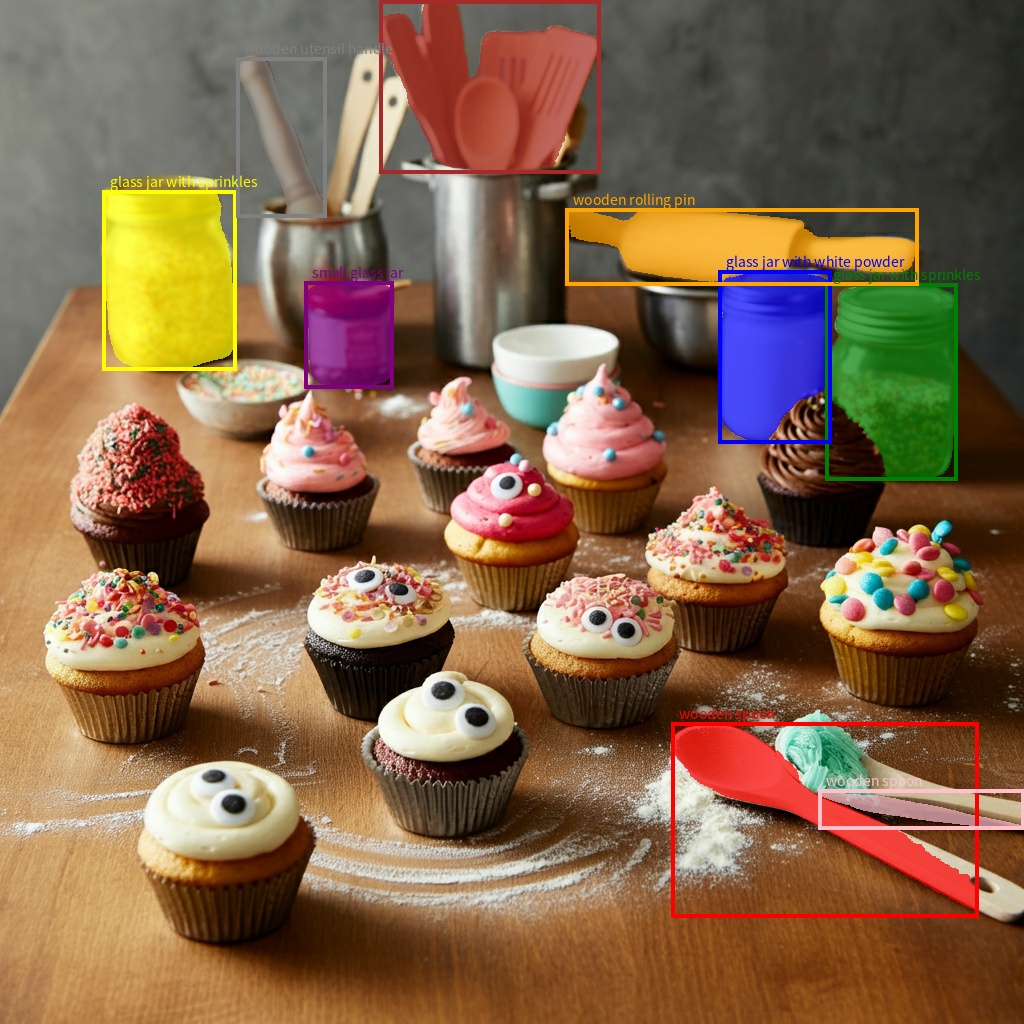
Model Gemini tidak hanya mendeteksi item, tetapi juga menyegmentasikannya dan memberikan masker konturnya.
Model memprediksi daftar JSON, dengan setiap item mewakili mask segmentasi. Setiap item memiliki kotak pembatas ("box_2d") dalam format [ymin, xmin, ymax, xmax] dengan koordinat yang dinormalisasi antara 0 dan 1000, label ("label") yang mengidentifikasi objek, dan terakhir mask segmentasi di dalam kotak pembatas sebagai poligon koordinat [x, y] yang dinormalisasi ke 0-1000.
Python
from google import genai
from pydantic import BaseModel, Field
from typing import List
import json

client = genai.Client()

prompt = """
Give the segmentation masks for the wooden and glass items.
Output a JSON list of segmentation masks where each entry contains the 2D
bounding box in the key "box_2d", the segmentation mask in key "mask", and
the text label in the key "label". Use descriptive labels.
"""

class BoundingBox(BaseModel):
    box_2d: List[int] = Field(description="The 2D bounding box of the item as [ymin, xmin, ymax, xmax] normalized to 0-1000.")
    mask: List[List[int]] = Field(description="The segmentation mask of the item as a polygon of [x,y] coordinates, normalized to 0-1000.")
    label: str = Field(description="A descriptive label for the item.")

class BoundingBoxes(BaseModel):
    boxes: List[BoundingBox]

interaction = client.interactions.create(
    model="gemini-3.6-flash",
    input=[
        {"type": "text", "text": prompt},
        {
            "type": "image",
            "uri": "https://example.com/image.png",
            "mime_type": "image/png"
        }
    ],
    response_format={
        "type": "text",
        "mime_type": "application/json",
        "schema": BoundingBoxes.model_json_schema()
    },
    generation_config={
        "thinking_level": "minimal"
    }
)

items = BoundingBoxes.model_validate_json(interaction.output_text)
print("Segmentation results:", items)
JavaScript
import { GoogleGenAI } from "@google/genai";
import * as z from "zod";

const client = new GoogleGenAI({});
const prompt = `
Give the segmentation masks for the wooden and glass items.
Output a JSON list of segmentation masks where each entry contains the 2D
bounding box in the key "box_2d", the segmentation mask in key "mask", and
the text label in the key "label". Use descriptive labels.
`;

const boundingBoxesSchema = z.object({
  boxes: z.array(z.object({
    box_2d: z.array(z.number()),
    mask: z.array(z.array(z.number())),
    label: z.string()
  }))
});

const interaction = await client.interactions.create({
  model: "gemini-3.6-flash",
  input: [
    { type: "text", text: prompt },
    {
      type: "image",
      uri: "https://example.com/image.png",
      mime_type: "image/png"
    }
  ],
  response_format: {
    type: 'text',
    mime_type: 'application/json',
    schema: z.toJSONSchema(boundingBoxesSchema)
  },
  generation_config: {
    thinking_level: "minimal"
  }
});

const result = boundingBoxesSchema.parse(JSON.parse(interaction.output_text));
console.log(result);
REST
curl -X POST "https://generativelanguage.googleapis.com/v1beta/interactions" \
  -H "x-goog-api-key: $GEMINI_API_KEY" \
  -H 'Content-Type: application/json' \
  -d '{
    "model": "gemini-3.6-flash",
    "input": [
      {"type": "text", "text": "Give the segmentation masks for the wooden and glass items.\nOutput a JSON list of segmentation masks where each entry contains the 2D\nbounding box in the key \"box_2d\", the segmentation mask in key \"mask\", and\nthe text label in the key \"label\". Use descriptive labels."},
      {
        "type": "image",
        "uri": "https://example.com/image.png",
        "mime_type": "image/png"
      }
    ],
    "response_format": {
      "type": "text",
      "mime_type": "application/json",
      "schema": {
        "type": "object",
        "properties": {
          "boxes": {
            "type": "array",
            "items": {
              "type": "object",
              "properties": {
                "box_2d": { "type": "array", "items": { "type": "integer" } },
                "mask": { "type": "array", "items": { "type": "array", "items": { "type": "integer" } } },
                "label": { "type": "string" }
              },
              "required": ["box_2d", "mask", "label"]
            }
          }
        },
        "required": ["boxes"]
      }
    },
    "generation_config": {
      "thinking_level": "minimal"
    }
  }'
Format gambar yang didukung
Gemini mendukung jenis MIME format gambar berikut:
- PNG -
image/png - JPEG -
image/jpeg - WEBP -
image/webp - HEIC -
image/heic - HEIF -
image/heif
Untuk mempelajari metode input file lainnya, lihat panduan Metode input file.
Kemampuan
Semua versi model Gemini bersifat multimodal dan dapat digunakan dalam berbagai tugas pemrosesan gambar dan computer vision, termasuk, tetapi tidak terbatas pada, pemberian teks gambar, pertanyaan dan jawaban visual, klasifikasi gambar, deteksi dan segmentasi objek.
Gemini dapat mengurangi kebutuhan untuk menggunakan model ML khusus, bergantung pada persyaratan kualitas dan performa Anda.
Versi model terbaru dilatih secara khusus untuk meningkatkan akurasi tugas khusus selain kemampuan generik, seperti deteksi objek dan segmentasi yang ditingkatkan.
Batasan dan informasi teknis utama
Batas file
Model Gemini mendukung maksimum 3.600 file gambar per permintaan.
Penghitungan token
- 258 token jika kedua dimensi <= 384 piksel. Gambar yang lebih besar diatur menjadi ubin 768x768 piksel, yang masing-masing berharga 258 token.
Formula kasar untuk menghitung jumlah kartu adalah sebagai berikut:
- Hitung ukuran unit pangkas yang kira-kira:
floor(min(width, height)/ 1,5). - Bagi setiap dimensi dengan ukuran unit pangkas dan kalikan bersama untuk mendapatkan jumlah petak.
Misalnya, gambar berdimensi 960x540 akan memiliki ukuran unit pangkas 360. Bagi setiap dimensi dengan 360 dan jumlah petak adalah 3 * 2 = 6.
Resolusi media
Gemini 3 memperkenalkan kontrol terperinci atas pemrosesan visi multimodal dengan parameter
media_resolution. Parameter media_resolution menentukan
jumlah maksimum token yang dialokasikan per gambar input atau frame video.
Resolusi yang lebih tinggi meningkatkan kemampuan model untuk membaca teks kecil atau mengidentifikasi detail kecil, tetapi meningkatkan penggunaan token dan latensi.
Tips dan praktik terbaik
- Pastikan gambar diputar dengan benar.
- Gunakan gambar yang jelas dan tidak buram.
- Saat menggunakan satu gambar dengan teks, tempatkan perintah teks sebelum gambar dalam array
input.
Langkah berikutnya
Panduan ini menunjukkan cara mengupload file gambar dan membuat output teks dari input gambar. Untuk mempelajari lebih lanjut, lihat referensi berikut:
- Files API: Pelajari lebih lanjut cara mengupload dan mengelola file untuk digunakan dengan Gemini.
- Petunjuk sistem: Petunjuk sistem memungkinkan Anda mengarahkan perilaku model berdasarkan kebutuhan dan kasus penggunaan spesifik Anda.
- Strategi multimodal prompting file: Gemini API mendukung multimodal prompting dengan data teks, gambar, audio, dan video.
- Panduan keamanan: Terkadang model AI generatif menghasilkan output yang tidak terduga, seperti output yang tidak akurat, bias, atau menyinggung. Pemrosesan pasca-dan evaluasi manusia sangat penting untuk membatasi risiko bahaya dari output tersebut.