

تستطيع نماذج الروبوتات من شركة Gemini Robotics كتابة وتنفيذ أكواد بايثون لمعالجة الصور وتطبيق المنطق قبل الإجابة. تغطي هذه الصفحة أمثلة على تطبيق الرموز البرمجية: رصد العناصر مع التكبير والقص، وقياس حالة التطبيق، وقياس السوائل، وقراءة لوحة الدوائر، وإضافة تعليقات توضيحية للصور.
لتكييف هذه الأمثلة مع حالة استخدامك الخاصة، استبدل نص المطالبة وملف الصورة المرفوع بملفاتك الخاصة. يمكنك أيضًا تعديل مخطط JSON المطلوب في الموجه ليتوافق مع بنية الإخراج التي يحتاجها تطبيقك، أو إضافة system_instruction لفرض تنسيق الإخراج ودقته.
للاطّلاع على الرمز الكامل القابل للتنفيذ، راجِع كتاب وصفات الروبوتات.
مستوى التفكير
يمكنك التحكم في مستوى تفكير النموذج لموازنة زمن الاستجابة بالدقة. تؤدي المهام المكانية، مثل رصد العناصر، أداءً جيدًا مع مستوى تفكير منخفض. تستفيد المهام المعقدة مثل العد أو تقدير الوزن من مستوى تفكير أعلى.
يحدد المثال التالي مستوى التفكير إلى high لمهمة عد معقدة:
Python
from google import genai

client = genai.Client()

uploaded_file = client.files.upload(file="scene.jpeg")

interaction = client.interactions.create(
    model="gemini-robotics-er-2-preview",
    input=[
        {
            "type": "image",
            "uri": uploaded_file.uri,
            "mime_type": uploaded_file.mime_type
        },
        {"type": "text", "text": "Identify and count all objects on the table."}
    ],
    generation_config={
        "thinking_level": "high"  # Use "minimal" or "low" for faster spatial tasks
    }
)

print(interaction.output_text)
لمزيد من التفاصيل، يُرجى الاطّلاع على التفكير.
رصد العناصر (التكبير والاقتصاص)
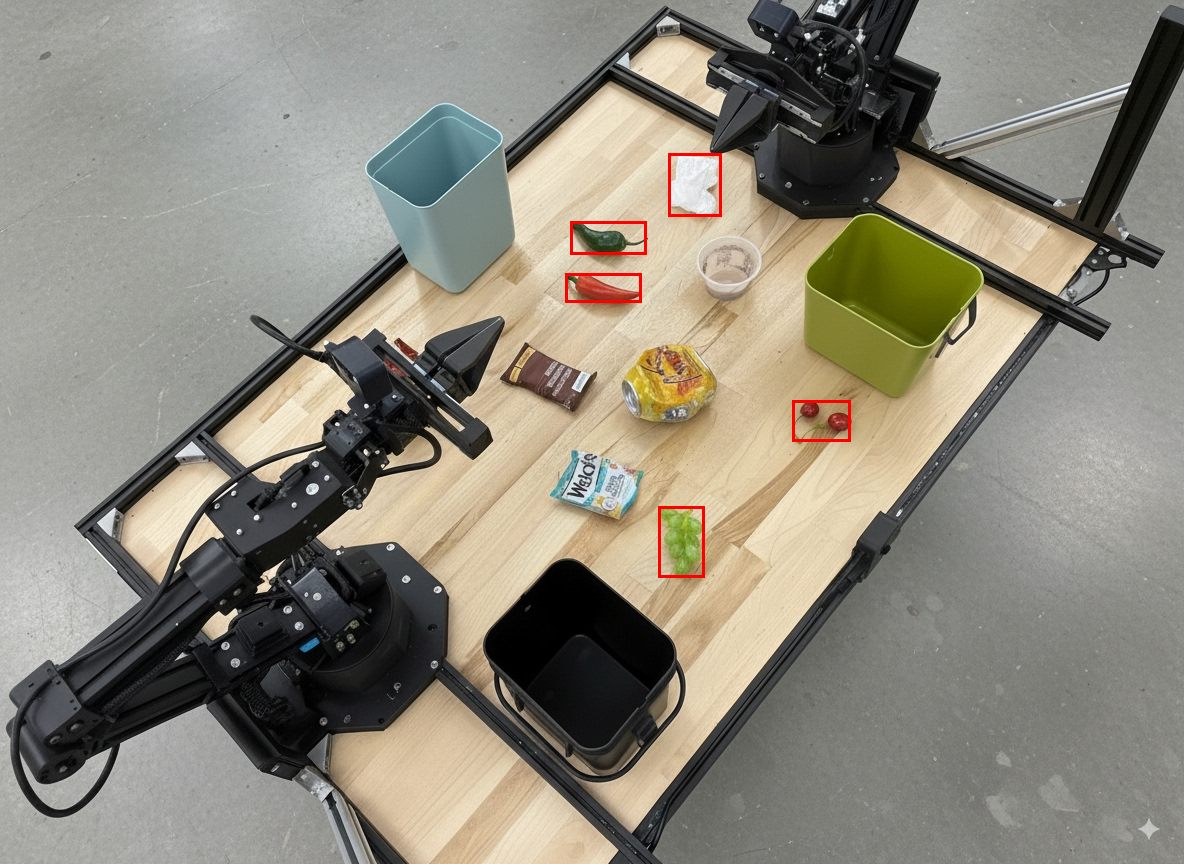
يستخدم المثال التالي تنفيذ التعليمات البرمجية لتكبير الصورة واقتصاصها للحصول على رؤية أوضح عند اكتشاف الكائنات وإرجاع المربعات المحيطة.
Python
from google import genai

client = genai.Client()

uploaded_file = client.files.upload(file="sorting.jpeg")

prompt = """
Return JSON in the format {label: val, y: val, x: val, y2: val, x2: val} for
the compostable objects in this scene. Please Zoom and crop the image for a
clearer view. Return an annotated image of the final result with the bounding
boxes drawn on it to the API caller as a part of your process.
"""

interaction = client.interactions.create(
    model="gemini-robotics-er-2-preview",
    input=[
        {
            "type": "image",
            "uri": uploaded_file.uri,
            "mime_type": uploaded_file.mime_type
        },
        {"type": "text", "text": prompt}
    ],
    tools=[{"type": "code_execution"}]
)

print(interaction.output_text)
ستكون مخرجات النموذج مشابهة لاستجابة JSON التالية:
[
  {"label": "compostable", "y": 256, "x": 482, "y2": 295, "x2": 546},
  {"label": "compostable", "y": 317, "x": 478, "y2": 350, "x2": 542},
  {"label": "compostable", "y": 586, "x": 556, "y2": 668, "x2": 595},
  {"label": "compostable", "y": 463, "x": 669, "y2": 511, "x2": 718},
  {"label": "compostable", "y": 178, "x": 565, "y2": 250, "x2": 609}
]
تعرض الصورة التالية المربّعات التي تم إرجاعها من النموذج.
اقرأ مقياسًا تناظريًا وطبّق المنطق
يوضح المثال التالي كيفية استخدام النموذج لقراءة مقياس تناظري وإجراء حسابات زمنية. يستخدم تعليمات النظام لفرض إخراج JSON.
Python
from google import genai

client = genai.Client()

uploaded_file = client.files.upload(file="gauge.jpeg")

interaction = client.interactions.create(
    model="gemini-robotics-er-2-preview",
    system_instruction="Be precise. When JSON is requested, reply with ONLY that JSON (no preface, no code block).",
    input=[
        {
            "type": "image",
            "uri": uploaded_file.uri,
            "mime_type": uploaded_file.mime_type
        },
        {"type": "text", "text": """Read the current value from this gauge. Then, calculate how long
        it will take at the current rate for the value to reach maximum.
        Reply in JSON: {"current_value": val, "max_value": val,
        "time_to_max_minutes": val}"""}
    ],
    tools=[{"type": "code_execution"}]
)

print(interaction.output_text)
قم بقياس السائل في وعاء
يوضح المثال التالي كيفية استخدام تنفيذ التعليمات البرمجية لقياس مستوى السائل في حاوية.
Python
from google import genai

client = genai.Client()

uploaded_file = client.files.upload(file="fluid.jpeg")

interaction = client.interactions.create(
    model="gemini-robotics-er-2-preview",
    system_instruction="Be precise. When JSON is requested, reply with ONLY that JSON (no preface, no code block).",
    input=[
        {
            "type": "image",
            "uri": uploaded_file.uri,
            "mime_type": uploaded_file.mime_type
        },
        {"type": "text", "text": """Measure the amount of fluid in the container. Reply in JSON:
        {"fluid_level_ml": val, "container_capacity_ml": val,
        "percentage_full": val}"""}
    ],
    tools=[{"type": "code_execution"}]
)

print(interaction.output_text)
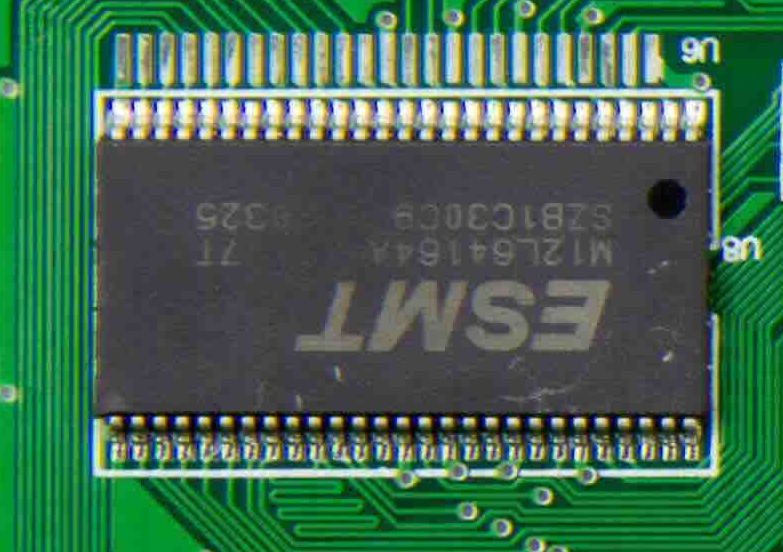
قراءة العلامات على لوحة الدوائر
يوضّح المثال التالي كيفية استخدام تنفيذ الرمز البرمجي لقراءة العلامات على لوحة الدوائر.
Python
from google import genai

client = genai.Client()

uploaded_file = client.files.upload(file="circuit_board.jpeg")

interaction = client.interactions.create(
    model="gemini-robotics-er-2-preview",
    system_instruction="Be precise. When JSON is requested, reply with ONLY that JSON (no preface, no code block).",
    input=[
        {
            "type": "image",
            "uri": uploaded_file.uri,
            "mime_type": uploaded_file.mime_type
        },
        {"type": "text", "text": """Read all visible component labels and markings on this circuit
        board. Reply in JSON: {"components": [{"label": val,
        "location": [y, x]}]}"""}
    ],
    tools=[{"type": "code_execution"}]
)

print(interaction.output_text)
شرح الصور
يوضّح المثال التالي كيفية استخدام تنفيذ الرمز البرمجي لإضافة تعليقات توضيحية إلى صورة (مثل رسم أسهم لتعليمات التخلص) وعرض الصورة المعدَّلة.
Python
from google import genai

client = genai.Client()

# Load your image
uploaded_file = client.files.upload(file="sorting.jpeg")

prompt = """
Look at this image and return it as an annotated version using arrows of
different colors to represent which items should go in which bins for
disposal. You must return the final image to the API caller.
"""

interaction = client.interactions.create(
    model="gemini-robotics-er-2-preview",
    input=[
        {
            "type": "image",
            "uri": uploaded_file.uri,
            "mime_type": uploaded_file.mime_type
        },
        {"type": "text", "text": prompt}
    ],
    tools=[{"type": "code_execution"}]
)

print(interaction.output_text)
في ما يلي مثال على إدخال صورة.
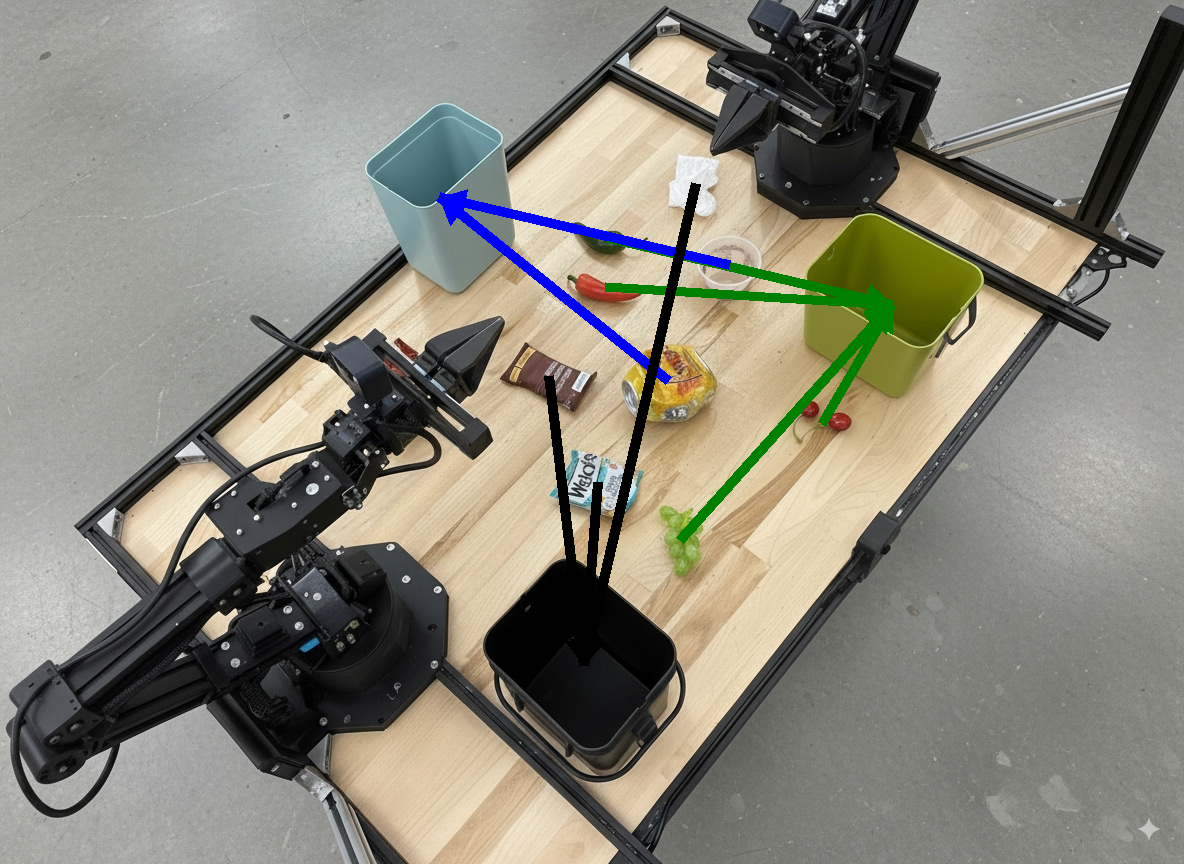
سيكون ناتج النموذج مشابهاً لما يلي:
  The annotated image shows the suggested disposal locations for the items on the table:
  - **Green bin (Compost/Organic)**: Green chili, red chili, grapes, and cherries.
  - **Blue bin (Recycling)**: Yellow crushed can and plastic container.
  - **Black bin (Trash)**: Chocolate bar wrapper, Welch's packet, and white tissue.
الخطوات التالية
- تنظيم المهام: مهام طويلة الأمد باستخدام واجهات برمجة تطبيقات مخصّصة للروبوتات
- الروبوتات التي تتضمّن بثًا مباشرًا: بث مباشر ثنائي الاتجاه في الوقت الفعلي (Gemini Robotics ER 2 فقط)
- فهم الفيديو: العثور على اللحظات وتصنيف مستوى التقدّم (الإصدار الثاني من Gemini Robotics فقط)