

מודלים של Gemini Robotics ER יכולים לכתוב ולהריץ קוד Python כדי לערוך תמונות ולהחיל לוגיקה לפני שהם עונים. בדף הזה יש דוגמאות להרצת קוד: זיהוי אובייקטים עם זום וחיתוך, קריאת מכשירים, מדידת נוזלים, קריאת לוחות מעגלים והערות לתמונות.
כדי להתאים את הדוגמאות האלה לתרחיש השימוש שלכם, צריך להחליף את טקסט ההנחיה ואת קובץ התמונה שהועלה בטקסט ובתמונה שלכם. אפשר גם לשנות את סכימת ה-JSON המבוקשת בהנחיה כך שתתאים למבנה הפלט שהאפליקציה צריכה, או להוסיף system_instruction כדי לאכוף את פורמט הפלט ואת הדיוק שלו.
קוד מלא שניתן להרצה זמין ב-Robotics cookbook.
רמת ההעמקה
אתם יכולים לשנות את רמת החשיבה של המודל כדי לשפר את הדיוק על חשבון זמן האחזור. משימות מרחביות כמו זיהוי אובייקטים מתבצעות היטב ברמת חשיבה נמוכה. משימות מורכבות כמו ספירה או הערכת משקל מפיקות תועלת מרמת חשיבה גבוהה יותר.
בדוגמה הבאה, רמת החשיבה נקבעת כ-high למשימת ספירה מורכבת:
Python
from google import genai

client = genai.Client()

uploaded_file = client.files.upload(file="scene.jpeg")

interaction = client.interactions.create(
    model="gemini-robotics-er-2-preview",
    input=[
        {
            "type": "image",
            "uri": uploaded_file.uri,
            "mime_type": uploaded_file.mime_type
        },
        {"type": "text", "text": "Identify and count all objects on the table."}
    ],
    generation_config={
        "thinking_level": "high"  # Use "minimal" or "low" for faster spatial tasks
    }
)

print(interaction.output_text)
פרטים נוספים מופיעים במאמר בנושא חשיבה.
זיהוי אובייקטים (שינוי גודל וחיתוך)
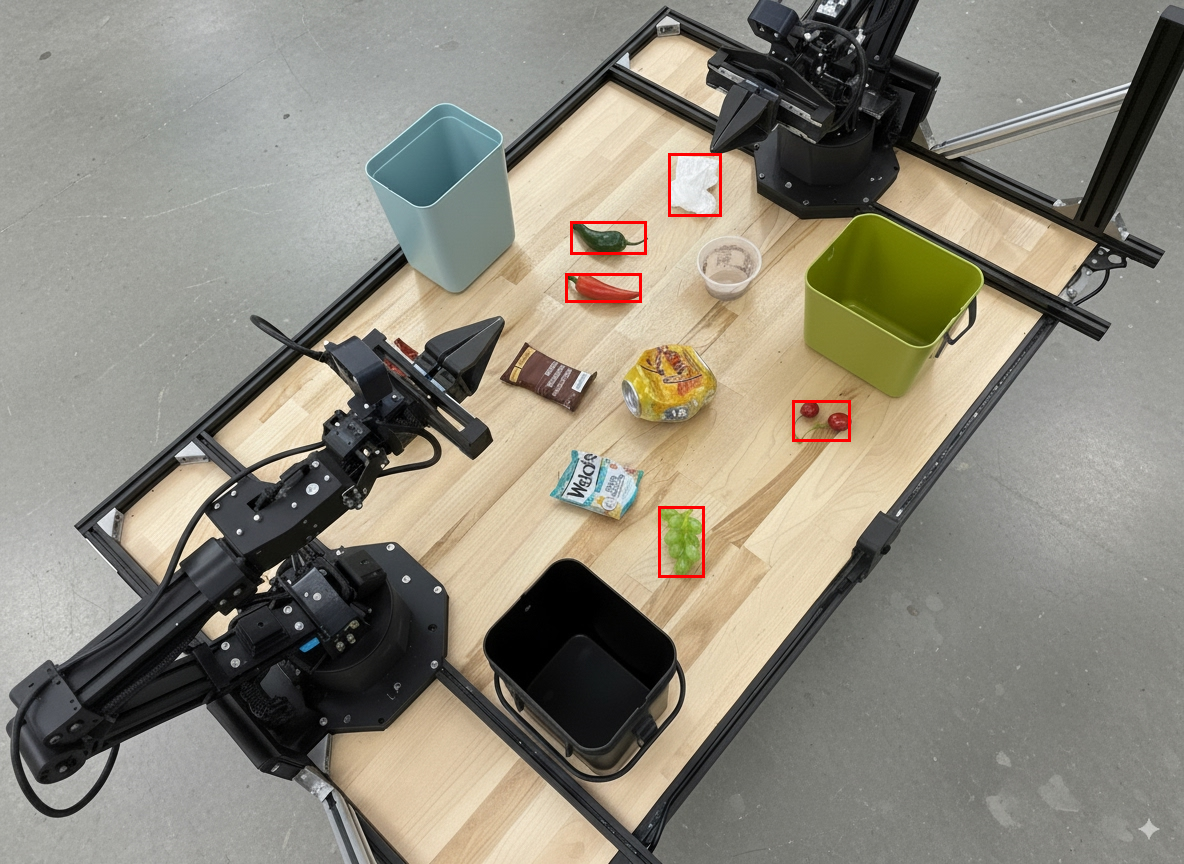
בדוגמה הבאה נעשה שימוש בביצוע קוד כדי להגדיל ולחתוך תמונה לתצוגה ברורה יותר כשמזהים אובייקטים ומחזירים תיבות תוחמות.
Python
from google import genai

client = genai.Client()

uploaded_file = client.files.upload(file="sorting.jpeg")

prompt = """
Return JSON in the format {label: val, y: val, x: val, y2: val, x2: val} for
the compostable objects in this scene. Please Zoom and crop the image for a
clearer view. Return an annotated image of the final result with the bounding
boxes drawn on it to the API caller as a part of your process.
"""

interaction = client.interactions.create(
    model="gemini-robotics-er-2-preview",
    input=[
        {
            "type": "image",
            "uri": uploaded_file.uri,
            "mime_type": uploaded_file.mime_type
        },
        {"type": "text", "text": prompt}
    ],
    tools=[{"type": "code_execution"}]
)

print(interaction.output_text)
פלט המודל ייראה בערך כך:
[
  {"label": "compostable", "y": 256, "x": 482, "y2": 295, "x2": 546},
  {"label": "compostable", "y": 317, "x": 478, "y2": 350, "x2": 542},
  {"label": "compostable", "y": 586, "x": 556, "y2": 668, "x2": 595},
  {"label": "compostable", "y": 463, "x": 669, "y2": 511, "x2": 718},
  {"label": "compostable", "y": 178, "x": 565, "y2": 250, "x2": 609}
]
בתמונה הבאה מוצגות התיבות שהוחזרו מהמודל.
לקרוא מד אנלוגי ולהפעיל לוגיקה
בדוגמה הבאה אפשר לראות איך משתמשים במודל כדי לקרוא מד אנלוגי ולבצע חישובי זמן. היא משתמשת בהוראת מערכת כדי לאכוף פלט JSON.
Python
from google import genai

client = genai.Client()

uploaded_file = client.files.upload(file="gauge.jpeg")

interaction = client.interactions.create(
    model="gemini-robotics-er-2-preview",
    system_instruction="Be precise. When JSON is requested, reply with ONLY that JSON (no preface, no code block).",
    input=[
        {
            "type": "image",
            "uri": uploaded_file.uri,
            "mime_type": uploaded_file.mime_type
        },
        {"type": "text", "text": """Read the current value from this gauge. Then, calculate how long
        it will take at the current rate for the value to reach maximum.
        Reply in JSON: {"current_value": val, "max_value": val,
        "time_to_max_minutes": val}"""}
    ],
    tools=[{"type": "code_execution"}]
)

print(interaction.output_text)
מדידת נוזל במיכל
בדוגמה הבאה מוצג שימוש בהרצת קוד כדי למדוד את רמת הנוזל במיכל.
Python
from google import genai

client = genai.Client()

uploaded_file = client.files.upload(file="fluid.jpeg")

interaction = client.interactions.create(
    model="gemini-robotics-er-2-preview",
    system_instruction="Be precise. When JSON is requested, reply with ONLY that JSON (no preface, no code block).",
    input=[
        {
            "type": "image",
            "uri": uploaded_file.uri,
            "mime_type": uploaded_file.mime_type
        },
        {"type": "text", "text": """Measure the amount of fluid in the container. Reply in JSON:
        {"fluid_level_ml": val, "container_capacity_ml": val,
        "percentage_full": val}"""}
    ],
    tools=[{"type": "code_execution"}]
)

print(interaction.output_text)
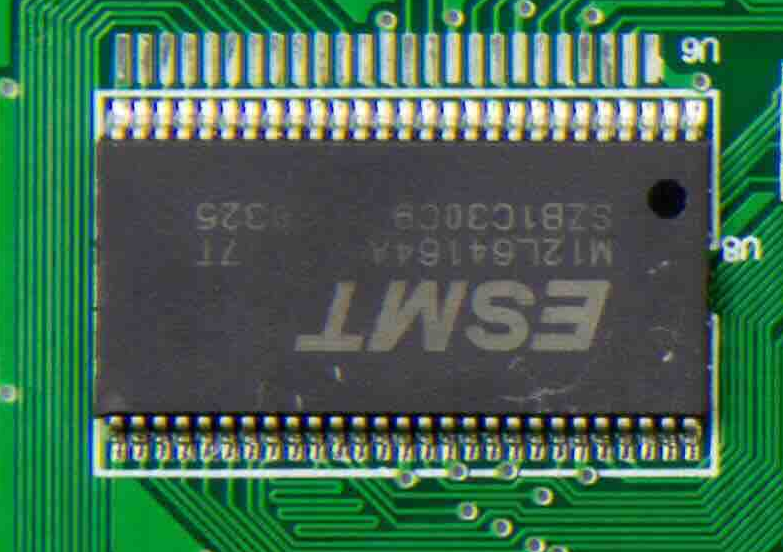
קריאת סימונים בלוח מעגלים
בדוגמה הבאה מוצג איך להשתמש בהרצת קוד כדי לקרוא את הסימונים בלוח מעגלים.
Python
from google import genai

client = genai.Client()

uploaded_file = client.files.upload(file="circuit_board.jpeg")

interaction = client.interactions.create(
    model="gemini-robotics-er-2-preview",
    system_instruction="Be precise. When JSON is requested, reply with ONLY that JSON (no preface, no code block).",
    input=[
        {
            "type": "image",
            "uri": uploaded_file.uri,
            "mime_type": uploaded_file.mime_type
        },
        {"type": "text", "text": """Read all visible component labels and markings on this circuit
        board. Reply in JSON: {"components": [{"label": val,
        "location": [y, x]}]}"""}
    ],
    tools=[{"type": "code_execution"}]
)

print(interaction.output_text)
הערה לתמונה
בדוגמה הבאה אפשר לראות איך משתמשים בהרצת קוד כדי להוסיף הערות לתמונה (למשל, ציור של חצים להוראות סילוק) ולהחזיר את התמונה ששונתה.
Python
from google import genai

client = genai.Client()

# Load your image
uploaded_file = client.files.upload(file="sorting.jpeg")

prompt = """
Look at this image and return it as an annotated version using arrows of
different colors to represent which items should go in which bins for
disposal. You must return the final image to the API caller.
"""

interaction = client.interactions.create(
    model="gemini-robotics-er-2-preview",
    input=[
        {
            "type": "image",
            "uri": uploaded_file.uri,
            "mime_type": uploaded_file.mime_type
        },
        {"type": "text", "text": prompt}
    ],
    tools=[{"type": "code_execution"}]
)

print(interaction.output_text)
זוהי דוגמה לקלט של תמונה.
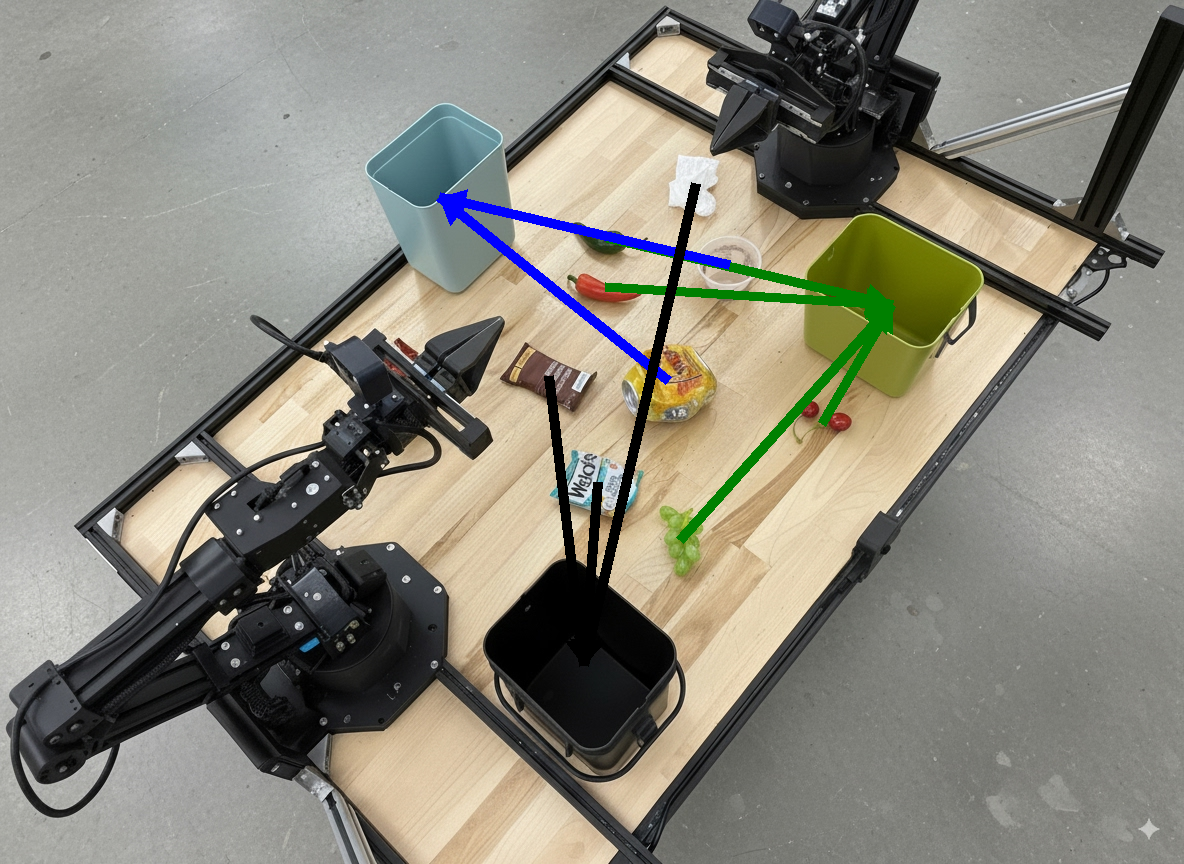
הפלט של המודל ייראה כך:
  The annotated image shows the suggested disposal locations for the items on the table:
  - **Green bin (Compost/Organic)**: Green chili, red chili, grapes, and cherries.
  - **Blue bin (Recycling)**: Yellow crushed can and plastic container.
  - **Black bin (Trash)**: Chocolate bar wrapper, Welch's packet, and white tissue.
המאמרים הבאים
- תיזמור משימות – משימות ארוכות טווח עם ממשקי API מותאמים אישית של רובוטים.
- רובוטיקה עם סטרימינג – סטרימינג דו-כיווני בזמן אמת (Gemini Robotics ER 2 בלבד).
- הבנת סרטונים – איתור רגעים וסיווג התקדמות (Gemini Robotics ER 2 בלבד).