

Gemini Robotics ER-Modelle können auf Objekte zeigen, sie in Videos verfolgen, sie mit Begrenzungsrahmen erkennen und Bewegungsbahnen generieren.
Vollständiger ausführbarer Code ist im Robotics-Kochbuch verfügbar.
Auf Objekte zeigen
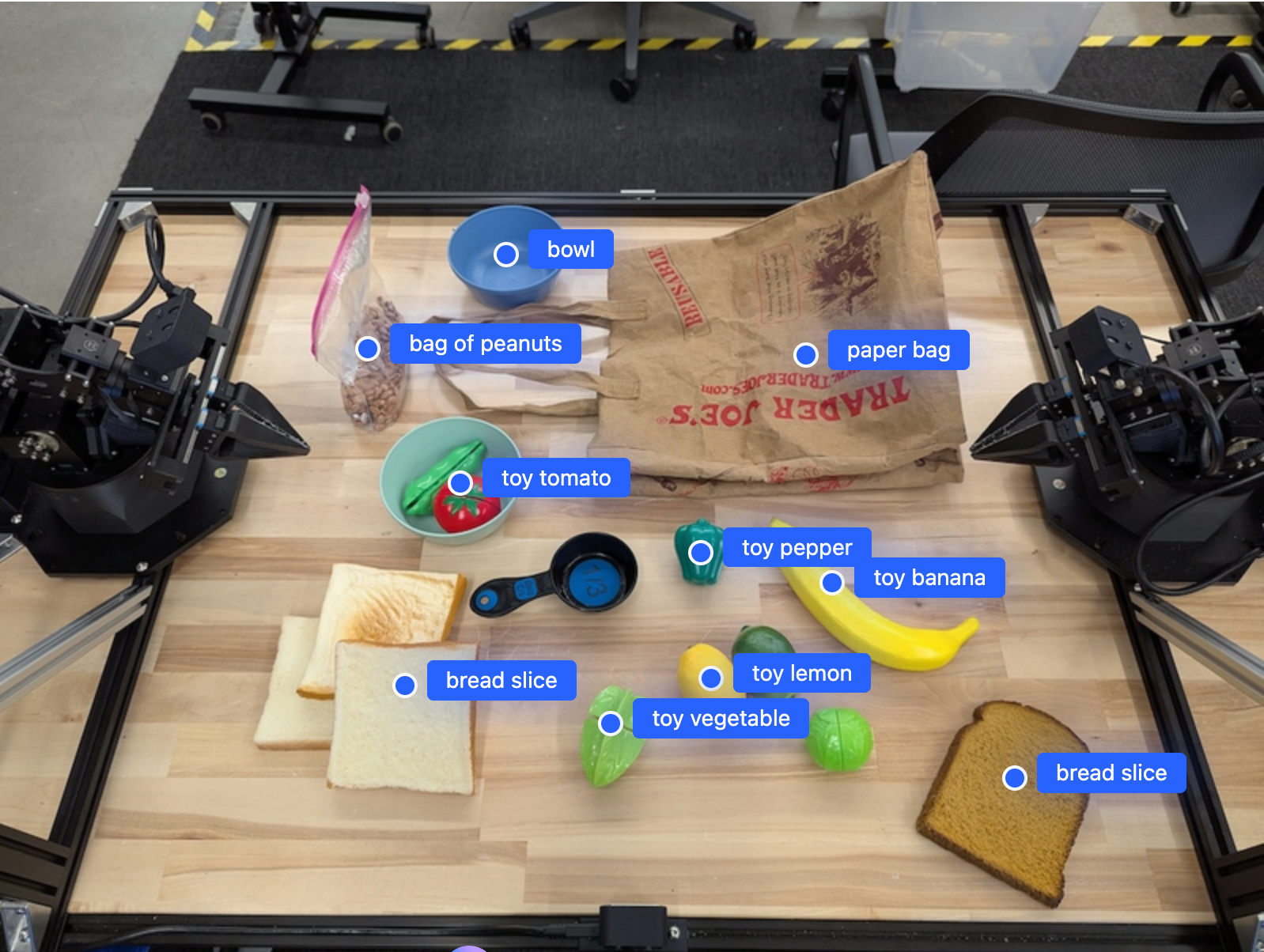
Im folgenden Beispiel werden bestimmte Objekte in einem Bild gesucht und ihre normalisierten [y, x]-Koordinaten zurückgegeben:
Python
from google import genai

PROMPT = """
          Point to no more than 10 items in the image. The label returned
          should be an identifying name for the object detected.
          The answer should follow the json format: [{"point": <point>,
          "label": <label1>}, ...]. The points are in [y, x] format
          normalized to 0-1000.
        """
client = genai.Client()

uploaded_file = client.files.upload(file="my-image.png")

image_response = client.interactions.create(
    model="gemini-robotics-er-2-preview",
    input=[
        {
            "type": "image",
            "uri": uploaded_file.uri,
            "mime_type": uploaded_file.mime_type
        },
        {"type": "text", "text": PROMPT}
    ],
    generation_config={"thinking_level": "high"},
)

print(image_response.output_text)
REST
# First, ensure you have the image file locally.
# Encode the image to base64
IMAGE_BASE64=$(base64 -w 0 my-image.png)

curl -X POST \
  "https://generativelanguage.googleapis.com/v1beta/interactions" \
  -H "x-goog-api-key: $GEMINI_API_KEY" \
  -H "Content-Type: application/json" \
  -d '{
    "model": "gemini-robotics-er-2-preview",
    "input": {
      "parts": [
        {
          "inlineData": {
            "mimeType": "image/png",
            "data": "'"${IMAGE_BASE64}"'"
          }
        },
        {
          "text": "Point to no more than 10 items in the image. The label returned should be an identifying name for the object detected. The answer should follow the json format: [{\"point\": [y, x], \"label\": <label1>}, ...]. The points are in [y, x] format normalized to 0-1000."
        }
      ]
    },
    "generation_config": {
      "thinking_config": {
        "thinking_level": "high"
      }
    }
  }'
Die Ausgabe ist ein JSON-Array mit Objekten, die jeweils einen point (normalisierte [y, x]-Koordinaten) und ein label zur Identifizierung des Objekts enthalten.
JSON
[
  {"point": [376, 508], "label": "small banana"},
  {"point": [287, 609], "label": "larger banana"},
  {"point": [223, 303], "label": "pink starfruit"},
  {"point": [435, 172], "label": "paper bag"},
  {"point": [270, 786], "label": "green plastic bowl"},
  {"point": [488, 775], "label": "metal measuring cup"},
  {"point": [673, 580], "label": "dark blue bowl"},
  {"point": [471, 353], "label": "light blue bowl"},
  {"point": [492, 497], "label": "bread"},
  {"point": [525, 429], "label": "lime"}
]
Die folgende Abbildung zeigt ein Beispiel dafür, wie diese Punkte angezeigt werden können:
Objekte in einem Video verfolgen
Gemini Robotics ER 2 kann auch Videoframes analysieren, um Objekte im Zeitverlauf zu verfolgen. Eine Liste der unterstützten Videoformate finden Sie unter Videoeingaben.
Python
from google import genai

client = genai.Client()

uploaded_file = client.files.upload(file="my-video.mp4")

prompt = """
          Point to the red ball in every frame where it appears.
          The answer should follow the json format: [{"point": [y, x],
          "label": <label>}, ...]. The points are in [y, x] format
          normalized to 0-1000. Return one entry per frame that contains
          the object.
        """

image_response = client.interactions.create(
  model="gemini-robotics-er-2-preview",
  input=[
    {
        "type": "video",
        "uri": uploaded_file.uri,
        "mime_type": uploaded_file.mime_type
    },
    {"type": "text", "text": prompt}
  ],
)

print(image_response.output_text)
Objekterkennung und Begrenzungsrahmen
Neben Punkten können Sie das Modell auch auffordern, 2D-Begrenzungsrahmen zurückzugeben, die mehr räumliche Details für erkannte Objekte liefern.
Python
from google import genai

client = genai.Client()

uploaded_file = client.files.upload(file="my-image.png")

prompt = """
          Detect all objects in this image and return bounding boxes.
          The answer should follow the JSON format:
          [{"label": <label>, "y": <y_min>, "x": <x_min>,
            "y2": <y_max>, "x2": <x_max>}, ...]
          where coordinates are normalized to 0-1000.
        """

image_response = client.interactions.create(
  model="gemini-robotics-er-2-preview",
  input=[
    {
        "type": "image",
        "uri": uploaded_file.uri,
        "mime_type": uploaded_file.mime_type
    },
    {"type": "text", "text": prompt}
  ],
)

print(image_response.output_text)
Bahnen
Gemini Robotics ER 2 kann Folgen von Punkten generieren, die eine Bahn definieren. Das ist nützlich, um die Roboterbewegung zu steuern.
In diesem Beispiel wird eine Bahn angefordert, um einen roten Eingabestift zu einem Organizer zu bewegen, einschließlich einer Schätzung der Zwischenwegpunkte. Der Code wurde reduziert, um nur die Eingabeaufforderung zu zeigen.
Python
prompt = """
          Generate a trajectory for the robotic arm to pick up the red pen
          and place it in the organizer. Return a list of waypoints as JSON:
          [{"step": <int>, "point": [y, x], "action": <description>}, ...]
          where coordinates are normalized to 0-1000.
        """
Platz für einen Laptop schaffen
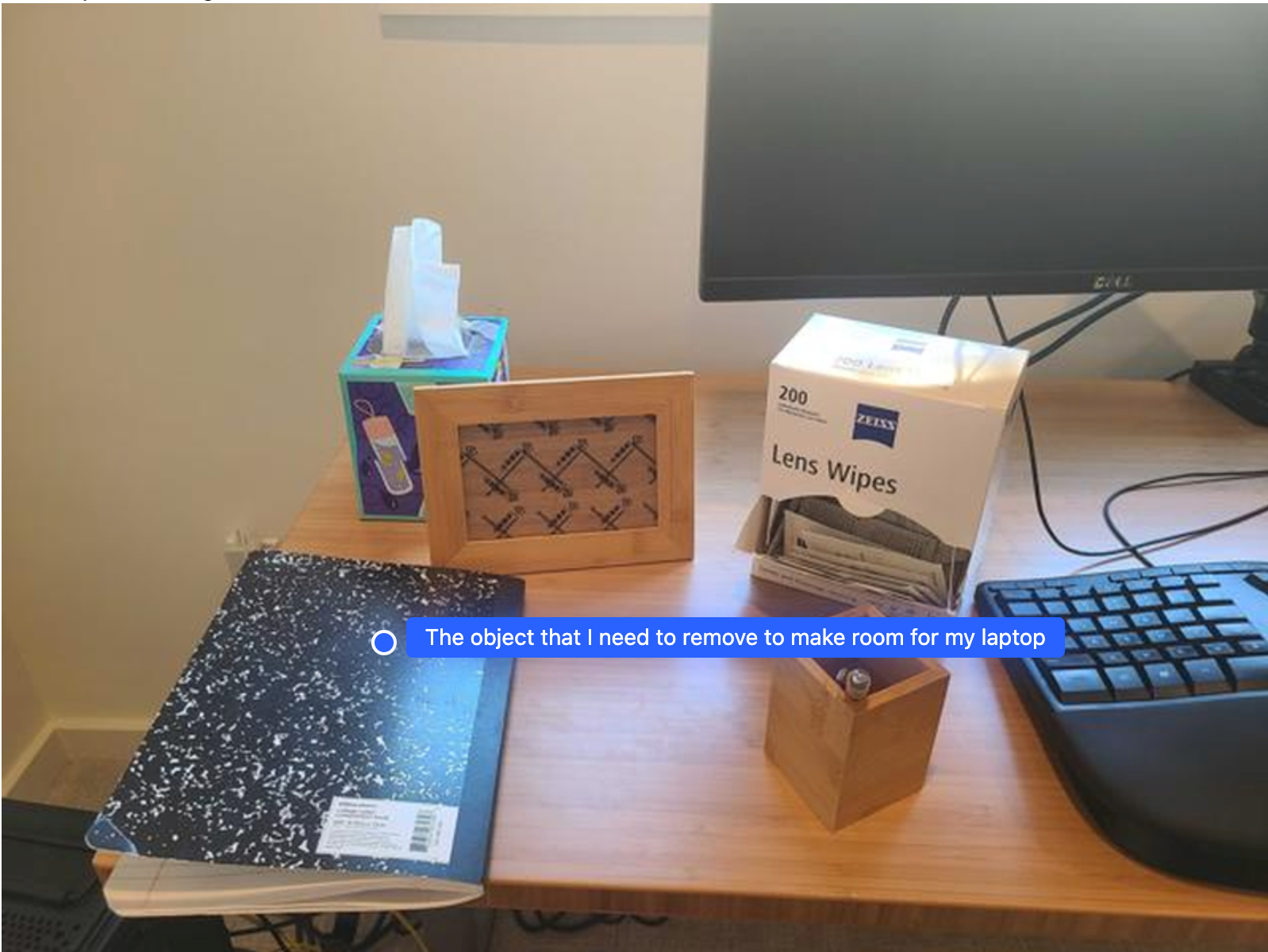
In diesem Beispiel wird gezeigt, wie Gemini Robotics ER über einen Raum nachdenken kann. Die Eingabeaufforderung fordert das Modell auf, zu ermitteln, welches Objekt bewegt werden muss, um Platz für ein anderes Element zu schaffen.
Python
from google import genai

client = genai.Client()

uploaded_file = client.files.upload(file="path/to/image-with-objects.jpg")

prompt = """
          Point to the object that I need to remove to make room for my laptop
          The answer should follow the JSON format: [{"point": <point>,
          "label": <label1>}, ...]. The points are in [y, x] format normalized to 0-1000.
        """

image_response = client.interactions.create(
  model="gemini-robotics-er-2-preview",
  input=[
    {
        "type": "image",
        "uri": uploaded_file.uri,
        "mime_type": uploaded_file.mime_type
    },
    {"type": "text", "text": prompt}
  ],
)

print(image_response.output_text)
Die Antwort enthält eine 2D-Koordinate des Objekts, das die Frage des Nutzers beantwortet, in diesem Fall das Objekt, das bewegt werden soll, um Platz für einen Laptop zu schaffen.
[
  {"point": [672, 301], "label": "The object that I need to remove to make room for my laptop"}
]
Lunchpaket packen
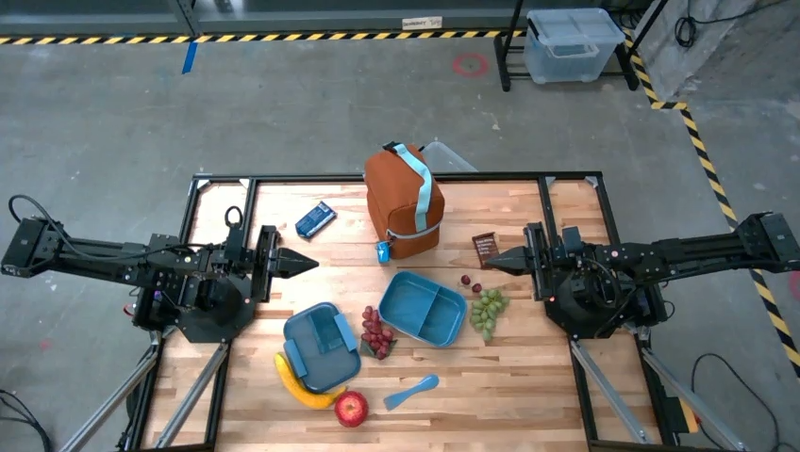
Das Modell kann auch Anleitungen für mehrstufige Aufgaben geben und für jeden Schritt auf relevante Objekte zeigen. In diesem Beispiel plant das Modell eine Reihe von Schritten, um ein Lunchpaket zu packen.
Python
from google import genai

client = genai.Client()

uploaded_file = client.files.upload(file="path/to/image-of-lunch.jpg")

prompt = """
          Explain how to pack the lunch box and lunch bag. Point to each
          object that you refer to. Each point should be in the format:
          [{"point": [y, x], "label": }], where the coordinates are
          normalized between 0-1000.
        """

image_response = client.interactions.create(
  model="gemini-robotics-er-2-preview",
  input=[
    {
        "type": "image",
        "uri": uploaded_file.uri,
        "mime_type": uploaded_file.mime_type
    },
    {"type": "text", "text": prompt}
  ],
)

print(image_response.output_text)
Die Antwort auf diese Eingabeaufforderung ist eine Schritt-für-Schritt-Anleitung zum Packen eines Lunchpakets aus der Bildeingabe.
Eingabebild
Modellausgabe
Based on the image, here is a plan to pack the lunch box and lunch bag:

1.  **Pack the fruit into the lunch box.** Place the [apple](apple), [banana](banana), [red grapes](red grapes), and [green grapes](green grapes) into the [blue lunch box](blue lunch box).
2.  **Add the spoon to the lunch box.** Put the [blue spoon](blue spoon) inside the lunch box as well.
3.  **Close the lunch box.** Secure the lid on the [blue lunch box](blue lunch box).
4.  **Place the lunch box inside the lunch bag.** Put the closed [blue lunch box](blue lunch box) into the [brown lunch bag](brown lunch bag).
5.  **Pack the remaining items into the lunch bag.** Place the [blue snack bar](blue snack bar) and the [brown snack bar](brown snack bar) into the [brown lunch bag](brown lunch bag).

Here is the list of objects and their locations:
*   [{"point": [899, 440], "label": "apple"}]
*   [{"point": [814, 363], "label": "banana"}]
*   [{"point": [727, 470], "label": "red grapes"}]
*   [{"point": [675, 608], "label": "green grapes"}]
*   [{"point": [706, 529], "label": "blue lunch box"}]
*   [{"point": [864, 517], "label": "blue spoon"}]
*   [{"point": [499, 401], "label": "blue snack bar"}]
*   [{"point": [614, 705], "label": "brown snack bar"}]
*   [{"point": [448, 501], "label": "brown lunch bag"}]
Nächste Schritte
- Agentische Funktionen: Code-Ausführung, Instrumentenablesung, Bildannotation.
- Aufgabenorchestrierung: Aufgaben mit langer Laufzeit mit benutzerdefinierten Roboter-APIs.
- Robotik mit Streaming: bidirektionales Streaming in Echtzeit (nur Gemini Robotics ER 2).
- Videoanalyse: Momente finden und Fortschritt klassifizieren (nur Gemini Robotics ER 2).