

जेमिनी रोबोटिक्स के ईआर मॉडल वस्तुओं की ओर इशारा कर सकते हैं, वीडियो में उन्हें ट्रैक कर सकते हैं, बाउंडिंग बॉक्स के साथ उनका पता लगा सकते हैं और गति प्रक्षेपवक्र उत्पन्न कर सकते हैं.
पूरे रन करने लायक कोड के लिए, रोबोटिक्स कुकबुक देखें.
वस्तुओं की ओर इशारा करें
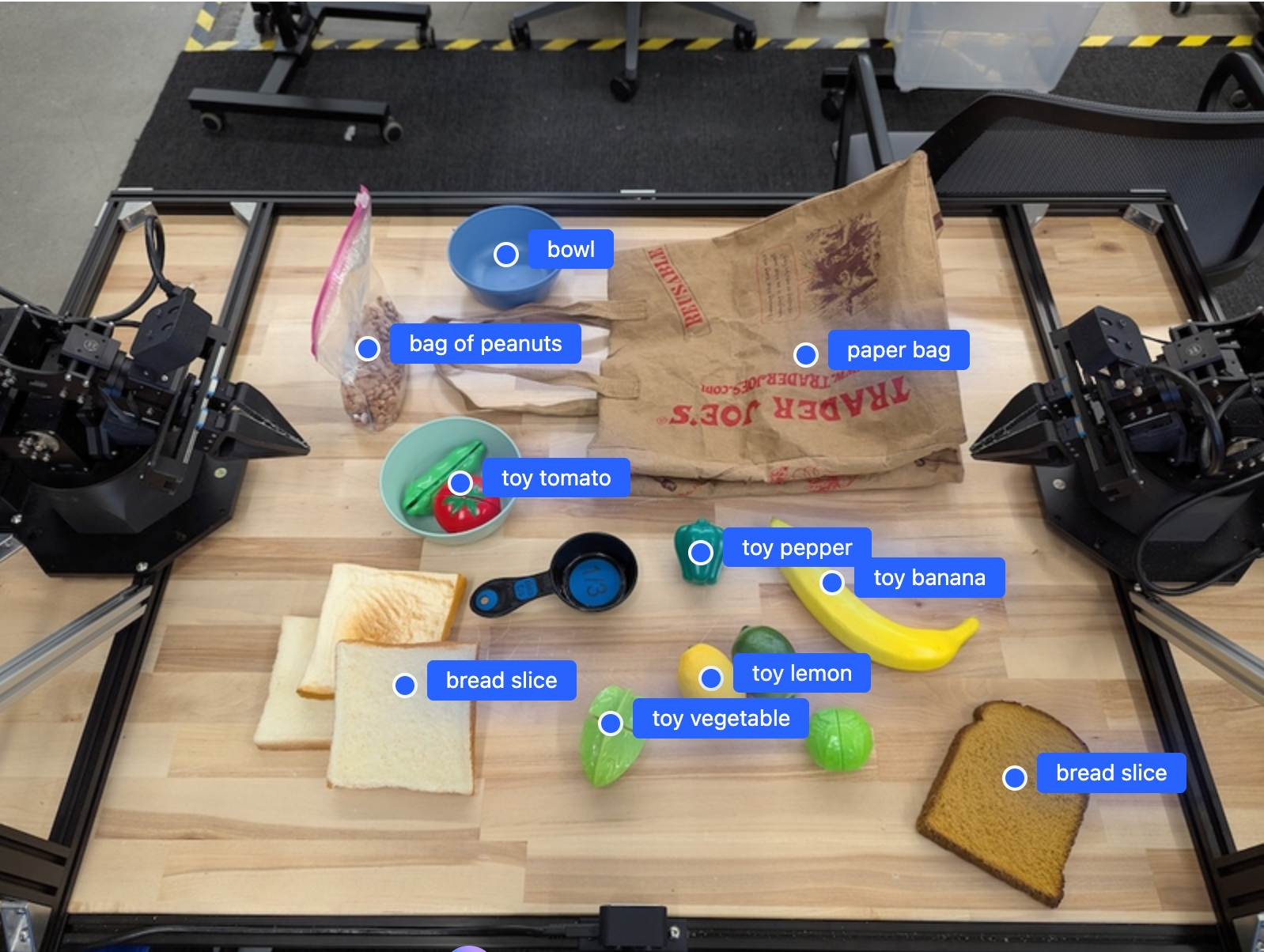
निम्नलिखित उदाहरण किसी छवि में विशिष्ट वस्तुओं का पता लगाता है और उनके मानकीकृत [y, x] निर्देशांक लौटाता है:
Python
from google import genai

PROMPT = """
          Point to no more than 10 items in the image. The label returned
          should be an identifying name for the object detected.
          The answer should follow the json format: [{"point": <point>,
          "label": <label1>}, ...]. The points are in [y, x] format
          normalized to 0-1000.
        """
client = genai.Client()

uploaded_file = client.files.upload(file="my-image.png")

image_response = client.interactions.create(
    model="gemini-robotics-er-2-preview",
    input=[
        {
            "type": "image",
            "uri": uploaded_file.uri,
            "mime_type": uploaded_file.mime_type
        },
        {"type": "text", "text": PROMPT}
    ],
    generation_config={"thinking_level": "high"},
)

print(image_response.output_text)
REST
# First, ensure you have the image file locally.
# Encode the image to base64
IMAGE_BASE64=$(base64 -w 0 my-image.png)

curl -X POST \
  "https://generativelanguage.googleapis.com/v1beta/interactions" \
  -H "x-goog-api-key: $GEMINI_API_KEY" \
  -H "Content-Type: application/json" \
  -d '{
    "model": "gemini-robotics-er-2-preview",
    "input": {
      "parts": [
        {
          "inlineData": {
            "mimeType": "image/png",
            "data": "'"${IMAGE_BASE64}"'"
          }
        },
        {
          "text": "Point to no more than 10 items in the image. The label returned should be an identifying name for the object detected. The answer should follow the json format: [{\"point\": [y, x], \"label\": <label1>}, ...]. The points are in [y, x] format normalized to 0-1000."
        }
      ]
    },
    "generation_config": {
      "thinking_config": {
        "thinking_level": "high"
      }
    }
  }'
आउटपुट के तौर पर एक JSON कलेक्शन मिलेगा. इसमें ऑब्जेक्ट शामिल होंगे. हर ऑब्जेक्ट में point (सामान्य किए गए [y, x] कोऑर्डिनेट) और ऑब्जेक्ट की पहचान करने वाला label होगा.
JSON
[
  {"point": [376, 508], "label": "small banana"},
  {"point": [287, 609], "label": "larger banana"},
  {"point": [223, 303], "label": "pink starfruit"},
  {"point": [435, 172], "label": "paper bag"},
  {"point": [270, 786], "label": "green plastic bowl"},
  {"point": [488, 775], "label": "metal measuring cup"},
  {"point": [673, 580], "label": "dark blue bowl"},
  {"point": [471, 353], "label": "light blue bowl"},
  {"point": [492, 497], "label": "bread"},
  {"point": [525, 429], "label": "lime"}
]
नीचे दी गई इमेज में, इन पॉइंट को दिखाने का तरीका बताया गया है:
वीडियो में वस्तुओं को ट्रैक करना
जेमिनी रोबोटिक्स ER 2 वीडियो फ्रेम का विश्लेषण करके समय के साथ वस्तुओं को ट्रैक भी कर सकता है. समर्थित वीडियो प्रारूपों की सूची के लिए वीडियो इनपुट देखें.
Python
from google import genai

client = genai.Client()

uploaded_file = client.files.upload(file="my-video.mp4")

prompt = """
          Point to the red ball in every frame where it appears.
          The answer should follow the json format: [{"point": [y, x],
          "label": <label>}, ...]. The points are in [y, x] format
          normalized to 0-1000. Return one entry per frame that contains
          the object.
        """

image_response = client.interactions.create(
  model="gemini-robotics-er-2-preview",
  input=[
    {
        "type": "video",
        "uri": uploaded_file.uri,
        "mime_type": uploaded_file.mime_type
    },
    {"type": "text", "text": prompt}
  ],
)

print(image_response.output_text)
ऑब्जेक्ट डिटेक्शन और बाउंडिंग बॉक्स
बिंदुओं के अलावा, आप मॉडल को 2डी बाउंडिंग बॉक्स लौटाने के लिए भी कह सकते हैं, जो पता लगाए गए ऑब्जेक्ट्स के लिए अधिक स्थानिक विवरण प्रदान करते हैं.
Python
from google import genai

client = genai.Client()

uploaded_file = client.files.upload(file="my-image.png")

prompt = """
          Detect all objects in this image and return bounding boxes.
          The answer should follow the JSON format:
          [{"label": <label>, "y": <y_min>, "x": <x_min>,
            "y2": <y_max>, "x2": <x_max>}, ...]
          where coordinates are normalized to 0-1000.
        """

image_response = client.interactions.create(
  model="gemini-robotics-er-2-preview",
  input=[
    {
        "type": "image",
        "uri": uploaded_file.uri,
        "mime_type": uploaded_file.mime_type
    },
    {"type": "text", "text": prompt}
  ],
)

print(image_response.output_text)
ट्रेजेकटोरीज़
जेमिनी रोबोटिक्स ER 2 बिंदुओं के अनुक्रम उत्पन्न कर सकता है जो एक प्रक्षेप पथ को परिभाषित करते हैं, जो रोबोट की गति को निर्देशित करने के लिए उपयोगी है.
इस उदाहरण में एक लाल पेन को आयोजक तक ले जाने के लिए एक प्रक्षेप पथ का अनुरोध किया गया है, जिसमें मध्यवर्ती पड़ावों का अनुमान भी शामिल है. कोड को छोटा करके केवल प्रॉम्प्ट दिखाया गया है.
Python
prompt = """
          Generate a trajectory for the robotic arm to pick up the red pen
          and place it in the organizer. Return a list of waypoints as JSON:
          [{"step": <int>, "point": [y, x], "action": <description>}, ...]
          where coordinates are normalized to 0-1000.
        """
लैपटॉप के लिए जगह बनाना
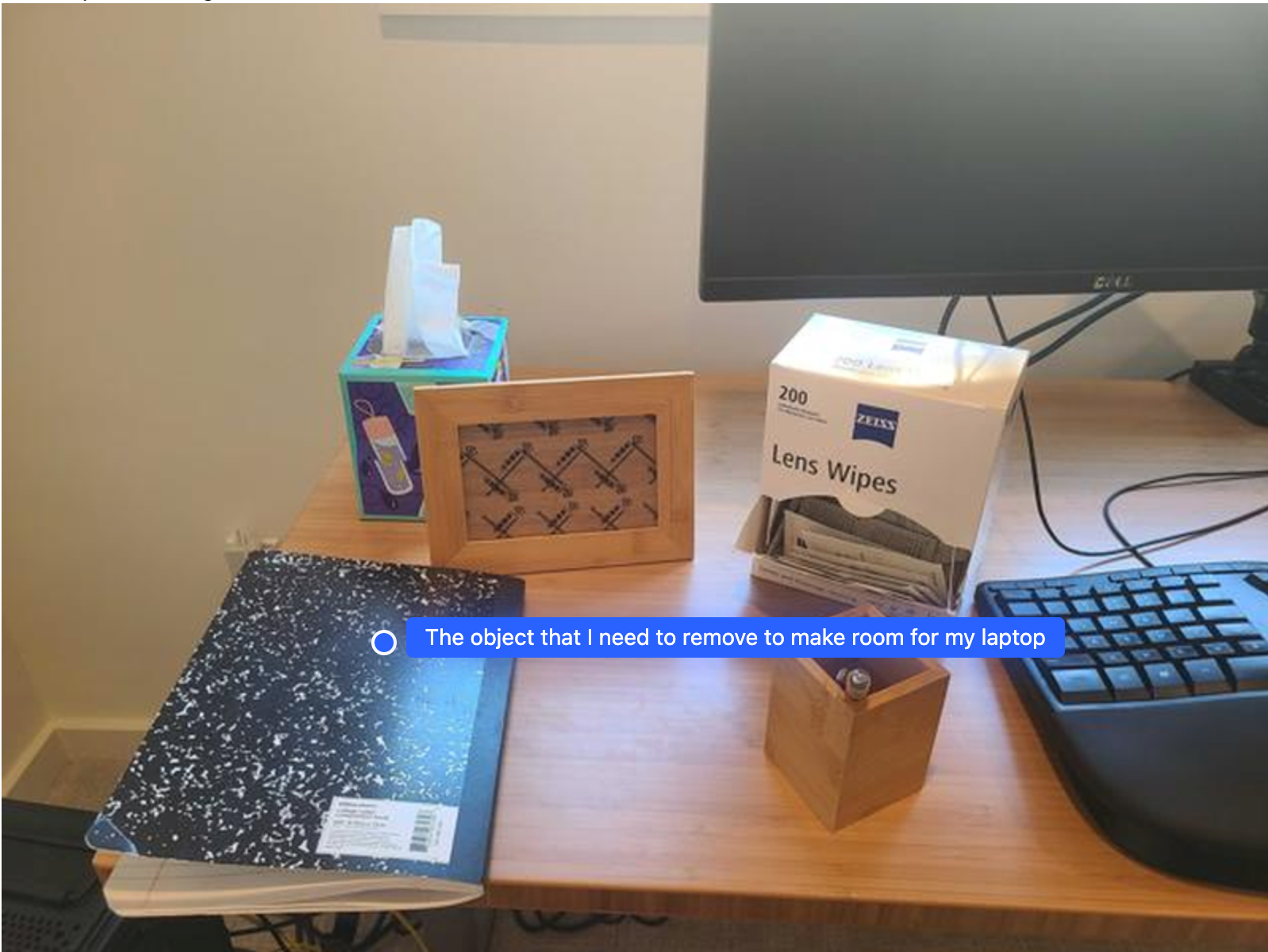
यह उदाहरण दर्शाता है कि जेमिनी रोबोटिक्स ईआर किसी स्थान के बारे में कैसे तर्क कर सकता है. निर्देश में मॉडल से यह पहचानने के लिए कहा गया है कि किसी अन्य वस्तु के लिए जगह बनाने के लिए किस वस्तु को स्थानांतरित करने की आवश्यकता है.
Python
from google import genai

client = genai.Client()

uploaded_file = client.files.upload(file="path/to/image-with-objects.jpg")

prompt = """
          Point to the object that I need to remove to make room for my laptop
          The answer should follow the JSON format: [{"point": <point>,
          "label": <label1>}, ...]. The points are in [y, x] format normalized to 0-1000.
        """

image_response = client.interactions.create(
  model="gemini-robotics-er-2-preview",
  input=[
    {
        "type": "image",
        "uri": uploaded_file.uri,
        "mime_type": uploaded_file.mime_type
    },
    {"type": "text", "text": prompt}
  ],
)

print(image_response.output_text)
प्रतिक्रिया में उस वस्तु का 2डी निर्देशांक होता है जो उपयोगकर्ता के प्रश्न का उत्तर देती है, इस मामले में, वह वस्तु जिसे लैपटॉप के लिए जगह बनाने के लिए हटाना होगा.
[
  {"point": [672, 301], "label": "The object that I need to remove to make room for my laptop"}
]
दोपहर का भोजन पैक करना
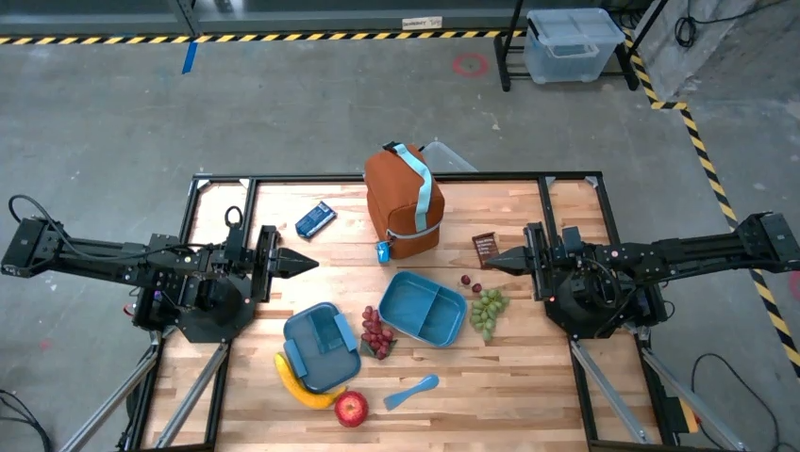
यह मॉडल, एक से ज़्यादा चरणों वाले टास्क के लिए निर्देश भी दे सकता है. साथ ही, हर चरण के लिए काम की चीज़ों की ओर इशारा कर सकता है. इस उदाहरण में दिखाया गया है कि मॉडल, लंच बैग पैक करने के लिए सिलसिलेवार तरीके से कैसे प्लान करता है.
Python
from google import genai

client = genai.Client()

uploaded_file = client.files.upload(file="path/to/image-of-lunch.jpg")

prompt = """
          Explain how to pack the lunch box and lunch bag. Point to each
          object that you refer to. Each point should be in the format:
          [{"point": [y, x], "label": }], where the coordinates are
          normalized between 0-1000.
        """

image_response = client.interactions.create(
  model="gemini-robotics-er-2-preview",
  input=[
    {
        "type": "image",
        "uri": uploaded_file.uri,
        "mime_type": uploaded_file.mime_type
    },
    {"type": "text", "text": prompt}
  ],
)

print(image_response.output_text)
इस प्रश्न का उत्तर छवि इनपुट से लंच बैग पैक करने के तरीके के बारे में चरण-दर-चरण निर्देशों का एक सेट है.
इनपुट इमेज
मॉडल आउटपुट
Based on the image, here is a plan to pack the lunch box and lunch bag:

1.  **Pack the fruit into the lunch box.** Place the [apple](apple), [banana](banana), [red grapes](red grapes), and [green grapes](green grapes) into the [blue lunch box](blue lunch box).
2.  **Add the spoon to the lunch box.** Put the [blue spoon](blue spoon) inside the lunch box as well.
3.  **Close the lunch box.** Secure the lid on the [blue lunch box](blue lunch box).
4.  **Place the lunch box inside the lunch bag.** Put the closed [blue lunch box](blue lunch box) into the [brown lunch bag](brown lunch bag).
5.  **Pack the remaining items into the lunch bag.** Place the [blue snack bar](blue snack bar) and the [brown snack bar](brown snack bar) into the [brown lunch bag](brown lunch bag).

Here is the list of objects and their locations:
*   [{"point": [899, 440], "label": "apple"}]
*   [{"point": [814, 363], "label": "banana"}]
*   [{"point": [727, 470], "label": "red grapes"}]
*   [{"point": [675, 608], "label": "green grapes"}]
*   [{"point": [706, 529], "label": "blue lunch box"}]
*   [{"point": [864, 517], "label": "blue spoon"}]
*   [{"point": [499, 401], "label": "blue snack bar"}]
*   [{"point": [614, 705], "label": "brown snack bar"}]
*   [{"point": [448, 501], "label": "brown lunch bag"}]
आगे क्या करना है
- एजेंटिक एआई की सुविधाएँ — कोड एक्ज़ीक्यूशन, इंस्ट्रुमेंट को पढ़ना, इमेज की व्याख्या करना.
- टास्क ऑर्केस्ट्रेशन — कस्टम रोबोट एपीआई के साथ लंबे समय तक चलने वाले टास्क.
- स्ट्रीमिंग के साथ रोबोटिक्स — रीयल-टाइम में दोनों तरफ़ से स्ट्रीमिंग (सिर्फ़ Gemini Robotics ER 2 के लिए).
- वीडियो को समझना — वीडियो में किसी खास पल को ढूंढना और प्रोग्रेस को कैटगरी में बांटना (सिर्फ़ Gemini Robotics ER 2 के लिए).