
 View on ai.google.dev View on ai.google.dev
|
 Run in Google Colab Run in Google Colab
|
 Run in Kaggle Run in Kaggle
|
 Open in Vertex AI Open in Vertex AI
|
 View source on GitHub View source on GitHub
|
Using images for prompting Gemma models opens up a whole new range of possibilies for understanding your world and solving problems with visual data. Starting with Gemma 3 in 4B sizes and higher, you can use image data as part of your prompt to for richer context and to solve more complex tasks.
This tutorial shows you how to prompt Gemma with images using the Gemma library for JAX. Gemma library is a Python package built as an extension of JAX, letting you use the performance advantages of the JAX framework with dramatically less code.
Setup
To complete this tutorial, you'll first need to complete the setup instructions at Gemma setup. The Gemma setup instructions show you how to do the following:
- Get access to Gemma on kaggle.com.
- Select a Colab runtime with sufficient resources to run the Gemma model.
- Generate and configure a Kaggle username and API key.
After you've completed the Gemma setup, move on to the next section, where you'll set environment variables for your Colab environment.
Install libraries
Install the Gemma library.
pip install -q gemmaSet environment variables
Login with your Kaggle account.
# This will prompt you to enter your Kaggle API token
import kagglehub
kagglehub.login()
VBox(children=(HTML(value='<center> <img\nsrc=https://www.kaggle.com/static/images/site-logo.png\nalt=\'Kaggle…
Kaggle credentials set.
Warning: Looks like you're using an outdated `kagglehub` version (installed: 0.3.13), please consider upgrading to the latest version (0.4.1).
Kaggle credentials successfully validated.
Set the JAX environment to use the full GPU memory space.
import os
os.environ["XLA_PYTHON_CLIENT_MEM_FRACTION"]="1.00"
Import packages
Import the Gemma library and additional support libraries.
# Common imports
import os
import jax
import jax.numpy as jnp
import tensorflow_datasets as tfds

# Gemma imports
from gemma import gm
Configure a model
Select and configure a Gemma model for use, including a tokenizer, model architecture, and checkpoints. The Gemma libary supports all of Google's official releases of the model. You must use the Gemma3Tokenizer and a Gemma 3 or later model to be able to process images as part of your prompt.
To configure the model, run the following code:
tokenizer = gm.text.Gemma3Tokenizer()

model = gm.nn.Gemma3_4B()

params = gm.ckpts.load_params(gm.ckpts.CheckpointPath.GEMMA3_4B_IT)
WARNING:absl:Provided metadata contains unknown key custom. Adding it to custom_metadata.
Generate text with text
Start by prompting with text. The Gemma library provides a Sampler function for simple prompting.
sampler = gm.text.Sampler(
    model=model,
    params=params,
    tokenizer=tokenizer,
)

sampler.sample('Roses are red.', max_new_tokens=30)
'\nViolets are blue.\nI love you,\nAnd I want you too.\n\n---\n\nThis is a classic, simple, and'
Change the prompt and change the maximum number of tokens to generate different output.
Generate text with images
Once you have a text prompt working, you can add images to your prompt. Make sure you have configure a Gemma 3 or later model that is 4B or higher, and configured the Gemma3Tokenizer.
Load an image
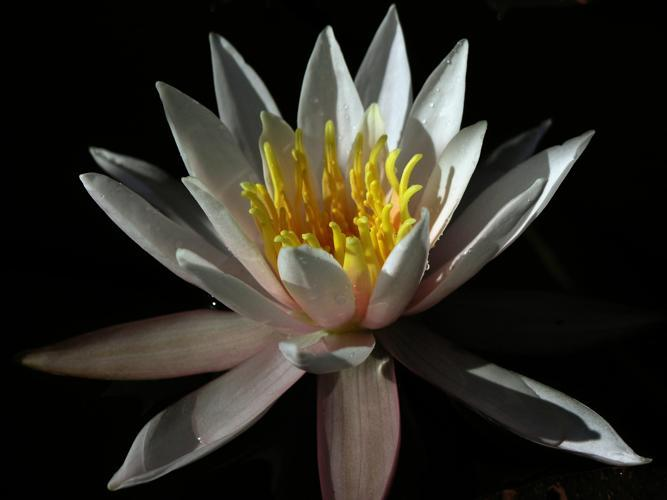
Load an image from a data source or a local file. The following code shows how to load an image from a TensorFlow datasource:
ds = tfds.data_source('oxford_flowers102', split='train')
image = ds[0]['image']

# display the image
image
WARNING:absl:Variant folder /root/tensorflow_datasets/oxford_flowers102/2.1.1 has no dataset_info.json
Downloading and preparing dataset Unknown size (download: Unknown size, generated: Unknown size, total: Unknown size) to /root/tensorflow_datasets/oxford_flowers102/2.1.1...
Dl Completed...: 0 url [00:00, ? url/s]
Dl Size...: 0 MiB [00:00, ? MiB/s]
Extraction completed...: 0 file [00:00, ? file/s]
Generating splits...:   0%|          | 0/3 [00:00<?, ? splits/s]
Generating train examples...: 0 examples [00:00, ? examples/s]
Shuffling /root/tensorflow_datasets/oxford_flowers102/incomplete.2TXIHE_2.1.1/oxford_flowers102-train.array_re…
Generating test examples...: 0 examples [00:00, ? examples/s]
Shuffling /root/tensorflow_datasets/oxford_flowers102/incomplete.2TXIHE_2.1.1/oxford_flowers102-test.array_rec…
Generating validation examples...: 0 examples [00:00, ? examples/s]
Shuffling /root/tensorflow_datasets/oxford_flowers102/incomplete.2TXIHE_2.1.1/oxford_flowers102-validation.arr…
Dataset oxford_flowers102 downloaded and prepared to /root/tensorflow_datasets/oxford_flowers102/2.1.1. Subsequent calls will reuse this data.
Prepare prompt with image data
When you prompt with image data, you include a specific tag <start_of_image>, to include the image with the text your prompt. You then encode the prompt with the image data using the tokenizer object to prepare to run it with the model.
prompt = """<start_of_turn>user
Describe the contents of this image.

<start_of_image>

<end_of_turn>
<start_of_turn>model
"""
If you want to prompt with more than one image, you must include a <start_of_image> tag for each image included in your prompt.
Run the prompt with image data
After you prepare your image data and the prompt with image tags, you can run the prompt and generate output. The following code shows how to use the Sampler function run the prompt:
sampler = gm.text.Sampler(
    model=model,
    params=params,
    tokenizer=tokenizer,
)

out = sampler.sample(prompt, images=image, max_new_tokens=500)
print(out)
/usr/local/lib/python3.12/dist-packages/jax/_src/ops/scatter.py:108: FutureWarning: scatter inputs have incompatible types: cannot safely cast value from dtype=float32 to dtype=bfloat16 with jax_numpy_dtype_promotion='standard'. In future JAX releases this will result in an error.
  warnings.warn(
Here's a description of the image's contents:

**Subject:** The image features a close-up shot of a water lily in full bloom.

**Details:**

*   **Flower:** The lily is predominantly white with a delicate pink hue at the base of the petals. It has a striking, star-like shape with pointed petals that curve upwards.
*   **Center:** The flower's center is a vibrant yellow, with prominent stamens extending outwards. There are a few water droplets clinging to the petals.
*   **Stem and Pads:** The lily is resting on a dark, textured stem and broad, paddle-shaped pads that are characteristic of water lilies.
*   **Background:** The background is completely black, creating a dramatic contrast and isolating the flower, making it the clear focal point.

**Overall Impression:** The image has a serene and elegant feel, emphasizing the beauty and detail of the water lily. The dark background and lighting create a sense of depth and highlight the flower's form.<end_of_turn>
Alternatively, you can use the gm.text.ChatSampler() function generate a response without requiring <start_of_turn> tags. For more details, see the Gemma library for JAX documentation.
Next steps
The Gemma library provides much more additional functionality. See these additional resources for more information:
The Gemma library for JAX provides additional functionality, including LoRA, Sharding, Quantization and more. For more details, see the Gemma library documentation. If you have any feedback, or have issues using Gemma library, submit them through the repository Issues interface.