

ابزار Computer Use به شما امکان میدهد تا عاملهای کنترل مرورگر، موبایل و دسکتاپ بسازید که با وظایف تعامل داشته و آنها را خودکار میکنند. با استفاده از اسکرینشاتها، مدل میتواند صفحه کامپیوتر را "ببیند" و با تولید اقدامات خاص رابط کاربری مانند کلیک ماوس و ورودیهای صفحه کلید "عمل" کند. مشابه فراخوانی تابع، برای دریافت و اجرای اقدامات Computer Use به پیادهسازی محیط اجرای سمت کلاینت نیاز خواهید داشت.
Gemini 3.5 Flash مدل پیشنهادی برای استفاده در کامپیوتر است و چندین قابلیت جدید را معرفی میکند:
- پشتیبانی از چند محیط: ساخت عاملها برای محیطهای مرورگر، موبایل و دسکتاپ .
- اقدامات سادهشده با اهداف: اقدامات شامل یک فیلد
intentهستند که استدلال مدل را در پشت هر مرحله توضیح میدهد. - سیاستهای ایمنی قابل تنظیم: تنظیم دقیق رفتار ایمنی با دستهها و لغوهای سیاستهای داخلی.
- تشخیص تزریق سریع: اسکن اسکرینشات با قابلیت انتخاب برای شناسایی دستورالعملهای خصمانهی پنهان.
با استفاده از کامپیوتر، میتوانید عاملهایی بسازید که:
- خودکارسازی ورود اطلاعات تکراری یا پر کردن فرم در وبسایتها.
- انجام تست خودکار برنامههای وب و جریانهای کاربری
- انجام تحقیقات در وبسایتهای مختلف (مثلاً جمعآوری اطلاعات محصول، قیمتها و نظرات از سایتهای تجارت الکترونیک برای اطلاعرسانی در مورد خرید)
در اینجا یک مثال ساده از مقداردهی اولیه کلاینت و ارسال اعلان به مدل با ابزار computer_use فعال برای محیط مرورگر آورده شده است:
پایتون
from google import genai

client = genai.Client()

interaction = client.interactions.create(
    model="gemini-3.5-flash",
    input="Search for 'Gemini API' on Google.",
    tools=[{"type": "computer_use", "environment": "browser"}]
)

print(interaction)
جاوا اسکریپت
import { GoogleGenAI } from '@google/genai';

const ai = new GoogleGenAI();

const interaction = await ai.interactions.create({
  model: 'gemini-3.5-flash',
  input: "Search for 'Gemini API' on Google.",
  tools: [{ type: "computer_use", environment: "browser" }]
});

console.log(interaction);
نحوه استفاده از کامپیوتر
برای ساخت یک عامل با مدل استفاده از کامپیوتر، باید یک حلقه پیوسته بین برنامه خود و API ایجاد کنید. در اینجا کاری که کد شما در هر مرحله انجام خواهد داد، آمده است:
- ارسال درخواست به مدل
- برنامه شما یک درخواست API حاوی ابزار Computer Use، تنظیمات پیکربندی شما (مانند محیط هدف)، اعلان کاربر و یک اسکرینشات از صفحه فعلی ارسال میکند.
- پاسخ مدل را دریافت کنید
- این مدل صفحه نمایش و اعلان را تجزیه و تحلیل میکند و پاسخی را برمیگرداند که شامل یک
function_callپیشنهادی است که نشاندهنده یک عمل رابط کاربری (مانند کلیک، اسکرول یا فشردن کلید) است. - برای Gemini 3.5 Flash ، پاسخ همچنین شامل یک
intentاستدلالی است که توضیح میدهد چرا مدل آن اقدام را انتخاب کرده است. - برای مدلهای قدیمی (مانند
gemini-2.5-computer-use-preview-10-2025)، پاسخ ممکن است شامل یکsafety_decisionاز یک سیستم ایمنی داخلی باشد که اقدام را به عنوان منظم/مجاز،require_confirmation(نیازمند تأیید کاربر) یا مسدود شده طبقهبندی میکند.
- این مدل صفحه نمایش و اعلان را تجزیه و تحلیل میکند و پاسخی را برمیگرداند که شامل یک
- اجرای اکشن دریافتی
- اگر عمل مجاز باشد (یا کاربر آن را تأیید کند)، کد سمت کلاینت شما
function_callتجزیه میکند، مختصات نرمالشده را برای مطابقت با نمای شما مقیاسبندی میکند و عمل را در محیط هدف شما با استفاده از ابزارهای اتوماسیون (مانند Playwright) اجرا میکند. اگر عمل مسدود شده باشد، کلاینت شما باید اجرا را متوقف کند یا وقفه را مدیریت کند.
- اگر عمل مجاز باشد (یا کاربر آن را تأیید کند)، کد سمت کلاینت شما
- ثبت وضعیت جدید محیط
- پس از اتمام اجرای اکشن، برنامه شما یک اسکرینشات جدید میگیرد و آن را در یک
function_resultبه مدل ارسال میکند تا مرحله بعدی را درخواست کند.
- پس از اتمام اجرای اکشن، برنامه شما یک اسکرینشات جدید میگیرد و آن را در یک
این فرآیند سپس از مرحله ۲ تکرار میشود و به طور مداوم اقدام بعدی را از مدل درخواست میکند تا زمانی که وظیفه تکمیل یا خاتمه یابد.
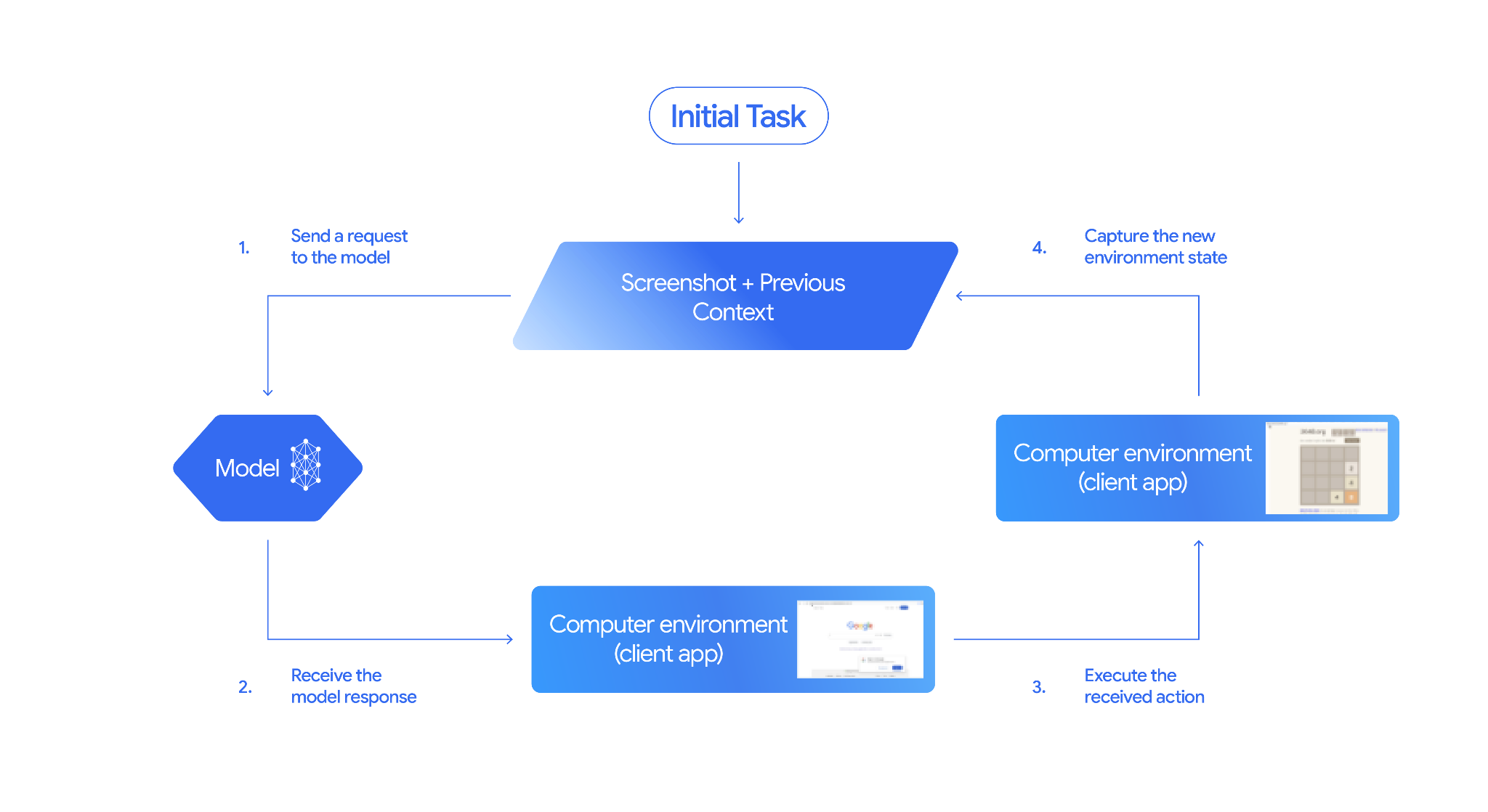
نحوه پیادهسازی استفاده از کامپیوتر
قبل از ساخت با ابزار Computer Use، باید موارد زیر را تنظیم کنید:
- محیط اجرای امن: عامل خود را در یک ماشین مجازی یا کانتینرِ سندباکسشده اجرا کنید تا آن را از سیستم میزبان خود جدا کرده و تأثیر بالقوه آن را محدود کنید. پیادهسازی مرجع شامل یک سندباکس آماده برای استفاده مبتنی بر داکر است که میتوانید به عنوان نقطه شروع از آن استفاده کنید.
- کنترلکنندهی عملیات سمت کلاینت: منطق سمت کلاینت را برای اجرای مختصات، تایپ متن و گرفتن اسکرینشات پیادهسازی کنید.
مثالهای زیر از یک مرورگر وب به عنوان محیط اجرا و از Playwright به عنوان هندلر سمت کلاینت استفاده میکنند.
0. تنظیم نمایشنامه نویس
ابتدا بستههای مورد نیاز را نصب کنید:
pip install google-genai playwright
playwright install chromium
سپس، یک نمونه مرورگر Playwright را برای اجرا، مقداردهی اولیه کنید:
from playwright.sync_api import sync_playwright

# 1. Configure screen dimensions for the target environment
SCREEN_WIDTH = 1440
SCREEN_HEIGHT = 900

# 2. Start the Playwright browser
# In production, utilize a sandboxed environment.
playwright = sync_playwright().start()
# Set headless=False to see the actions performed on your screen
browser = playwright.chromium.launch(headless=False)

# 3. Create a context and page with the specified dimensions
context = browser.new_context(
    viewport={"width": SCREEN_WIDTH, "height": SCREEN_HEIGHT}
)
page = context.new_page()

# 4. Navigate to an initial page to start the task
page.goto("https://www.google.com")

# The 'page', 'SCREEN_WIDTH', and 'SCREEN_HEIGHT' variables
# will be used in the steps below.
۱. ارسال درخواست به مدل
کتابخانه کلاینت را مقداردهی اولیه کنید و ابزار استفاده از کامپیوتر را پیکربندی کنید. توجه داشته باشید که هنگام صدور درخواست نیازی به مشخص کردن اندازه صفحه نمایش نیست؛ مدل مختصات پیکسلی را که با ارتفاع و عرض صفحه نمایش مقیاسبندی شدهاند، پیشبینی میکند.
فلش Gemini 3.5 (توصیه میشود)
پایتون
از google-genai Python SDK (نسخه 2.7.0 یا بالاتر) برای پیکربندی درخواستی که محیط مرورگر را هدف قرار میدهد، استفاده کنید:
from google import genai

client = genai.Client()

interaction = client.interactions.create(
    model='gemini-3.5-flash',
    input="Find a flight from SF to Hawaii on Jun 30th, coming back on Jul 6th",
    tools=[
        {
            "type": "computer_use",
            "environment": "browser",
            "enable_prompt_injection_detection": True
        }
    ]
)

print(interaction)
جاوا اسکریپت
از SDK نود.جیاس @google/genai برای پیکربندی درخواستی که محیط مرورگر را هدف قرار میدهد، استفاده کنید:
import { GoogleGenAI } from '@google/genai';

const ai = new GoogleGenAI();

const interaction = await ai.interactions.create({
  model: 'gemini-3.5-flash',
  input: "Find a flight from SF to Hawaii on Jun 30th, coming back on Jul 6th",
  tools: [
    {
      type: "computer_use",
      environment: "browser",
      enable_prompt_injection_detection: true
    }
  ]
});

console.log(interaction);
استراحت
برای ارسال درخواست از curl استفاده کنید:
curl -X POST \
  "https://generativelanguage.googleapis.com/v1beta/interactions" \
  -H "x-goog-api-key: $GEMINI_API_KEY" \
  -H "Content-Type: application/json" \
  -d '{
    "model": "gemini-3.5-flash",
    "input": "Find me a flight from SF to Hawaii on Jun 30th, coming back on Jul 6th. Start by navigating directly to flights.google.com",
    "tools": [
      {
        "type": "computer_use",
        "environment": "browser",
        "enable_prompt_injection_detection": true
      }
    ]
  }'
جمینی ۲.۵ (لگسی)
پایتون
from google import genai

client = genai.Client()

# Specify predefined functions to exclude (optional)
excluded_functions = ["drag_and_drop"]

interaction = client.interactions.create(
    model='gemini-2.5-computer-use-preview-10-2025',
    input="Search for highly rated smart fridges on Google Shopping.",
    tools=[
        {
            "type": "computer_use",
            "environment": "browser",
            "excluded_predefined_functions": excluded_functions
        }
    ]
)

print(interaction)
جاوا اسکریپت
import { GoogleGenAI } from '@google/genai';

const ai = new GoogleGenAI();

// Specify predefined functions to exclude (optional)
const excludedFunctions = ["drag_and_drop"];

const interaction = await ai.interactions.create({
  model: 'gemini-2.5-computer-use-preview-10-2025',
  input: "Search for highly rated smart fridges on Google Shopping.",
  tools: [
    {
      type: "computer_use",
      environment: "browser",
      excluded_predefined_functions: excludedFunctions
    }
  ]
});

console.log(interaction);
۲. پاسخ مدل را دریافت کنید
مدل پاسخ، فراخوانی یک تابع را پیشنهاد میدهد. برای Gemini 3.5 Flash ، پاسخ شامل یک هدف استدلالی متناسب با مختصات است. در زیر نمونههایی از هر دو پاسخ نشان داده شده است:
فلش جمینی ۳.۵
{
  "steps": [
    {
      "type": "function_call",
      "name": "click",
      "arguments": {
        "x": 450,
        "y": 120,
        "intent": "Click the search box to type the destination."
      }
    }
  ]
}
جمینی ۲.۵ (لگسی)
{
  "steps": [
    {
      "type": "model_output",
      "content": [
        {
          "type": "text",
          "text": "I will type the search query into the search bar."
        }
      ]
    },
    {
      "type": "function_call",
      "name": "type_text_at",
      "arguments": {
        "x": 371,
        "y": 470,
        "text": "highly rated smart fridges",
        "press_enter": true
      }
    }
  ]
}
۳. اقدامات دریافتی را اجرا کنید
برنامه شما باید مختصات پاسخ را تجزیه کند، عمل را اجرا کند و آنها را از مختصات نرمال شده ۱۰۰۰x۱۰۰۰ مقیاس بندی کند.
کد زیر هم دستورات ابزار قدیمی ( click_at ، type_text_at ) و هم دستورات سادهشدهی Gemini 3.5 Flash ( click ، type ) را مدیریت میکند.
پایتون
from typing import Any, List, Tuple
import time

def denormalize_x(x: int, screen_width: int) -> int:
    """Convert normalized x coordinate (0-1000) to actual pixel coordinate."""
    return int(x / 1000 * screen_width)

def denormalize_y(y: int, screen_height: int) -> int:
    """Convert normalized y coordinate (0-1000) to actual pixel coordinate."""
    return int(y / 1000 * screen_height)

def execute_function_calls(interaction, page, screen_width, screen_height):
    results = []
    function_calls = [
        step for step in interaction.steps if step.type == "function_call"
    ]

    for function_call in function_calls:
        action_result = {}
        fname = function_call.name
        args = function_call.arguments
        print(f"  -> Executing: {fname} (Intent: {args.get('intent', 'N/A')})")

        try:
            if fname in ("open_web_browser", "open_app"):
                pass # Handled / already open
            elif fname in ("click", "click_at", "double_click", "triple_click", "middle_click", "right_click", "move", "long_press"):
                actual_x = denormalize_x(args["x"], screen_width)
                actual_y = denormalize_y(args["y"], screen_height)

                if fname in ("click", "click_at"):
                    page.mouse.click(actual_x, actual_y)
                elif fname == "double_click":
                    page.mouse.dblclick(actual_x, actual_y)
                elif fname == "right_click":
                    page.mouse.click(actual_x, actual_y, button="right")
                elif fname == "middle_click":
                    page.mouse.click(actual_x, actual_y, button="middle")
                elif fname == "move":
                    page.mouse.move(actual_x, actual_y)
            elif fname in ("type", "type_text_at"):
                actual_x = denormalize_x(args["x"], screen_width) if "x" in args else None
                actual_y = denormalize_y(args["y"], screen_height) if "y" in args else None
                text = args["text"]
                press_enter = args.get("press_enter", False)

                if actual_x is not None and actual_y is not None:
                    page.mouse.click(actual_x, actual_y)
                # Clear field first
                page.keyboard.press("Meta+A")
                page.keyboard.press("Backspace")
                page.keyboard.type(text)
                if press_enter:
                    page.keyboard.press("Enter")
            elif fname == "navigate":
                page.goto(args["url"])
            elif fname == "go_back":
                page.go_back()
            elif fname == "go_forward":
                page.go_forward()
            elif fname == "wait":
                time.sleep(args.get("seconds", 1))
            else:
                print(f"Warning: Custom or unhandled function {fname}")

            page.wait_for_load_state(timeout=5000)
            time.sleep(1)

        except Exception as e:
            print(f"Error executing {fname}: {e}")
            action_result = {"error": str(e)}

        results.append((fname, function_call.id, action_result))

    return results
جاوا اسکریپت
function denormalizeX(x, screenWidth) {
    // Convert normalized x coordinate (0-1000) to actual pixel coordinate.
    return Math.floor((x / 1000) * screenWidth);
}

function denormalizeY(y, screenHeight) {
    // Convert normalized y coordinate (0-1000) to actual pixel coordinate.
    return Math.floor((y / 1000) * screenHeight);
}

async function executeFunctionCalls(interaction, page, screenWidth, screenHeight) {
    const results = [];
    const functionCalls = interaction.steps.filter(step => step.type === "function_call");

    for (const functionCall of functionCalls) {
        const actionResult = {};
        const fname = functionCall.name;
        const args = functionCall.arguments;
        console.log(`  -> Executing: ${fname} (Intent: ${args.intent || 'N/A'})`);

        try {
            if (fname === "open_web_browser" || fname === "open_app") {
                // Handled / already open
            } else if (["click", "click_at", "double_click", "triple_click", "middle_click", "right_click", "move", "long_press"].includes(fname)) {
                const actualX = denormalizeX(args.x, screenWidth);
                const actualY = denormalizeY(args.y, screenHeight);

                if (fname === "click" || fname === "click_at") {
                    await page.mouse.click(actualX, actualY);
                } else if (fname === "double_click") {
                    await page.mouse.dblclick(actualX, actualY);
                } else if (fname === "right_click") {
                    await page.mouse.click(actualX, actualY, { button: "right" });
                } else if (fname === "middle_click") {
                    await page.mouse.click(actualX, actualY, { button: "middle" });
                } else if (fname === "move") {
                    await page.mouse.move(actualX, actualY);
                }
            } else if (fname === "type" || fname === "type_text_at") {
                const actualX = args.x !== undefined ? denormalizeX(args.x, screenWidth) : null;
                const actualY = args.y !== undefined ? denormalizeY(args.y, screenHeight) : null;
                const text = args.text;
                const pressEnter = args.press_enter || false;

                if (actualX !== null && actualY !== null) {
                    await page.mouse.click(actualX, actualY);
                }
                // Clear field first
                await page.keyboard.press("Meta+A");
                await page.keyboard.press("Backspace");
                await page.keyboard.type(text);
                if (pressEnter) {
                    await page.keyboard.press("Enter");
                }
            } else if (fname === "navigate") {
                await page.goto(args.url);
            } else if (fname === "go_back") {
                await page.goBack();
            } else if (fname === "go_forward") {
                await page.goForward();
            } else if (fname === "wait") {
                await new Promise(resolve => setTimeout(resolve, (args.seconds || 1) * 1000));
            } else {
                console.log(`Warning: Custom or unhandled function ${fname}`);
            }

            await page.waitForLoadState('load', { timeout: 5000 }).catch(() => {});
            await new Promise(resolve => setTimeout(resolve, 1000));
        } catch (e) {
            console.log(`Error executing ${fname}: ${e}`);
            actionResult.error = e.message;
        }

        results.push([fname, functionCall.id, actionResult]);
    }

    return results;
}
۴. ثبت وضعیت جدید محیط
پس از اجرای اقدامات، نتیجه اجرای تابع را به مدل ارسال کنید تا بتواند از این اطلاعات برای تولید اقدام بعدی استفاده کند. اگر چندین اقدام (فراخوانیهای موازی) اجرا شده باشد، باید برای هر یک از آنها در نوبت بعدی کاربر، یک function_result ارسال کنید.
پایتون
import json
import base64

def get_function_responses(page, results):
    screenshot_bytes = page.screenshot(type="png")
    current_url = page.url
    function_responses = []
    for name, call_id, result in results:
        function_responses.append({
            "type": "function_result",
            "name": name,
            "call_id": call_id,
            "result": [
                {
                    "type": "text",
                    "text": json.dumps({"url": current_url, **result})
                },
                {
                    "type": "image",
                    "data": base64.b64encode(screenshot_bytes).decode("utf-8"),
                    "mime_type": "image/png"
                }
            ]
        })
    return function_responses
جاوا اسکریپت
async function getFunctionResponses(page, results) {
    const screenshotBuffer = await page.screenshot({ type: 'png' });
    const screenshotBase64 = screenshotBuffer.toString('base64');
    const currentUrl = page.url();
    const functionResponses = [];

    for (const [name, callId, result] of results) {
        functionResponses.push({
            type: "function_result",
            name: name,
            call_id: callId,
            result: [
                {
                    type: "text",
                    text: JSON.stringify({ url: currentUrl, ...result })
                },
                {
                    type: "image",
                    data: screenshotBase64,
                    mime_type: "image/png"
                }
            ]
        });
    }
    return functionResponses;
}
پس از اینکه نحوه ثبت و قالببندی وضعیت محیط را تعریف کردید، میتوانید تمام این مراحل را در یک حلقه اجرای پیوسته ترکیب کنید.
یک حلقه عامل بسازید
برای فعال کردن تعاملات چند مرحلهای، چهار مرحله از بخش «نحوه پیادهسازی استفاده از کامپیوتر» را در یک حلقه واحد ترکیب کنید. این حلقه به درخواست اقدامات و ارسال نتایج به مدل ادامه میدهد تا زمانی که وظیفه تکمیل شود.
به یاد داشته باشید که تاریخچه مکالمات را به درستی مدیریت کنید، به این صورت که در هر مرحله، هم پاسخهای مدل و هم پاسخهای تابع خود را به تاریخچه اضافه کنید.
پایتون
import time
from typing import Any, List, Tuple
from playwright.sync_api import sync_playwright

from google import genai

client = genai.Client()

# Constants for screen dimensions
SCREEN_WIDTH = 1440
SCREEN_HEIGHT = 900

# Setup Playwright
print("Initializing browser...")
playwright = sync_playwright().start()
browser = playwright.chromium.launch(headless=False)
context = browser.new_context(viewport={"width": SCREEN_WIDTH, "height": SCREEN_HEIGHT})
page = context.new_page()

# Define helper functions. Copy/paste from steps 3 and 4
# def denormalize_x(...)
# def denormalize_y(...)
# def execute_function_calls(...)
# def get_function_responses(...)

try:
    # Go to initial page
    page.goto("https://ai.google.dev/gemini-api/docs")

    # Take initial screenshot
    initial_screenshot = page.screenshot(type="png")
    USER_PROMPT = "Go to ai.google.dev/gemini-api/docs and search for pricing."
    print(f"Goal: {USER_PROMPT}")

    # First interaction
    interaction = client.interactions.create(
        model='gemini-3.5-flash',
        input=[
            {"type": "text", "text": USER_PROMPT},
            {"type": "image", "data": base64.b64encode(initial_screenshot).decode("utf-8"), "mime_type": "image/png"}
        ],
        tools=[{
            "type": "computer_use",
            "environment": "browser",
            "enable_prompt_injection_detection": True
        }]
    )

    # Agent Loop
    turn_limit = 5
    for i in range(turn_limit):
        print(f"\n--- Turn {i+1} ---")

        has_function_calls = any(
            step.type == "function_call"
            for step in interaction.steps
        )
        if not has_function_calls:
            text_response = " ".join([
                content_block.text for step in interaction.steps if step.type == "model_output"
                for content_block in step.content if content_block.type == "text"
            ])
            print("Agent finished:", text_response)
            break

        print("Executing actions...")
        results = execute_function_calls(interaction, page, SCREEN_WIDTH, SCREEN_HEIGHT)

        print("Capturing state...")
        function_responses = get_function_responses(page, results)

        # Continue conversation with function responses
        interaction = client.interactions.create(
            model='gemini-3.5-flash',
            previous_interaction_id=interaction.id,
            input=function_responses,
            tools=[{
                "type": "computer_use",
                "environment": "browser",
                "enable_prompt_injection_detection": True
            }]
        )

finally:
    # Cleanup
    print("\nClosing browser...")
    browser.close()
    playwright.stop()
جاوا اسکریپت
import { chromium } from 'playwright';
import { GoogleGenAI } from '@google/genai';

const ai = new GoogleGenAI();

// Constants for screen dimensions
const SCREEN_WIDTH = 1440;
const SCREEN_HEIGHT = 900;

console.log("Initializing browser...");
const browser = await chromium.launch({ headless: false });
const context = await browser.newContext({
    viewport: { width: SCREEN_WIDTH, height: SCREEN_HEIGHT }
});
const page = await context.newPage();

// Define helper functions. Copy/paste from steps 3 and 4:
// function denormalizeX(...)
// function denormalizeY(...)
// async function executeFunctionCalls(...)
// async function getFunctionResponses(...)

try {
    // Go to initial page
    await page.goto("https://ai.google.dev/gemini-api/docs");

    // Take initial screenshot
    const initialScreenshotBuffer = await page.screenshot({ type: 'png' });
    const initialScreenshotBase64 = initialScreenshotBuffer.toString('base64');
    const USER_PROMPT = "Go to ai.google.dev/gemini-api/docs and search for pricing.";
    console.log(`Goal: ${USER_PROMPT}`);

    // First interaction
    let interaction = await ai.interactions.create({
        model: 'gemini-3.5-flash',
        input: [
            { type: 'text', text: USER_PROMPT },
            { type: 'image', data: initialScreenshotBase64, mime_type: 'image/png' }
        ],
        tools: [{
            type: 'computer_use',
            environment: 'browser',
            enable_prompt_injection_detection: true
        }]
    });

    // Agent Loop
    const turnLimit = 5;
    for (let i = 0; i < turnLimit; i++) {
        console.log(`\n--- Turn ${i + 1} ---`);

        const hasFunctionCalls = interaction.steps.some(step => step.type === "function_call");
        if (!hasFunctionCalls) {
            const textResponses = [];
            for (const step of interaction.steps) {
                if (step.type === "model_output") {
                    for (const contentBlock of step.content || []) {
                        if (contentBlock.type === "text") {
                            textResponses.push(contentBlock.text);
                        }
                    }
                }
            }
            console.log("Agent finished:", textResponses.join(" "));
            break;
        }

        console.log("Executing actions...");
        const results = await executeFunctionCalls(interaction, page, SCREEN_WIDTH, SCREEN_HEIGHT);

        console.log("Capturing state...");
        const functionResponses = await getFunctionResponses(page, results);

        // Continue conversation with function responses
        interaction = await ai.interactions.create({
            model: 'gemini-3.5-flash',
            previous_interaction_id: interaction.id,
            input: functionResponses,
            tools: [{
                type: 'computer_use',
                environment: 'browser',
                enable_prompt_injection_detection: true
            }]
        });
    }
} finally {
    // Cleanup
    console.log("\nClosing browser...");
    await browser.close();
}
محیطهای پشتیبانیشده (Gemini 3.5 Flash)
فلش Gemini 3.5 از سه محیط مشخص شده در تنظیمات computer_use پشتیبانی میکند:
محیط مرورگر ( ENVIRONMENT_BROWSER )
اقدامات موجود در ابزار مرورگر:
| نام فرمان | توضیحات | آرگومانها (در فراخوانی تابع) |
|---|---|---|
| کلیک | کلیک چپ در مختصات. | y : عدد صحیح (0-999)x : عدد صحیح (0-999)intent : خیابان |
| دوبار_کلیک | روی مختصات دوبار کلیک کنید. | y : عدد صحیح (0-999)x : عدد صحیح (0-999)intent : خیابان |
| کلیک سهتایی | سه بار کلیک در مختصات. | y : عدد صحیح (0-999)x : عدد صحیح (0-999)intent : خیابان |
| کلیک_وسط | کلیکهای میانی در مختصات. | y : عدد صحیح (0-999)x : عدد صحیح (0-999)intent : خیابان |
| کلیک راست | کلیک راست روی مختصات. | y : عدد صحیح (0-999)x : عدد صحیح (0-999)intent : خیابان |
| mouse_down | دکمه ماوس را در مختصات فشار داده و نگه میدارد. | y : عدد صحیح (0-999)x : عدد صحیح (0-999)intent : خیابان |
| mouse_up | دکمه ماوس را در مختصات رها میکند. | y : عدد صحیح (0-999)x : عدد صحیح (0-999)intent : خیابان |
| حرکت | مکان نما را به موقعیت مشخص شده منتقل می کند. | y : عدد صحیح (0-999)x : عدد صحیح (0-999)intent : خیابان |
| نوع | متن را تایپ میکند. | text : خیابانpress_enter : bool (اختیاری، پیشفرض false )intent : خیابان |
| کشیدن و رها کردن | یک آیتم را از مختصات شروع به مختصات پایان میکشد. | start_y : عدد صحیح (0-999)start_x : عدد صحیح (0-999)end_y : عدد صحیح (0-999)end_x : عدد صحیح (0-999)intent : خیابان |
| صبر کن | اجرا را برای مدت زمان مشخصی (بر حسب ثانیه) متوقف میکند. | seconds : عدد صحیح (اختیاری، پیشفرض 1 )intent : خیابان |
| کلید_فشاری | کلید مشخص شده را فشار داده و رها میکند. | key : خیابانintent : خیابان |
| کلید_پایین | کلید مشخص شده را فشار داده و نگه میدارد. | key : خیابانintent : خیابان |
| کلید_بالا | کلید مشخص شده را آزاد میکند. | key : خیابانintent : خیابان |
| کلید میانبر | ترکیب کلید مشخص شده را فشار میدهد. | keys : List[str]intent : str |
| گرفتن_اسکرین_شات | یک اسکرینشات از صفحه نمایش فعلی برمیگرداند. | intent : خیابان |
| اسکرول | با فاصله پیکسلی، به بالا، پایین، چپ یا راست پیمایش میکند. | y : عدد صحیح (0-999)x : عدد صحیح (0-999)direction : str ( "up" ، "down" ، "left" ، "right" )magnitude_in_pixels : عدد صحیح (0-999، اختیاری، پیشفرض 300 )intent : خیابان |
| برو_برگشت | به صفحه وب قبلی در تاریخچه مرورگر برمیگردد. | intent : خیابان |
| پیمایش | مستقیماً به یک URL مشخص شده هدایت میشود. | url : خیابانintent : خیابان |
| برو_به_جلو | به صفحه وب بعدی در تاریخچه مرورگر میرود. | intent : خیابان |
محیط موبایل ( ENVIRONMENT_MOBILE )
اقدامات محیطی بهینه شده برای اندروید:
| نام فرمان | توضیحات | آرگومانها (در فراخوانی تابع) |
|---|---|---|
| باز_برنامه | یک برنامه را با استفاده از نام آن باز میکند. | app_name : strintent : خیابان |
| کلیک | کلیک چپ در مختصات. | y : عدد صحیح (0-999)x : عدد صحیح (0-999)intent : خیابان |
| لیست_اپلیکیشنها | برنامههای موجود روی دستگاه را فهرست میکند و نام و نام بستهی آنها را برمیگرداند. | intent : خیابان |
| صبر کن | اجرا را برای مدت زمان مشخصی (بر حسب ثانیه) متوقف میکند. | seconds : عدد صحیح (اختیاری، پیشفرض 1 )intent : خیابان |
| برو_برگشت | به صفحه یا صفحه وب قبلی برمیگردد. | intent : خیابان |
| نوع | متن را تایپ میکند. | text : خیابانpress_enter : bool (اختیاری، پیشفرض false )intent : خیابان |
| کشیدن و رها کردن | یک آیتم را از مختصات شروع به مختصات پایان میکشد. | start_y : عدد صحیح (0-999)start_x : عدد صحیح (0-999)end_y : عدد صحیح (0-999)end_x : عدد صحیح (0-999)intent : خیابان |
| فشار طولانی | یک فشار طولانی روی یک مختصات روی صفحه انجام میدهد. | y : عدد صحیح (0-999)x : عدد صحیح (0-999)seconds : عدد صحیح (اختیاری، پیشفرض 2 )intent : خیابان |
| کلید_فشاری | کلید مشخص شده را فشار داده و رها میکند. | key : خیابانintent : خیابان |
| گرفتن_اسکرین_شات | یک اسکرینشات از صفحه نمایش فعلی برمیگرداند. | intent : خیابان |
محیط دسکتاپ ( ENVIRONMENT_DESKTOP )
دستورات مکاننما در سطح سیستمعامل در محیطهای دسکتاپ:
| نام فرمان | توضیحات | آرگومانها (در فراخوانی تابع) |
|---|---|---|
| کلیک | کلیک چپ در مختصات. | y : عدد صحیح (0-999)x : عدد صحیح (0-999)intent : خیابان |
| دوبار_کلیک | روی مختصات دوبار کلیک کنید. | y : عدد صحیح (0-999)x : عدد صحیح (0-999)intent : خیابان |
| کلیک سهتایی | سه بار کلیک در مختصات. | y : عدد صحیح (0-999)x : عدد صحیح (0-999)intent : خیابان |
| کلیک_وسط | کلیکهای میانی در مختصات. | y : عدد صحیح (0-999)x : عدد صحیح (0-999)intent : خیابان |
| کلیک راست | کلیک راست روی مختصات. | y : عدد صحیح (0-999)x : عدد صحیح (0-999)intent : خیابان |
| mouse_down | دکمه ماوس را در مختصات فشار داده و نگه میدارد. | y : عدد صحیح (0-999)x : عدد صحیح (0-999)intent : خیابان |
| mouse_up | دکمه ماوس را در مختصات رها میکند. | y : عدد صحیح (0-999)x : عدد صحیح (0-999)intent : خیابان |
| حرکت | مکان نما را به موقعیت مشخص شده منتقل می کند. | y : عدد صحیح (0-999)x : عدد صحیح (0-999)intent : خیابان |
| نوع | متن را تایپ میکند. | text : خیابانpress_enter : bool (اختیاری، پیشفرض false )intent : خیابان |
| کشیدن و رها کردن | یک آیتم را از مختصات شروع به مختصات پایان میکشد. | start_y : عدد صحیح (0-999)start_x : عدد صحیح (0-999)end_y : عدد صحیح (0-999)end_x : عدد صحیح (0-999)intent : خیابان |
| صبر کن | اجرا را برای مدت زمان مشخصی (بر حسب ثانیه) متوقف میکند. | seconds : عدد صحیح (اختیاری، پیشفرض 1 )intent : خیابان |
| کلید_فشاری | کلید مشخص شده را فشار داده و رها میکند. | key : خیابانintent : خیابان |
| کلید_پایین | کلید مشخص شده را فشار داده و نگه میدارد. | key : خیابانintent : خیابان |
| کلید_بالا | کلید مشخص شده را آزاد میکند. | key : خیابانintent : خیابان |
| کلید میانبر | ترکیب کلید مشخص شده را فشار میدهد. | keys : List[str]intent : str |
| گرفتن_اسکرین_شات | یک اسکرینشات از صفحه نمایش فعلی برمیگرداند. | intent : خیابان |
| اسکرول | با فاصله پیکسلی، به بالا، پایین، چپ یا راست پیمایش میکند. | y : عدد صحیح (0-999)x : عدد صحیح (0-999)direction : str ( "up" ، "down" ، "left" ، "right" )magnitude_in_pixels : عدد صحیح (0-999، اختیاری، پیشفرض 300 )intent : خیابان |
اقدامات رابط کاربری قدیمی پشتیبانی شده (Gemini 2.5)
برای مدلهای قدیمی ( gemini-2.5-computer-use-preview-10-2025 )، اقدامات زیر پشتیبانی میشوند:
| نام فرمان | توضیحات | آرگومانها (در فراخوانی تابع) | مثال فراخوانی تابع |
|---|---|---|---|
| مرورگر وب را باز کنید | مرورگر وب را باز میکند. | هیچکدام | {"name": "open_web_browser", "arguments": {}} |
| صبر_5_ثانیه | اجرا را به مدت ۵ ثانیه متوقف میکند. | هیچکدام | {"name": "wait_5_seconds", "arguments": {}} |
| برو_برگشت | به صفحه قبلی در تاریخچه میرود. | هیچکدام | {"name": "go_back", "arguments": {}} |
| برو_به_جلو | به صفحه بعدی در تاریخچه میرود. | هیچکدام | {"name": "go_forward", "arguments": {}} |
| جستجو | به موتور جستجوی پیشفرض هدایت میشود. | هیچکدام | {"name": "search", "arguments": {}} |
| پیمایش | مرورگر را مستقیماً به آدرس اینترنتی مشخص شده هدایت میکند. | url : خیابان | {"name": "navigate", "arguments": {"url": "https://www.wikipedia.org"}} |
| کلیک_در | کلیکها در یک مختصات خاص. | y : عدد صحیح (0-999) ، x : عدد صحیح (0-999) | {"name": "click_at", "arguments": {"y": 300, "x": 500}} |
| hover_at | ماوس را روی یک مختصات خاص نگه میدارد. | y : عدد صحیح (0-999) ، x : عدد صحیح (0-999) | {"name": "hover_at", "arguments": {"y": 150, "x": 250}} |
| type_text_at | متن را در یک مختصات تایپ میکند. | y : عدد صحیح (0-999)، x : عدد صحیح (0-999)، text : رشته، press_enter : عدد صحیح (اختیاری، پیشفرض صحیح)، clear_before_typing : عدد صحیح (اختیاری، پیشفرض صحیح) | {"name": "type_text_at", "arguments": {"y": 250, "x": 400, "text": "search", "press_enter": false}} |
| ترکیب_کلید | کلیدها یا ترکیبی از کلیدها را فشار دهید. | keys : خیابان | {"name": "key_combination", "arguments": {"keys": "Control+A"}} |
| scroll_document | کل صفحه وب را پیمایش میکند. | direction : خیابان | {"name": "scroll_document", "arguments": {"direction": "down"}} |
| scroll_at | در مختصات (x,y) اسکرول میکند. | y : عدد صحیح، x : عدد صحیح، direction : عدد اعشاری، magnitude : عدد صحیح (اختیاری، پیشفرض ۸۰۰) | {"name": "scroll_at", "arguments": {"y": 500, "x": 500, "direction": "down"}} |
| کشیدن و رها کردن | بین دو مختصات جابجا میشود. | y : عدد صحیح، x : عدد صحیح، destination_y : عدد صحیح، destination_x : عدد صحیح | {"name": "drag_and_drop", "arguments": {"y": 100, "destination_y": 500, "destination_x": 500, "x": 100}} |
توابع سفارشی تعریف شده توسط کاربر
شما میتوانید با اضافه کردن توابع سفارشی تعریفشده توسط کاربر، عملکرد مدل را گسترش دهید. برای مثال، در سناریوهای انسان در حلقه (HITL) میتوانید اقدامات از پیش تعریفشده پیشفرض را حذف کرده و اقدامات سفارشی را ثبت کنید.
ابزار سفارشی فلش Gemini 3.5
پایتون
اقدامات استاندارد و از پیش تعریف شده مرورگر (مانند click ) را حذف کنید و یک ابزار yield_to_user سفارشی ثبت کنید:
from google import genai

client = genai.Client()

yield_to_user_tool = {
    "type": "function",
    "name": "yield_to_user",
    "description": "Yields control back to the user for assistance or verification when an automated action is unsafe or ambiguous.",
    "parameters": {
        "type": "object",
        "properties": {
            "reason": {
                "type": "string",
                "description": "The reason why the agent is yielding control to the human."
            }
        },
        "required": ["reason"]
    }
}

interaction = client.interactions.create(
    model="gemini-3.5-flash",
    input="Click the submit button. If you need a second factor authentication code, ask me.",
    tools=[
        {
            "type": "computer_use",
            "environment": "mobile",
            "excluded_predefined_functions": ["click"]
        },
        yield_to_user_tool
    ]
)
جاوا اسکریپت
اقدامات استاندارد و از پیش تعریف شده مرورگر (مانند click ) را حذف کنید و یک ابزار yield_to_user سفارشی ثبت کنید:
import { GoogleGenAI } from '@google/genai';

const ai = new GoogleGenAI();

const yieldToUserTool = {
    type: "function",
    name: "yield_to_user",
    description: "Yields control back to the user for assistance or verification when an automated action is unsafe or ambiguous.",
    parameters: {
        type: "object",
        properties: {
            reason: {
                type: "string",
                description: "The reason why the agent is yielding control to the human."
            }
        },
        required: ["reason"]
    }
};

const interaction = await ai.interactions.create({
    model: "gemini-3.5-flash",
    input: "Click the submit button. If you need a second factor authentication code, ask me.",
    tools: [
        {
            type: "computer_use",
            environment: "mobile",
            excluded_predefined_functions: ["click"]
        },
        yieldToUserTool
    ]
});
ابزارهای سفارشی Gemini 2.5 (Legacy)
پایتون
from google import genai

client = genai.Client()

# Define custom tools here
custom_functions = [...]  # Describe parameters as function declarations

excluded_functions = [
    "open_web_browser",
    "wait_5_seconds",
    "go_back",
    "go_forward",
    "search",
    "navigate",
    "hover_at",
    "scroll_document",
    "key_combination",
    "drag_and_drop",
]

interaction = client.interactions.create(
    model='gemini-2.5-computer-use-preview-10-2025',
    input="Open Chrome, then long-press at 200,400.",
    tools=[
        {
            "type": "computer_use",
            "environment": "browser",
            "excluded_predefined_functions": excluded_functions
        },
        *custom_functions
    ]
)

print(interaction)
جاوا اسکریپت
import { GoogleGenAI } from '@google/genai';

const ai = new GoogleGenAI();

// Define custom tools here
const customFunctions = [...]; // Describe parameters as function declarations

const excludedFunctions = [
    "open_web_browser",
    "wait_5_seconds",
    "go_back",
    "go_forward",
    "search",
    "navigate",
    "hover_at",
    "scroll_document",
    "key_combination",
    "drag_and_drop",
];

const interaction = await ai.interactions.create({
    model: 'gemini-2.5-computer-use-preview-10-2025',
    input: "Open Chrome, then long-press at 200,400.",
    tools: [
        {
            type: "computer_use",
            environment: "browser",
            excluded_predefined_functions: excludedFunctions
        },
        ...customFunctions
    ]
});

console.log(interaction);
مدیریت سطوح تفکر (Gemini 3.5 Flash)
برای عاملهای کاربری کامپیوتر، میتوانید سطوح تفکر مختلفی را پیکربندی کنید تا کیفیت عمل و سرعت اجرا را متعادل کنید. سطوح تفکر پایینتر معمولاً تعادل خوبی را برای وظایف استاندارد اتوماسیون ایجاد میکنند.
ایمنی و امنیت
پیکربندی سیاستهای ایمنی (Gemini 3.5 Flash)
مدل Gemini 3.5 Flash شامل یک دستهبندی خدمات ایمنی داخلی است که به طور خودکار تعیین میکند که آیا تأیید کاربر لازم است یا خیر.
| دسته بندی سیاست ایمنی | توضیحات |
|---|---|
FINANCIAL_TRANSACTIONS | تأیید اقدامات مربوط به پرداختها، تسویه حساب خردهفروشی یا کالاهای تحت نظارت را مسدود یا فعال میکند. |
SENSITIVE_DATA_MODIFICATION | از سوابق بهداشتی، مالی یا دولتی در برابر تغییرات غیرمجاز محافظت میکند. |
COMMUNICATION_TOOL | عامل را از ارسال خودکار ایمیل، پیامهای چت یا پیشنویسها محدود میکند. |
ACCOUNT_CREATION | عامل را از ثبت خودکار حسابهای جدید در وبسایتها محدود میکند. |
DATA_MODIFICATION | تغییرات کلی سیستم فایل، اشتراکگذاری دادهها و حذف فضای ذخیرهسازی را تنظیم میکند. |
USER_CONSENT_MANAGEMENT | برای بنرهای رضایت کوکی و درخواستهای حریم خصوصی، نیاز به تصاحب کاربر دارد. |
LEGAL_TERMS_AND_AGREEMENTS | مانع از پذیرش خودکار شرایط خدمات یا قراردادهای الزامآور قانونی توسط مدل میشود. |
ایمنی نادیده گرفته میشود
شما میتوانید با ارسال overrideها، سیاستهای select را لغو کنید:
پایتون
from google import genai

client = genai.Client()

interaction = client.interactions.create(
    model="gemini-3.5-flash",
    input="Clean up the local folder by archiving old logs.",
    tools=[
        {
            "type": "computer_use",
            "environment": "desktop",
            "safety_policy_overrides": [
                {"category": "DATA_MODIFICATION"}
            ]
        }
    ]
)
جاوا اسکریپت
import { GoogleGenAI } from '@google/genai';

const ai = new GoogleGenAI();

const interaction = await ai.interactions.create({
    model: "gemini-3.5-flash",
    input: "Clean up the local folder by archiving old logs.",
    tools: [
        {
            type: "computer_use",
            environment: "desktop",
            safety_policy_overrides: [
                { category: "DATA_MODIFICATION" }
            ]
        }
    ]
});
تشخیص سریع تزریق (Gemini 3.5 Flash)
مکانیزم ایمنی انتخابی که پیکسلهای اسکرینشات را برای یافتن دستورالعملهای مخفی خصمانه (مثلاً «دستورات قبلی را نادیده بگیر») اسکن میکند و در صورت شناسایی، اجرا را مسدود میکند.
تأیید تصمیم ایمنی (Gemini 2.5 Legacy)
برای مدلهای قدیمی، پاسخ ممکن است شامل پارامتر safety_decision باشد:
{
  "steps": [
    {
      "type": "function_call",
      "name": "click_at",
      "arguments": {
        "x": 60,
        "y": 100,
        "safety_decision": {
          "explanation": "Must check check-box",
          "decision": "require_confirmation"
        }
      }
    }
  ]
}
اگر safety_decision require_confirmation باشد، به کاربر نهایی اطلاع دهید. اگر کاربر تأیید کرد، safety_acknowledgement در function_result تنظیم کنید.
پایتون
def get_safety_confirmation(safety_decision):
    # Prompt user
    return "CONTINUE" # Or TERMINATE

# Inside execute_function_calls:
if 'safety_decision' in function_call.arguments:
    decision = get_safety_confirmation(function_call.arguments['safety_decision'])
    if decision == "TERMINATE":
        break
    extra_fr_fields["safety_acknowledgement"] = True
بهترین شیوههای ایمنی
استفاده از کامپیوتر خطرات امنیتی و عملیاتی منحصر به فردی را به همراه دارد، زیرا مدلی که از طرف کاربر عمل میکند ممکن است با محتوای غیرقابل اعتماد روی صفحه نمایش مواجه شود یا در اجرای اقدامات اشتباه کند. بهترین شیوههای زیر را برای محافظت از دادهها و سیستمهای کاربر اجرا کنید:
انسان در حلقه (HITL):
- اجرای تأیید کاربر: هنگامی که پاسخ ایمنی نشاندهندهی
require_confirmationاست (یا تصمیم ایمنی قدیمی آن را الزامی میداند)، از کاربر درخواست تأیید کنید. دستورالعملهای ایمنی سفارشی ارائه دهید: یک دستورالعمل سیستمی سفارشی برای تعریف و اجرای مرزهای ایمنی خود پیادهسازی کنید. به عنوان مثال:
پایتون
from google import genai

client = genai.Client()

system_instruction = """
## **RULE 1: Seek User Confirmation (USER_CONFIRMATION)**

This is your first and most important check. If the next required action falls
into any of the following categories, you MUST stop immediately, and seek the
user's explicit permission.

**Procedure for Seeking Confirmation:**
* **For Consequential Actions:** Perform all preparatory steps (e.g., navigating,
  filling out forms, typing a message). You will ask for confirmation **AFTER**
  all necessary information is entered on the screen, but **BEFORE** you perform
  the final, irreversible action (e.g., before clicking "Send", "Submit",
  "Confirm Purchase", "Share").
* **For Prohibited Actions:** If the action is strictly forbidden (e.g., accepting
  legal terms, solving a CAPTCHA), you must first inform the user about the
  required action and ask for their confirmation to proceed.

**USER_CONFIRMATION Categories:**

*   **Consent and Agreements:** You are FORBIDDEN from accepting, selecting, or
    agreeing to any of the following on the user's behalf. You must ask the
    user to confirm before performing these actions.
    *   Terms of Service
    *   Privacy Policies
    *   Cookie consent banners
    *   End User License Agreements (EULAs)
    *   Any other legally significant contracts or agreements.
*   **Robot Detection:** You MUST NEVER attempt to solve or bypass the
    following. You must ask the user to confirm before performing these actions.
    *   CAPTCHAs (of any kind)
    *   Any other anti-robot or human-verification mechanisms, even if you are
        capable.
*   **Financial Transactions:**
    *   Completing any purchase.
    *   Managing or moving money (e.g., transfers, payments).
    *   Purchasing regulated goods or participating in gambling.
*   **Sending Communications:**
    *   Sending emails.
    *   Sending messages on any platform (e.g., social media, chat apps).
    *   Posting content on social media or forums.
*   **Accessing or Modifying Sensitive Information:**
    *   Health, financial, or government records (e.g., medical history, tax
        forms, passport status).
    *   Revealing or modifying sensitive personal identifiers (e.g., SSN, bank
        account number, credit card number).
*   **User Data Management:**
    *   Accessing, downloading, or saving files from the web.
    *   Sharing or sending files/data to any third party.
    *   Transferring user data between systems.
*   **Browser Data Usage:**
    *   Accessing or managing Chrome browsing history, bookmarks, autofill data,
        or saved passwords.
*   **Security and Identity:**
    *   Logging into any user account.
    *   Any action that involves misrepresentation or impersonation (e.g.,
        creating a fan account, posting as someone else).
*   **Insurmountable Obstacles:** If you are technically unable to interact with
    a user interface element or are stuck in a loop you cannot resolve, ask the
    user to take over.
---

## **RULE 2: Default Behavior (ACTUATE)**

If an action does **NOT** fall under the conditions for `USER_CONFIRMATION`,
your default behavior is to **Actuate**.

**Actuation Means:**  You MUST proactively perform all necessary steps to move
the user's request forward. Continue to actuate until you either complete the
non-consequential task or encounter a condition defined in Rule 1.

*   **Example 1:** If asked to send money, you will navigate to the payment
    portal, enter the recipient's details, and enter the amount. You will then
    **STOP** as per Rule 1 and ask for confirmation before clicking the final
    "Send" button.
*   **Example 2:** If asked to post a message, you will navigate to the site,
    open the post composition window, and write the full message. You will then
    **STOP** as per Rule 1 and ask for confirmation before clicking the final
    "Post" button.

    After the user has confirmed, remember to get the user's latest screen
    before continuing to perform actions.

# Final Response Guidelines:
Write final response to the user in the following cases:
- User confirmation
- When the task is complete or you have enough information to respond to the user
"""

interaction = client.interactions.create(
    model="gemini-3.5-flash",
    system_instruction=system_instruction,
    input="Prepare a draft but do not send.",
    tools=[{
        "type": "computer_use",
        "environment": "browser"
    }]
)
جاوا اسکریپت
import { GoogleGenAI } from '@google/genai';

const ai = new GoogleGenAI();

const systemInstruction = `
## **RULE 1: Seek User Confirmation (USER_CONFIRMATION)**

This is your first and most important check. If the next required action falls
into any of the following categories, you MUST stop immediately, and seek the
user's explicit permission.

**Procedure for Seeking Confirmation:**
* **For Consequential Actions:** Perform all preparatory steps (e.g., navigating,
  filling out forms, typing a message). You will ask for confirmation **AFTER**
  all necessary information is entered on the screen, but **BEFORE** you perform
  the final, irreversible action (e.g., before clicking "Send", "Submit",
  "Confirm Purchase", "Share").
* **For Prohibited Actions:** If the action is strictly forbidden (e.g., accepting
  legal terms, solving a CAPTCHA), you must first inform the user about the
  required action and ask for their confirmation to proceed.

**USER_CONFIRMATION Categories:**

*   **Consent and Agreements:** You are FORBIDDEN from accepting, selecting, or
    agreeing to any of the following on the user's behalf. You must ask the
    user to confirm before performing these actions.
    *   Terms of Service
    *   Privacy Policies
    *   Cookie consent banners
    *   End User License Agreements (EULAs)
    *   Any other legally significant contracts or agreements.
*   **Robot Detection:** You MUST NEVER attempt to solve or bypass the
    following. You must ask the user to confirm before performing these actions.
    *   CAPTCHAs (of any kind)
    *   Any other anti-robot or human-verification mechanisms, even if you are
        capable.
*   **Financial Transactions:**
    *   Completing any purchase.
    *   Managing or moving money (e.g., transfers, payments).
    *   Purchasing regulated goods or participating in gambling.
*   **Sending Communications:**
    *   Sending emails.
    *   Sending messages on any platform (e.g., social media, chat apps).
    *   Posting content on social media or forums.
*   **Accessing or Modifying Sensitive Information:**
    *   Health, financial, or government records (e.g., medical history, tax
        forms, passport status).
    *   Revealing or modifying sensitive personal identifiers (e.g., SSN, bank
        account number, credit card number).
*   **User Data Management:**
    *   Accessing, downloading, or saving files from the web.
    *   Sharing or sending files/data to any third party.
    *   Transferring user data between systems.
*   **Browser Data Usage:**
    *   Accessing or managing Chrome browsing history, bookmarks, autofill data,
        or saved passwords.
*   **Security and Identity:**
    *   Logging into any user account.
    *   Any action that involves misrepresentation or impersonation (e.g.,
        creating a fan account, posting as someone else).
*   **Insurmountable Obstacles:** If you are technically unable to interact with
    a user interface element or are stuck in a loop you cannot resolve, ask the
    user to take over.
---

## **RULE 2: Default Behavior (ACTUATE)**

If an action does **NOT** fall under the conditions for `USER_CONFIRMATION`,
your default behavior is to **Actuate**.

**Actuation Means:**  You MUST proactively perform all necessary steps to move
the user's request forward. Continue to actuate until you either complete the
non-consequential task or encounter a condition defined in Rule 1.

*   **Example 1:** If asked to send money, you will navigate to the payment
    portal, enter the recipient's details, and enter the amount. You will then
    **STOP** as per Rule 1 and ask for confirmation before clicking the final
    "Send" button.
*   **Example 2:** If asked to post a message, you will navigate to the site,
    open the post composition window, and write the full message. You will then
    **STOP** as per Rule 1 and ask for confirmation before clicking the final
    "Post" button.

    After the user has confirmed, remember to get the user's latest screen
    before continuing to perform actions.

# Final Response Guidelines:
Write final response to the user in the following cases:
- User confirmation
- When the task is complete or you have enough information to respond to the user
`;

const interaction = await ai.interactions.create({
    model: "gemini-3.5-flash",
    system_instruction: systemInstruction,
    input: "Prepare a draft but do not send.",
    tools: [{
        type: "computer_use",
        environment: "browser"
    }]
});
- اجرای تأیید کاربر: هنگامی که پاسخ ایمنی نشاندهندهی
محیط اجرای امن: عامل خود را در یک محیط امن و محافظتشده اجرا کنید تا تأثیر بالقوه آن را محدود کنید. این میتواند یک ماشین مجازی (VM) محافظتشده، یک کانتینر (مثلاً داکر) یا یک پروفایل مرورگر اختصاصی با مجوزهای محدود باشد. برای راهنمایی راهاندازی محافظتشده با استفاده از داکر، به پیادهسازی مرجع گیتهاب مراجعه کنید.
پاکسازی ورودی: تمام متنهای تولید شده توسط کاربر در اعلانها را پاکسازی کنید تا خطر دستورالعملهای ناخواسته یا تزریق اعلان را کاهش دهید. این یک لایه امنیتی مفید است، اما جایگزینی برای یک محیط اجرای امن نیست.
محافظان محتوا: از محافظان و APIهای ایمنی محتوا برای ارزیابی ورودیهای کاربر، ورودیها و خروجیهای ابزار و پاسخهای عامل برای مناسب بودن، تزریق سریع و تشخیص فرار از زندان استفاده کنید.
لیستهای مجاز و لیستهای مسدود: مکانیزمهای فیلترینگ را برای کنترل اینکه مدل کجا میتواند پیمایش کند و چه کاری میتواند انجام دهد، پیادهسازی کنید. یک لیست مسدود از وبسایتهای ممنوعه نقطه شروع خوبی است، در حالی که یک لیست مجاز محدودتر، حتی امنتر نیز هست.
قابلیت مشاهده و ثبت وقایع: گزارشهای دقیقی را برای اشکالزدایی، حسابرسی و پاسخ به حوادث نگهداری کنید. کلاینت شما باید اعلانها، تصاویر، اقدامات پیشنهادی مدل (
function_call)، پاسخهای ایمنی و تمام اقداماتی که در نهایت توسط کلاینت اجرا میشوند را ثبت کند.مدیریت محیط: اطمینان حاصل کنید که محیط رابط کاربری گرافیکی (GUI) سازگار است. پنجرههای بازشو، اعلانها یا تغییرات غیرمنتظره در طرحبندی میتواند مدل را گیج کند. در صورت امکان، برای هر کار جدید از یک حالت شناخته شده و تمیز شروع کنید.
نسخههای مدل
شما میتوانید از Computer Use با مدلهای زیر استفاده کنید:
- Gemini 3.5 Flash (
gemini-3.5-flash): مدل پیشنهادی برای استفاده در کامپیوتر، شامل اقدامات ساده با اهداف، پشتیبانی از محیطهای مرورگر، موبایل و دسکتاپ، سیاستهای ایمنی قابل تنظیم و تشخیص سریع تزریق. - پیشنمایش Gemini 3 Flash (
gemini-3-flash-preview): مدل پیشنمایش که از استفاده در کامپیوتر پشتیبانی میکند. - Gemini 2.5 (پیشنمایش قدیمی) (
gemini-2.5-computer-use-preview-10-2025): مدل پیشنمایش قدیمی که برای استفاده از کامپیوتر مبتنی بر مرورگر بهینه شده است.
قدم بعدی چیست؟
- استفاده از کامپیوتر را در محیط آزمایشی Browserbase آزمایش کنید.
- برای مثال، پیادهسازی مرجع را بررسی کنید.
- درباره سایر ابزارهای API Gemini اطلاعات کسب کنید: