

Modele Gemini Robotics ER mogą wskazywać obiekty, śledzić je w filmie, wykrywać za pomocą ramek ograniczających i generować trajektorie ruchu.
Pełny kod, który można uruchomić, znajdziesz w przewodniku Robotics.
Wskazywanie obiektów
Poniższy przykład znajduje określone obiekty na obrazie i zwraca ich znormalizowane współrzędne [y, x]:
Python
from google import genai

PROMPT = """
          Point to no more than 10 items in the image. The label returned
          should be an identifying name for the object detected.
          The answer should follow the json format: [{"point": <point>,
          "label": <label1>}, ...]. The points are in [y, x] format
          normalized to 0-1000.
        """
client = genai.Client()

uploaded_file = client.files.upload(file="my-image.png")

image_response = client.interactions.create(
    model="gemini-robotics-er-2-preview",
    input=[
        {
            "type": "image",
            "uri": uploaded_file.uri,
            "mime_type": uploaded_file.mime_type
        },
        {"type": "text", "text": PROMPT}
    ],
    generation_config={"thinking_level": "high"},
)

print(image_response.output_text)
REST
# First, ensure you have the image file locally.
# Encode the image to base64
IMAGE_BASE64=$(base64 -w 0 my-image.png)

curl -X POST \
  "https://generativelanguage.googleapis.com/v1beta/interactions" \
  -H "x-goog-api-key: $GEMINI_API_KEY" \
  -H "Content-Type: application/json" \
  -d '{
    "model": "gemini-robotics-er-2-preview",
    "input": {
      "parts": [
        {
          "inlineData": {
            "mimeType": "image/png",
            "data": "'"${IMAGE_BASE64}"'"
          }
        },
        {
          "text": "Point to no more than 10 items in the image. The label returned should be an identifying name for the object detected. The answer should follow the json format: [{\"point\": [y, x], \"label\": <label1>}, ...]. The points are in [y, x] format normalized to 0-1000."
        }
      ]
    },
    "generation_config": {
      "thinking_config": {
        "thinking_level": "high"
      }
    }
  }'
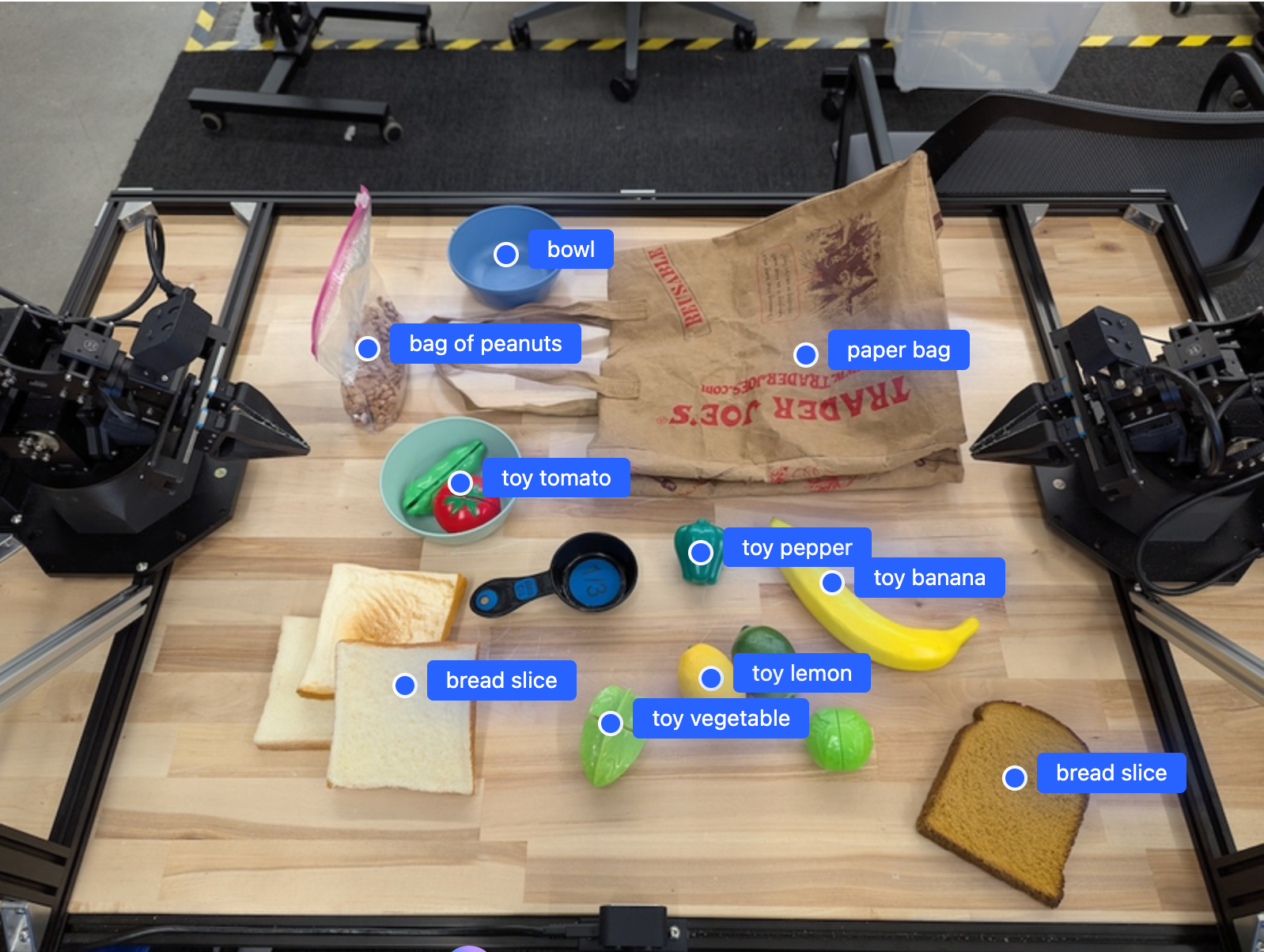
Wynikiem będzie tablica JSON zawierająca obiekty, z których każdy ma point
(znormalizowane [y, x] współrzędne) i label identyfikującą obiekt.
JSON
[
  {"point": [376, 508], "label": "small banana"},
  {"point": [287, 609], "label": "larger banana"},
  {"point": [223, 303], "label": "pink starfruit"},
  {"point": [435, 172], "label": "paper bag"},
  {"point": [270, 786], "label": "green plastic bowl"},
  {"point": [488, 775], "label": "metal measuring cup"},
  {"point": [673, 580], "label": "dark blue bowl"},
  {"point": [471, 353], "label": "light blue bowl"},
  {"point": [492, 497], "label": "bread"},
  {"point": [525, 429], "label": "lime"}
]
Poniższy obraz przedstawia przykład wyświetlania tych punktów:
Śledzenie obiektów w filmie
Gemini Robotics ER 2 może też analizować klatki filmu, aby śledzić obiekty w czasie. Listę obsługiwanych formatów wideo znajdziesz w sekcji Dane wejściowe wideo.
Python
from google import genai

client = genai.Client()

uploaded_file = client.files.upload(file="my-video.mp4")

prompt = """
          Point to the red ball in every frame where it appears.
          The answer should follow the json format: [{"point": [y, x],
          "label": <label>}, ...]. The points are in [y, x] format
          normalized to 0-1000. Return one entry per frame that contains
          the object.
        """

image_response = client.interactions.create(
  model="gemini-robotics-er-2-preview",
  input=[
    {
        "type": "video",
        "uri": uploaded_file.uri,
        "mime_type": uploaded_file.mime_type
    },
    {"type": "text", "text": prompt}
  ],
)

print(image_response.output_text)
Wykrywanie obiektów i ramki ograniczające
Oprócz punktów możesz poprosić model o zwrócenie 2D ramek ograniczających, które zapewniają więcej szczegółów przestrzennych wykrytych obiektów.
Python
from google import genai

client = genai.Client()

uploaded_file = client.files.upload(file="my-image.png")

prompt = """
          Detect all objects in this image and return bounding boxes.
          The answer should follow the JSON format:
          [{"label": <label>, "y": <y_min>, "x": <x_min>,
            "y2": <y_max>, "x2": <x_max>}, ...]
          where coordinates are normalized to 0-1000.
        """

image_response = client.interactions.create(
  model="gemini-robotics-er-2-preview",
  input=[
    {
        "type": "image",
        "uri": uploaded_file.uri,
        "mime_type": uploaded_file.mime_type
    },
    {"type": "text", "text": prompt}
  ],
)

print(image_response.output_text)
Trajektorie
Gemini Robotics ER 2 może generować sekwencje punktów, które definiują trajektorię, co jest przydatne do kierowania ruchem robota.
Ten przykład zawiera prośbę o wyznaczenie trajektorii, która pozwoli przenieść czerwony długopis do organizera, w tym o oszacowanie pośrednich punktów trasy. Kod został skrócony, aby pokazać tylko prompt.
Python
prompt = """
          Generate a trajectory for the robotic arm to pick up the red pen
          and place it in the organizer. Return a list of waypoints as JSON:
          [{"step": <int>, "point": [y, x], "action": <description>}, ...]
          where coordinates are normalized to 0-1000.
        """
Tworzenie miejsca na laptopa
Ten przykład pokazuje, jak Gemini Robotics ER może rozumować o przestrzeni. Prompt prosi model o określenie, który obiekt należy przesunąć, aby zrobić miejsce na inny element.
Python
from google import genai

client = genai.Client()

uploaded_file = client.files.upload(file="path/to/image-with-objects.jpg")

prompt = """
          Point to the object that I need to remove to make room for my laptop
          The answer should follow the JSON format: [{"point": <point>,
          "label": <label1>}, ...]. The points are in [y, x] format normalized to 0-1000.
        """

image_response = client.interactions.create(
  model="gemini-robotics-er-2-preview",
  input=[
    {
        "type": "image",
        "uri": uploaded_file.uri,
        "mime_type": uploaded_file.mime_type
    },
    {"type": "text", "text": prompt}
  ],
)

print(image_response.output_text)
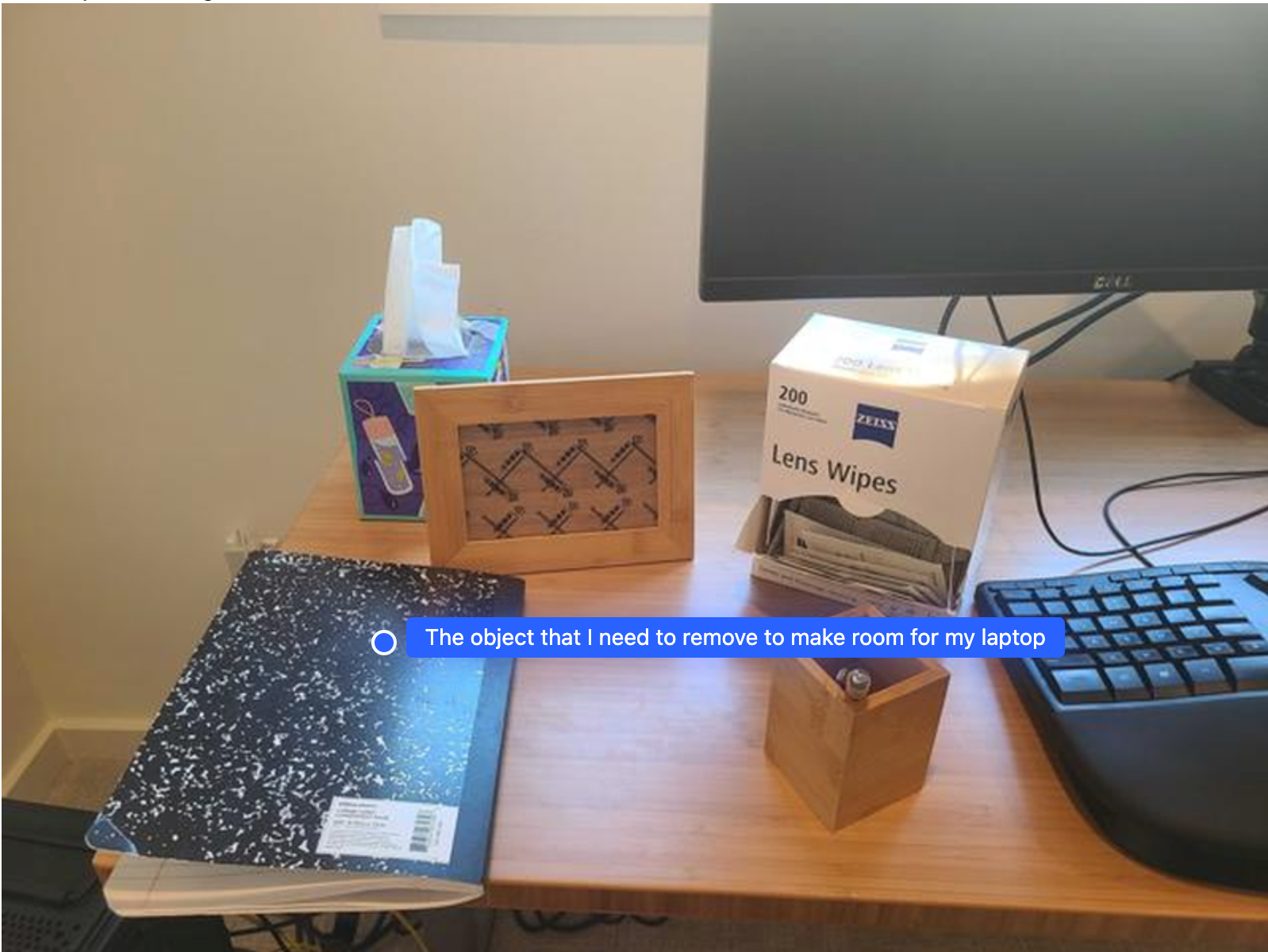
Odpowiedź zawiera współrzędne 2D obiektu, który odpowiada na pytanie użytkownika, w tym przypadku obiektu, który powinien się przesunąć, aby zrobić miejsce na laptopa.
[
  {"point": [672, 301], "label": "The object that I need to remove to make room for my laptop"}
]
Pakowanie lunchu
Model może też podawać instrukcje dotyczące zadań wieloetapowych i wskazywać odpowiednie obiekty na każdym etapie. Ten przykład pokazuje, jak model planuje serię czynności, aby spakować lunch.
Python
from google import genai

client = genai.Client()

uploaded_file = client.files.upload(file="path/to/image-of-lunch.jpg")

prompt = """
          Explain how to pack the lunch box and lunch bag. Point to each
          object that you refer to. Each point should be in the format:
          [{"point": [y, x], "label": }], where the coordinates are
          normalized between 0-1000.
        """

image_response = client.interactions.create(
  model="gemini-robotics-er-2-preview",
  input=[
    {
        "type": "image",
        "uri": uploaded_file.uri,
        "mime_type": uploaded_file.mime_type
    },
    {"type": "text", "text": prompt}
  ],
)

print(image_response.output_text)
Odpowiedzią na ten prompt jest zestaw instrukcji krok po kroku, jak spakować lunch na podstawie obrazu wejściowego.
Obraz wejściowy
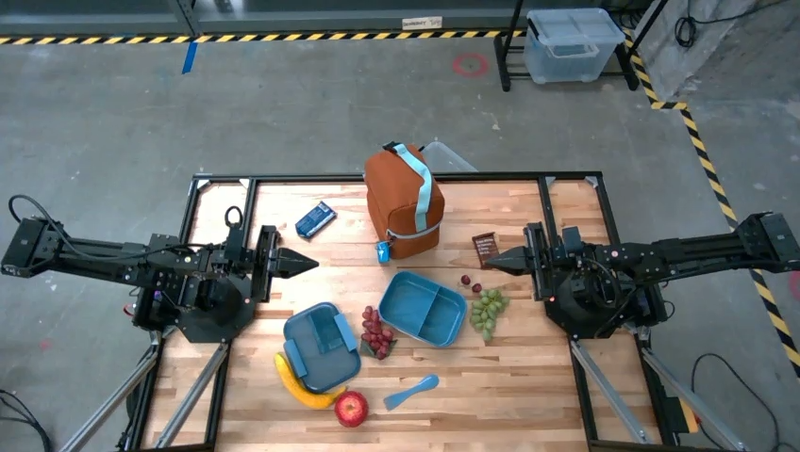
Dane wyjściowe modelu
Based on the image, here is a plan to pack the lunch box and lunch bag:

1.  **Pack the fruit into the lunch box.** Place the [apple](apple), [banana](banana), [red grapes](red grapes), and [green grapes](green grapes) into the [blue lunch box](blue lunch box).
2.  **Add the spoon to the lunch box.** Put the [blue spoon](blue spoon) inside the lunch box as well.
3.  **Close the lunch box.** Secure the lid on the [blue lunch box](blue lunch box).
4.  **Place the lunch box inside the lunch bag.** Put the closed [blue lunch box](blue lunch box) into the [brown lunch bag](brown lunch bag).
5.  **Pack the remaining items into the lunch bag.** Place the [blue snack bar](blue snack bar) and the [brown snack bar](brown snack bar) into the [brown lunch bag](brown lunch bag).

Here is the list of objects and their locations:
*   [{"point": [899, 440], "label": "apple"}]
*   [{"point": [814, 363], "label": "banana"}]
*   [{"point": [727, 470], "label": "red grapes"}]
*   [{"point": [675, 608], "label": "green grapes"}]
*   [{"point": [706, 529], "label": "blue lunch box"}]
*   [{"point": [864, 517], "label": "blue spoon"}]
*   [{"point": [499, 401], "label": "blue snack bar"}]
*   [{"point": [614, 705], "label": "brown snack bar"}]
*   [{"point": [448, 501], "label": "brown lunch bag"}]
Co dalej?
- Możliwości agenta – wykonywanie kodu, odczytywanie danych z instrumentów, dodawanie adnotacji do obrazów.
- Orkiestracja zadań – zadania długoterminowe z niestandardowymi interfejsami API robota.
- Robotyka ze strumieniowaniem – dwukierunkowe strumieniowanie w czasie rzeczywistym (tylko Gemini Robotics ER 2).
- Rozumienie treści wideo – znajdowanie momentów i klasyfikowanie postępów (tylko Gemini Robotics ER 2).